
Choosing one notes app when you use both iPhone and Android
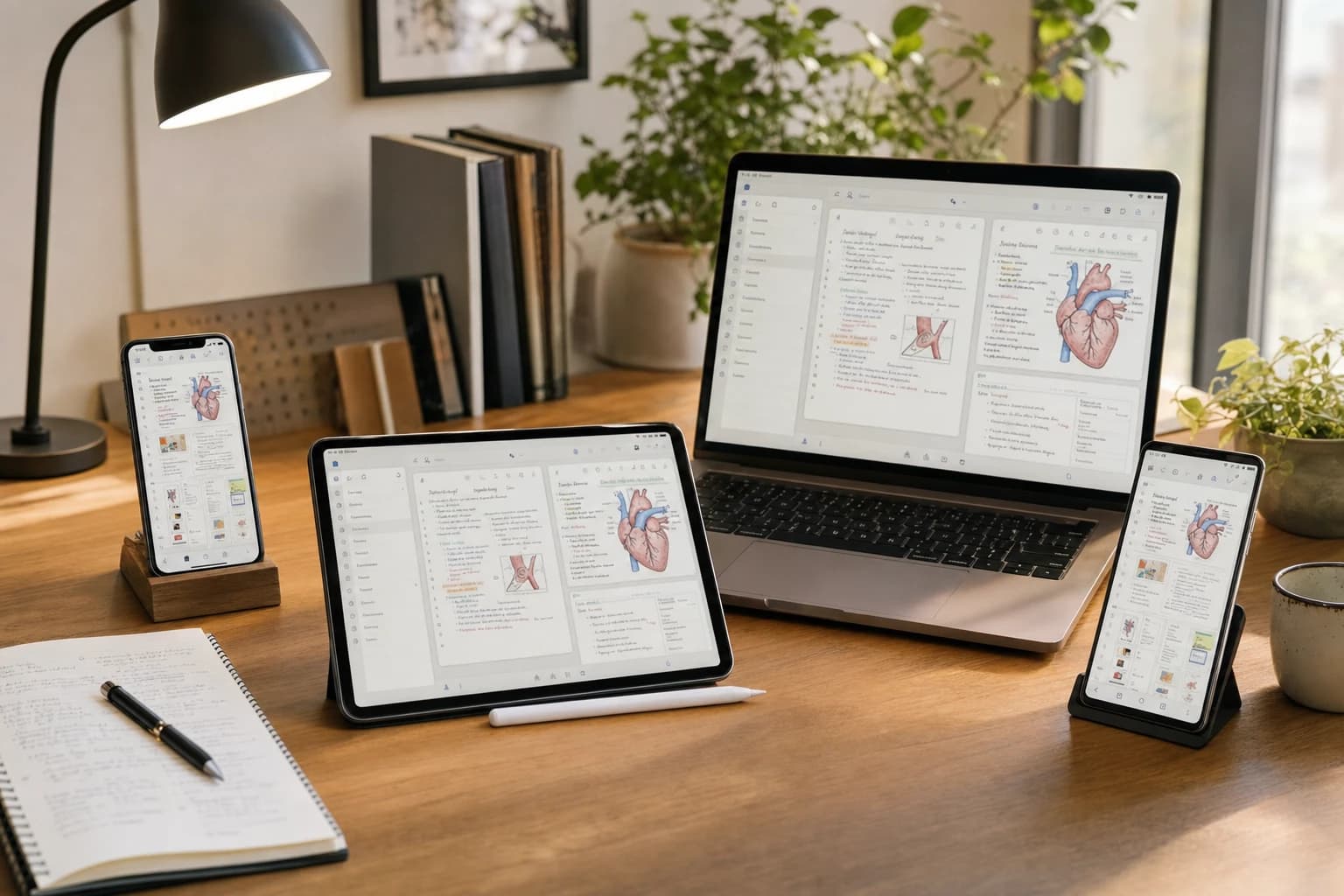
If your school life is split between an iPhone, an Android phone, a tablet, and maybe a shared laptop, the wrong notes app becomes annoying fast. A good student notes app should open quickly before a lecture starts, sync reliably after class, handle PDFs or images when needed, and not trap your work on one device brand.
This guide compares the best note taking apps for students iPhone and Android users should consider, with a focus on real study situations: lecture notes, handwritten notes, PDF annotation, flashcard workflows, offline access, group projects, storage limits, subscription pressure, and privacy. It is not a ranking based on fake testing or invented reviews; it is a practical decision guide based on each app’s publicly available features and common student use cases.
Quick answer: the best cross-platform notes apps by student type
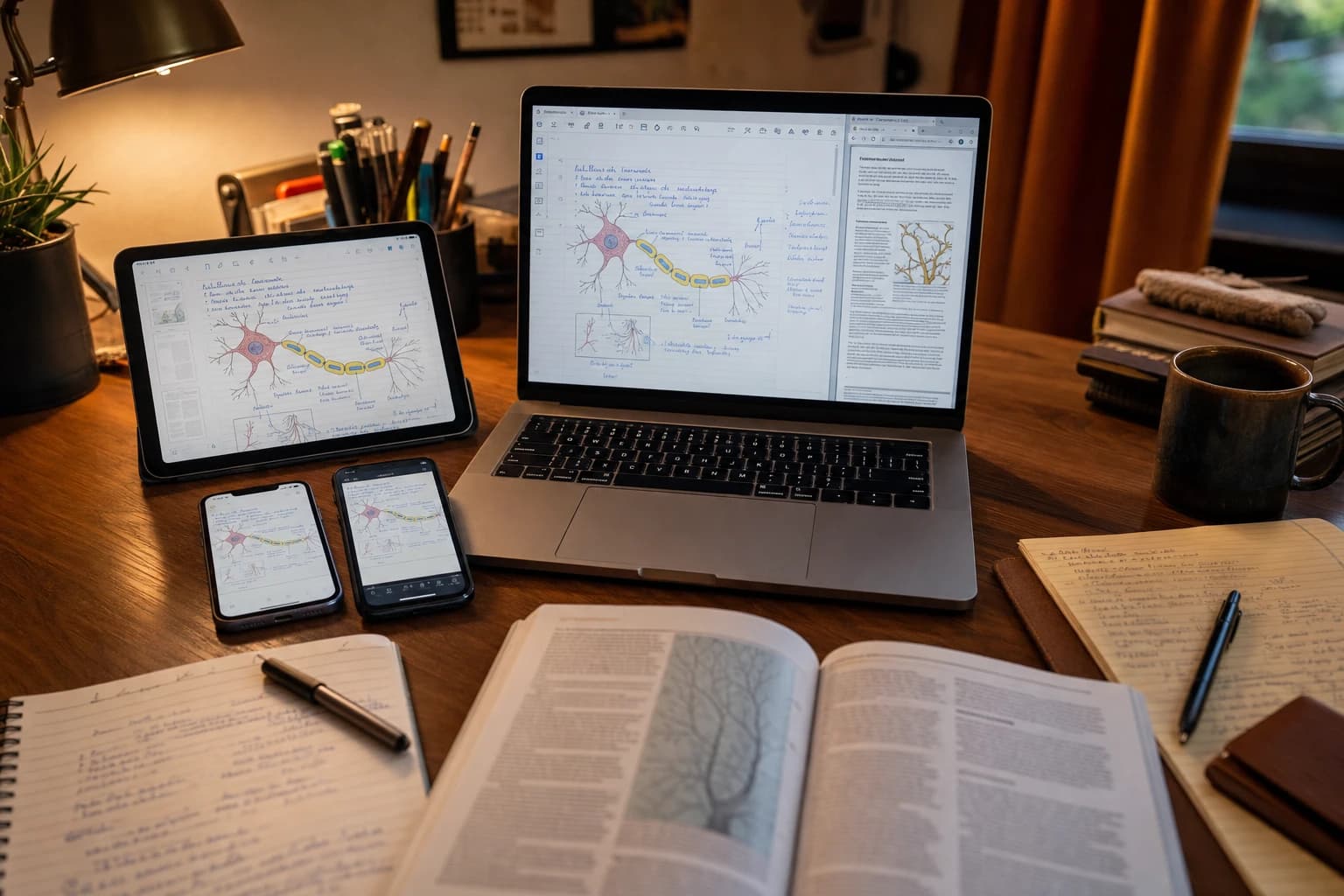
The best app depends on how you study. For most students who need dependable class notes across iPhone, Android, Windows, Mac, and the web, Microsoft OneNote is the safest starting point. It supports typed notes, handwriting, images, audio, and PDF printouts, and it works well with school Microsoft accounts.
- Best overall for lectures and mixed notes: Microsoft OneNote.
- Best for college dashboards, databases, and project planning: Notion.
- Best for web clipping and research archives: Evernote, if the current plan limits fit your budget.
- Best for quick reminders and simple capture: Google Keep.
- Best for privacy-focused or local-first students: Obsidian, Joplin, or Standard Notes.
- Best lightweight visual notebook: Zoho Notebook.
If you only want one recommendation: choose OneNote for school notes, Notion for organizing classes and projects, and Obsidian or Joplin if privacy and ownership matter more than polished collaboration.
Comparison table: features students should check before choosing
Students often compare apps by design, but the more important question is what happens during a normal school week. Can you take notes offline in a lecture hall with bad Wi-Fi? Can you open the same notes on Android after typing them on iPhone? Can you export your work before graduation?
| Criteria | OneNote | Notion | Evernote | Google Keep | Obsidian | Joplin | Standard Notes | Zoho Notebook |
|---|---|---|---|---|---|---|---|---|
| Best student use | Lecture notes, handwriting, class binders | Dashboards, databases, group planning | Research capture, web clips, document archive | Quick notes, reminders, small lists | Linked notes, long-term knowledge base | Private markdown notes with sync options | Encrypted personal notes and journals | Simple visual notebooks and cards |
| iPhone and Android support | Yes | Yes | Yes | Yes | Yes | Yes | Yes | Yes |
| Cloud sync | Uses OneDrive or Microsoft account | Built-in account sync | Built-in account sync | Uses Google account | Optional paid Obsidian Sync or third-party methods | Multiple sync targets, including Joplin Cloud and self-hosted options | Built-in encrypted sync | Built-in account sync |
| Offline access | Good after notebooks are synced to the device | Limited compared with local-first apps | Depends on plan and device settings | Good for simple notes already on device | Strong because notes are local files | Strong after sync setup | Good for synced notes on device | Good for basic notebooks |
| Handwriting and stylus | Strong on tablets; useful for diagrams and math | Weak; mostly typed content | Basic attachments and scanning, not a handwriting-first app | Basic drawing note support | Not handwriting-first | Not handwriting-first | Not handwriting-first | Basic drawing/sketch support |
| PDF workflow | Can insert PDFs as printouts and annotate | Can store/embed files, but not a dedicated PDF annotator | Good for storing and searching documents, plan limits matter | Poor for serious PDF study | Good for linking PDFs; annotation depends on plugins or external apps | Can attach PDFs; annotation is not the main strength | Good for private storage, depending on plan features | Can attach files, but not ideal for heavy PDF markup |
| Collaboration | Good with shared notebooks | Very strong for group pages and project spaces | Useful, but plan limits matter | Simple note sharing | Not the main strength | Not the main strength | Limited compared with Notion or OneNote | Basic sharing |
| Privacy angle | Cloud-based Microsoft account; review school account rules | Cloud workspace; not ideal for highly private journals | Cloud-based; check account and plan settings | Google account data policies apply | Local-first; privacy depends on chosen sync method | Supports end-to-end encryption for sync | Designed around end-to-end encrypted notes | Cloud-based account sync |
| Pricing pressure | Free app, storage tied to OneDrive plan | Free plan works for many individuals; paid plans unlock more workspace features | Free plan has become restrictive for many users; check current plan limits | Free with Google account storage | Free local app; paid official sync is optional | Free app; paid cloud or self-hosting may be used for sync | Free basic plan; paid plans unlock advanced features | Free plan available; paid options exist for more features |
For broader note organization ideas beyond school, see Kez10’s guide to best note-taking apps for searchable, organized notes.
Notion vs OneNote vs Evernote for students
The most common student comparison is Notion vs OneNote vs Evernote. They overlap, but they are not built for the same job.
Choose OneNote if your notes look like a real notebook
OneNote is strong when your notes are messy in a good way: typed lecture points, professor diagrams, photos of the board, equations, screenshots, and PDF handouts. Its notebook-section-page structure maps well to school. For example, you might create one notebook called Biology 101, sections for Lectures, Labs, Assignments, and Exam Review, then pages for each week.
It also suits students who use a stylus. On a tablet, OneNote can feel closer to a digital binder than a document editor. The trade-off is that large notebooks can take time to sync, and the interface can feel less tidy than Notion.
Choose Notion if your schoolwork is a system
Notion is best when you want a command center: class pages, assignment trackers, reading databases, group project pages, and weekly planning. A college student could build a semester dashboard with one database for assignments, one for readings, and one for exams. You can filter assignments by course or due date and link meeting notes to a project page.
The downside is live note-taking. Notion is not as comfortable for fast handwriting, math notation, or annotating PDFs during class. It also depends more heavily on cloud access than local-first apps, so students with unreliable internet should plan carefully.
Choose Evernote if you collect a lot of outside material
Evernote’s strength has traditionally been capture: web clips, scanned handouts, receipts, images, and searchable documents. That can help research-heavy students who gather articles, source screenshots, and reading notes across many classes. However, Evernote’s free plan limitations and paid tiers have changed over time, so students should check the official Evernote plan comparison before committing a semester of work to it.
A simple rule: OneNote is the binder, Notion is the dashboard, and Evernote is the archive.
Pricing, storage, and sync: what students should watch
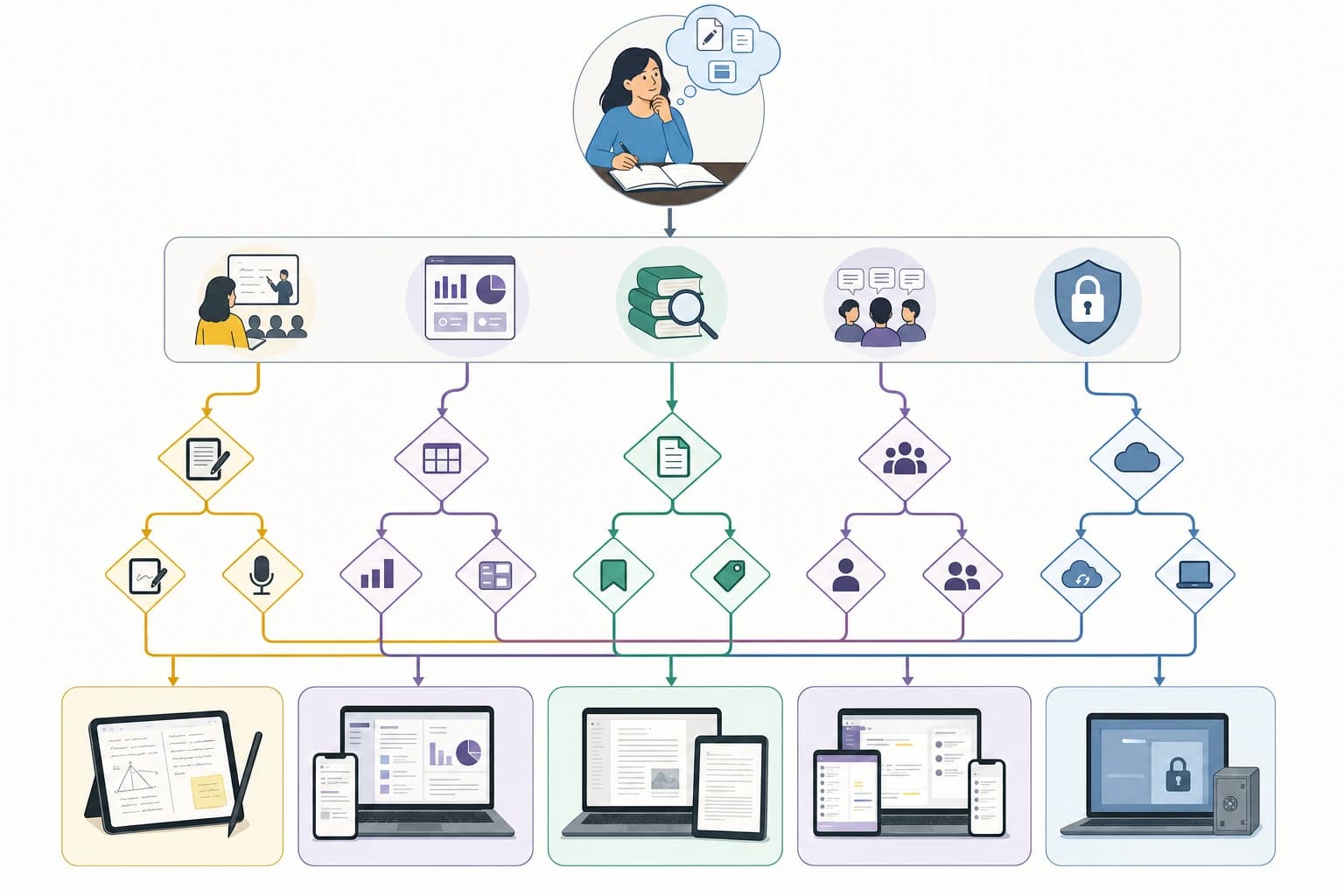
Free plans are useful, but students should look beyond the word free. Notes apps usually become expensive or frustrating in one of four places: storage, file upload size, number of synced devices, collaboration features, or offline access.
Two exact storage facts are worth knowing. Google says every Google Account includes 15 GB of storage shared across Google Drive, Gmail, and Google Photos; this matters if you use Google Keep alongside Drive files and email attachments. Microsoft’s consumer OneDrive storage starts with a free allowance and expands through paid Microsoft 365 plans; check Microsoft’s official storage pages for your region before relying on large PDF-heavy notebooks. See Google’s official Google storage explanation and Microsoft’s OneDrive storage and billing help for current details.
For students, the practical question is not only how many gigabytes you get. A semester of typed notes is tiny. The storage problem usually comes from scanned textbooks, lecture recordings, large slide decks, and PDF handouts. If you plan to annotate every lecture PDF, cloud storage becomes important much sooner.
How to avoid paying too early
- Store large textbooks and lecture recordings in a cloud drive, then link to them from your notes instead of duplicating them.
- Use a dedicated folder structure for each semester: Courses, PDFs, Assignments, Exams, and Archive.
- Compress scanned PDFs when possible before adding them to a note app.
- Check whether your school provides Microsoft 365 or Google Workspace storage before buying a personal subscription.
- Export important notes at midterm and finals so you are not trapped by a plan change.
If your issue is managing files rather than writing notes, Kez10’s guide to organizing cloud storage securely has principles that also work for student folders.
Privacy: which note apps are better for sensitive student notes?
Privacy needs vary. Class notes about chemistry are different from therapy reflections, immigration documents, financial aid information, or private journal entries. For ordinary lecture notes, mainstream cloud apps may be acceptable. For sensitive notes, look for end-to-end encryption, local storage, export options, and clear account recovery rules.
End-to-end encryption means the content is encrypted before it leaves your device, and the service provider should not be able to read the note contents. This can improve privacy, but it also means you may lose access if you forget your password or recovery method.
- Standard Notes is built around encrypted notes and is a strong option for private journals, personal plans, and sensitive writing.
- Joplin supports end-to-end encryption for synced notes; its official documentation explains how E2EE works and how to enable it: Joplin end-to-end encryption help.
- Obsidian stores notes as local Markdown files. Privacy depends on where you store and sync the vault. Obsidian Sync is a paid official option, while third-party cloud sync requires careful setup.
- OneNote, Notion, Evernote, Google Keep, and Zoho Notebook are convenient cloud services, but they are not usually chosen as the most private option for highly sensitive personal notes.
For a deeper privacy mindset around note tools, you may also find the Kez10 article on choosing AI note-taking apps without risking privacy useful, even though it focuses on meetings rather than school.
Best app recommendations by student workflow
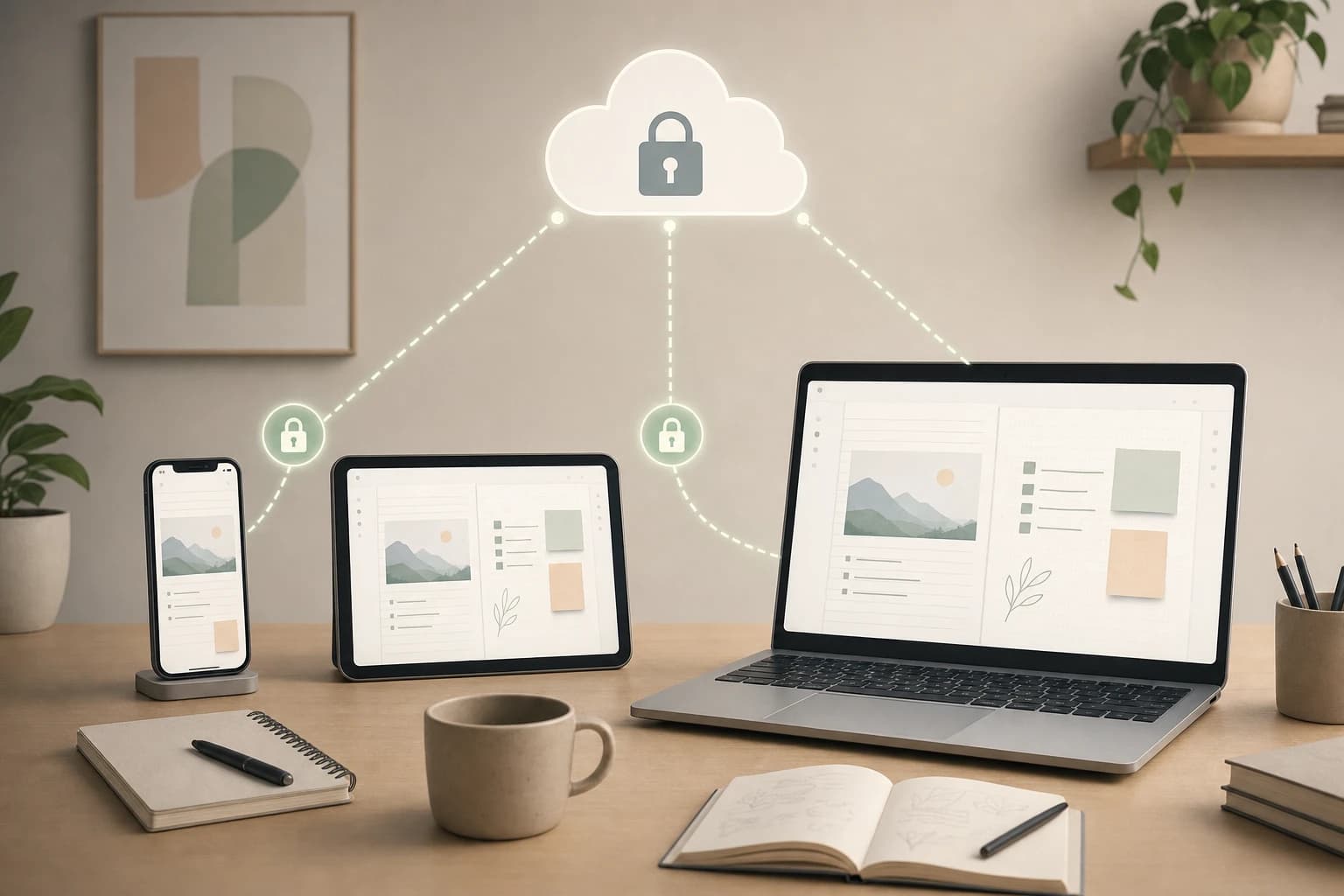
For handwritten note-takers
Start with OneNote. It is the most practical cross-platform choice for handwriting, typed notes, and diagrams in one place. It works especially well if you use a tablet with a stylus. If your handwriting workflow is mostly on an iPad, apps like Goodnotes or Notability may feel better for handwriting, but they are not as straightforward when Android phone access is equally important.
Recommended setup: create one notebook per semester, one section per course, and one page per lecture. Insert PDF handouts as printouts only when you actually need to mark them up; otherwise, link to the file in cloud storage.
For minimalists
Choose Google Keep if you need fast capture, reminders, short checklists, and simple ideas. It is not the best notes app for college students who need long lecture notes, but it is excellent as an inbox. Use labels such as Biology, Admin, Errands, and Exam Ideas. Move important long-form notes later into OneNote, Notion, Joplin, or Obsidian.
Simplenote is another minimalist option worth considering if you want plain text, tags, and sync without a heavy workspace.
For research-heavy students
Choose Evernote, Obsidian, or Notion, depending on how you think. Evernote is good for collecting external material. Obsidian is excellent for connecting ideas over time, especially for humanities, law-adjacent, philosophy, history, and thesis work. Notion is strong when research is tied to tasks, deadlines, and group deliverables.
A useful research workflow is: save the source, write a short summary in your own words, add a citation link, then create a separate exam or essay note that connects the best ideas. Do not rely only on screenshots; they are harder to search and cite later.
For collaborative project teams
Choose Notion for group project management or OneNote for shared class notebooks. Notion is better when the team needs task owners, statuses, deadlines, meeting notes, and shared resources. OneNote is better when everyone needs to add messy notes, sketches, and class material quickly.
Before a group project starts, agree on one rule: where final information lives. Many teams lose time because the plan is in Notion, files are in Google Drive, chats are in WhatsApp, and professor feedback is buried in email. Pick one home base and link everything else from there.
A simple 30-minute setup plan for any notes app
Difficulty: easy. Time needed: 20 to 30 minutes. Tools: your iPhone, your Android device, your school email if available, one sample PDF, and your current class schedule.
- Install the app on both phones. Sign in with the same account and confirm that one test note appears on both devices.
- Create three top-level areas. Use Current Semester, Personal Admin, and Archive. Avoid creating ten folders on day one.
- Add one notebook or page per course. Use consistent names such as BIO101 - Biology or HIST210 - Modern Europe.
- Test offline access. Open a note, turn on airplane mode, edit one sentence, then reconnect and confirm it syncs correctly.
- Import one sample PDF. Try highlighting, annotating, or linking it. If the app feels awkward with PDFs, use a separate PDF annotator and link the file.
- Create a weekly review page. Add headings for unfinished notes, assignments, exam dates, and questions for professors.
- Set an export reminder. Once per month, export or back up important notes in PDF, Markdown, or the app’s supported format.
Common mistakes to avoid
- Choosing the prettiest app instead of the most reliable one. A beautiful dashboard does not help if you cannot take notes quickly during class.
- Putting everything into one endless page. Long pages become hard to review. Split notes by lecture, week, topic, or exam unit.
- Ignoring export options. Before using an app for a full degree, check how you can export notes if you graduate, lose access to a school account, or switch apps.
- Uploading private documents without checking privacy settings. Sensitive notes deserve a privacy-first app or at least a separate encrypted storage plan.
- Relying on screenshots for serious study. Screenshots are useful in the moment but weaker for search, quoting, summarizing, and flashcard creation.
- Using too many apps at once. A good system usually has one main notes app, one task app or calendar, and one cloud storage location.
Flashcard workflows: how notes become exam review
The best notes app is not only where you store information; it should help you turn class material into review. Most students do better with a simple workflow than with a complicated template.
For OneNote, create an Exam Review page at the end of each course section. After every lecture, copy only the key questions, formulas, definitions, or confusing points into that page. For Notion, use a database with fields such as Topic, Course, Exam, Confidence, and Review Date. For Obsidian or Joplin, use Markdown headings and tags such as #exam1 or #needs-review.
If you use a dedicated flashcard app such as Anki or Quizlet, keep your notes app as the source of truth and export only the final prompts. A good flashcard is usually a question, not a copied paragraph. For example, instead of saving a whole slide about cellular respiration, create a card that asks: What are the three main stages of cellular respiration?
FAQ
What is the best free note-taking app for students on iPhone and Android?
For most students, OneNote is the best free starting point because it supports typed notes, handwriting, images, and cross-platform sync. Google Keep is better for quick notes, but it is too simple for full lecture notebooks.
Is Notion good for taking lecture notes?
Notion is good for organized typed notes, class dashboards, and assignment tracking. It is less ideal for fast handwriting, math-heavy subjects, and live PDF annotation during lectures.
Which app is best for private note taking on mobile?
Standard Notes, Joplin, and Obsidian are better choices for privacy-focused students. Standard Notes emphasizes encrypted notes, Joplin supports end-to-end encryption for sync, and Obsidian stores notes locally unless you choose a sync method.
Can I use Apple Notes if I also have an Android phone?
Apple Notes is excellent inside the Apple ecosystem, but it does not offer the same full Android app experience as true cross-platform tools. If Android access matters every week, choose OneNote, Notion, Evernote, Google Keep, Joplin, Obsidian, Standard Notes, or Zoho Notebook instead.
Should I keep PDFs inside my notes app?
Keep small handouts inside your notes app if you annotate them often. For large textbooks, lecture recordings, and many slide decks, store them in cloud storage and link to them from your notes to avoid storage and sync problems.
Final recommendation
If you want the safest cross-platform answer, start with OneNote. It handles the widest range of student note styles and works on both iPhone and Android without forcing you into one device brand. If your main need is planning and group projects, choose Notion. If privacy and ownership matter most, choose Joplin, Obsidian, or Standard Notes. If you only need quick capture, use Google Keep.
The best system is the one you can keep using during a busy week. Pick one main app, set up a simple course structure, test offline sync before classes get intense, and schedule regular exports so your notes stay useful long after the semester ends.