
The hardest part of digital note-taking is not writing the note. It is finding the right note two weeks, two months, or two semesters later.
This guide focuses on the best note taking app for organized notes when retrieval matters: lecture notes you need before an exam, meeting decisions you need before a client call, project references you clipped from the web, or ideas you want to reuse instead of rewriting from memory.
Rather than ranking apps by the longest feature list, this article compares the practical details that affect daily use: search quality, folders versus tags, templates, offline access, web clipping, device sync, collaboration, and whether the app can support a long-term knowledge system without becoming a junk drawer.
Quick answer: the best note-taking apps by use case
If you want the short version, these are the strongest choices for most students and remote workers:
- Best all-around for searchable class and work notes: Microsoft OneNote. It is especially useful if you think in notebooks, sections, and pages, or if you already use Microsoft 365 at school or work.
- Best for structured project notes and team workflows: Notion. It works well when notes need databases, status fields, content calendars, task views, or shared team pages.
- Best for web clipping and saved reference material: Evernote. It remains a strong option for people who collect articles, receipts, PDFs, meeting notes, and research snippets in one searchable library.
- Best for long-term personal knowledge management: Obsidian. It is a strong fit if you want local Markdown files, backlinks, and a system that can last beyond one company account.
- Best simple free option for quick capture: Google Keep or Apple Notes. These are not as powerful as the others, but they are fast, low-friction, and good for lightweight reminders and small notes.
The right choice depends less on which app is fashionable and more on how you search. If you usually remember the class, client, or project name, a notebook-based tool may be enough. If you remember fragments such as a quote, a deadline, a tag, or a person, search and metadata matter much more.
What makes a note app good for organized notes?
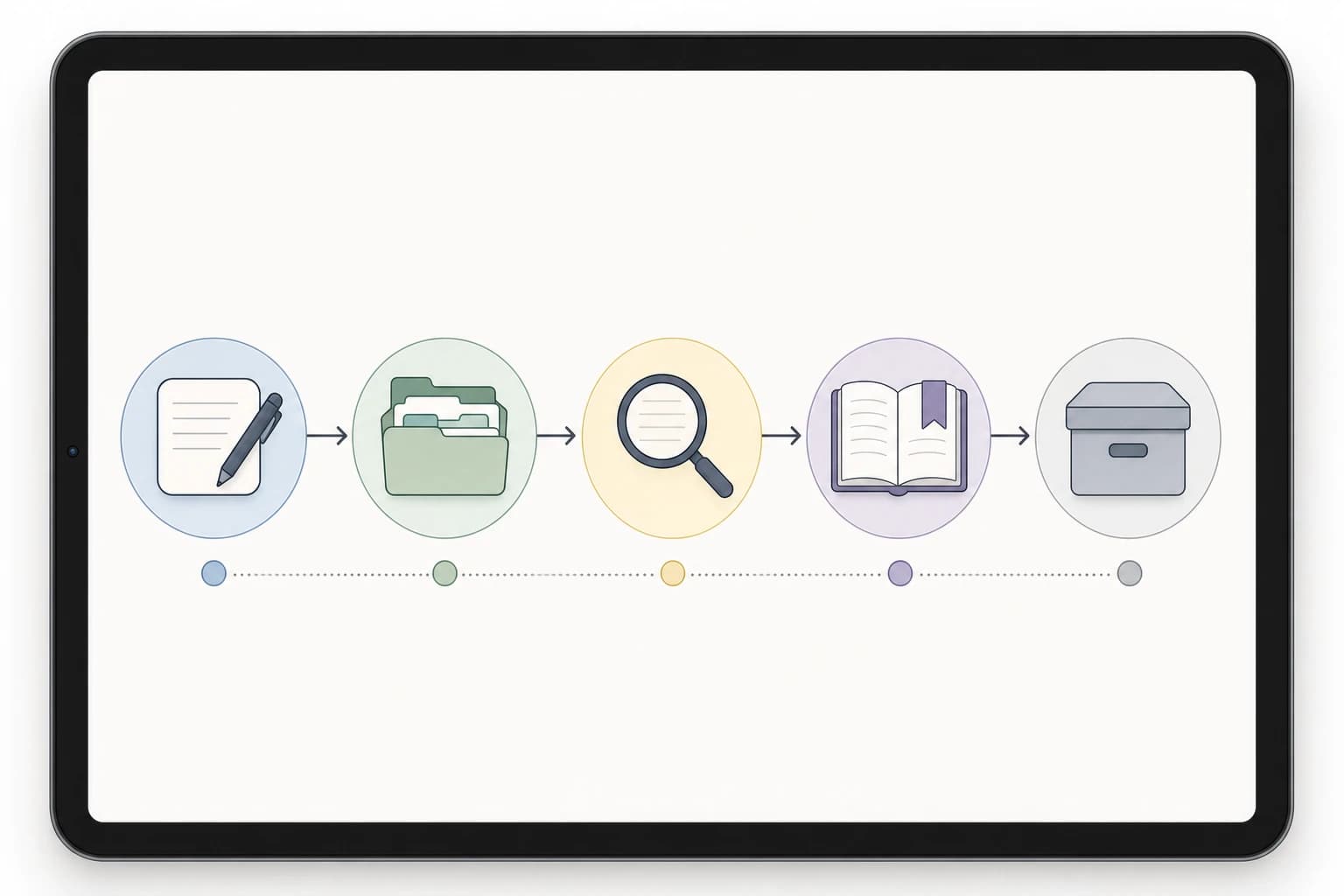
A searchable note taking app needs to do more than store text. It should support a reliable path from capture to retrieval. That means your system should answer three questions quickly:
- Where should this note go? The app needs folders, notebooks, pages, databases, tags, or another structure that feels natural.
- How will I find this later? Search should work across titles and body text. For some users, searching PDFs, handwriting, images, or web clips is also important.
- Can I trust this system long term? You need sync, export options, offline access where necessary, and a maintenance routine so the app does not become cluttered.
Official product pages are useful for checking current platform support and feature availability before choosing. For example, Microsoft describes OneNote as a cross-device digital notebook on its official OneNote page, Notion explains its workspace model on the Notion product page, and Obsidian describes its local Markdown-based approach on Obsidian.md. Features and plan limits can change, so always confirm current details on the official site before committing a school year or work archive to one tool.
Comparison table: best note-taking apps for retrieval
The table below compares the apps by the criteria that matter when your notes need to be searchable and reusable, not just attractive.
| App | Best fit | Organization style | Search and retrieval strengths | Watch-outs |
|---|---|---|---|---|
| Microsoft OneNote | Students, teachers, remote workers using Microsoft 365 | Notebooks, sections, section groups, pages, subpages | Natural notebook layout; good for lecture notes, meeting pages, screenshots, handwriting, and mixed media | Large notebooks can feel messy without naming rules; page hierarchy is flexible but can become inconsistent |
| Notion | Remote teams, project managers, students who like dashboards | Pages, databases, properties, views, templates | Excellent for structured notes that need statuses, dates, owners, relations, and reusable templates | Can become over-designed; offline use and very quick capture may not suit everyone |
| Evernote | People who save web research, documents, and mixed reference material | Notebooks, stacks, tags, saved searches | Strong for collecting and searching clipped web pages, documents, notes, and reference files | Free and paid plan limits change over time; heavy users should check current limits before migrating |
| Obsidian | Writers, researchers, advanced students, knowledge-management users | Local folders, Markdown files, tags, backlinks, links between notes | Excellent for connected thinking, permanent notes, and long-term ownership of plain-text files | Requires more setup; sync and publishing may need paid services or manual configuration |
| Apple Notes | Students and workers inside the Apple ecosystem | Folders, smart folders, tags, pinned notes | Fast capture on iPhone, iPad, and Mac; good enough for many personal and class notes | Less ideal for mixed-device teams or complex project databases |
| Google Keep | Quick reminders, short lists, lightweight capture | Labels, colors, pinned notes | Very fast for short notes, checklists, and reminders connected to a Google account | Not designed for deep archives, long documents, or complex digital note organization |
| Joplin | Privacy-conscious users who want open-source notes | Notebooks, sub-notebooks, tags, Markdown | Good for users who want Markdown, export flexibility, and control over sync choices | Interface and collaboration features may feel less polished than mainstream commercial tools |
Notion vs OneNote vs Evernote: which is better for organized notes?
The most common comparison is Notion vs OneNote vs Evernote, and each app solves a different kind of note problem.
Choose OneNote if your notes resemble binders
OneNote is often the easiest choice for students because its structure mirrors school organization. You can create a notebook for a semester, a section for each course, and pages for lectures, assignments, readings, lab notes, or exam review. A remote worker can use the same model: one notebook for work, sections for clients or departments, and pages for meetings or project notes.
The benefit is low friction. You do not have to design a database before taking notes. You can type, paste screenshots, draw on a tablet, add meeting notes, and arrange content freely on the page. This is helpful for classes such as biology, design, math, engineering, or any subject where diagrams and handwritten annotations matter.
The risk is clutter. If you create pages called Notes, Class, Meeting, and Ideas over and over, search results become noisy. OneNote works best when you use predictable page titles such as 2026-02-12 Biology Lecture - Cell Membranes or Client A - Weekly Sync - 2026-02-12.
Choose Notion if your notes need structure and views
Notion is strongest when a note is part of a larger workflow. A student might create a database for course readings with properties for course, due date, status, exam relevance, and summary. A remote worker might create a project hub with meeting notes, task lists, decision logs, client documents, and a timeline view.
This structure makes retrieval powerful because you are not relying only on full-text search. You can filter by client, course, status, date, owner, or content type. For example, a marketing freelancer could filter a notes database to show only Client B + Approved Ideas + Q2 Campaign. A graduate student could filter by Research Method + Statistics + Needs Review.
The downside is that Notion can tempt users into building elaborate dashboards instead of taking useful notes. If you spend more time adjusting icons, covers, and database views than reviewing your material, the system is too heavy.
Choose Evernote if you collect lots of external material
Evernote is a practical choice for people who capture information from many sources: articles, PDFs, meeting agendas, screenshots, receipts, travel documents, and research notes. Its notebook and tag model is easy to understand, and its web clipping history makes it attractive for reference-heavy workflows.
For students, Evernote can work well for research papers, literature reviews, and reading notes. For remote workers, it can serve as a searchable filing cabinet for client references, call notes, saved examples, and project documents.
The main caution is to check current plan limits and pricing before building a large archive. If you need many devices, large uploads, or advanced features, verify the details on Evernote's official plan pages rather than relying on old reviews.
Best note taking apps for students
The best note taking apps for students are the ones that support review. A student note is not finished when the lecture ends; it needs to help with assignments, quizzes, exams, and final projects.
Best student pick: OneNote
OneNote is a strong default for students because it handles typed notes, pasted slides, screenshots, handwriting, and freeform layouts. If your school uses Microsoft 365, it may also fit naturally into your existing account. It is especially useful for subjects where notes do not fit into plain paragraphs.
A simple student setup could look like this:
- Notebook: Spring 2026
- Sections: Biology 101, Statistics, English Composition, Economics
- Pages: Date + topic, such as 2026-03-04 Statistics - Confidence Intervals
- Subpages: Homework, exam review, lab notes, or reading summaries
This creates predictable search paths. If you search confidence intervals, you can find the lecture page. If search results are crowded, you can narrow your search by notebook or section.
Best student pick for research: Zotero plus a notes app
Zotero is not a general note-taking app in the same way as OneNote or Notion, but students writing research papers should consider using it alongside their notes. It helps manage academic sources and citations, while your main notes app can hold summaries, outlines, and project planning. This separation prevents your note app from becoming a messy citation database.
Best student pick for connected ideas: Obsidian
Obsidian is better for students who want to build a long-term knowledge base across courses. Instead of keeping every class isolated, you can link ideas across subjects. For example, a psychology student might connect notes on memory, attention, learning theory, and study methods. A computer science student might link data structures, algorithms, programming patterns, and project notes.
Obsidian has a learning curve, so it is not the fastest option before an exam tomorrow. But for students who write essays, conduct research, or plan graduate study, plain-text notes and links can become valuable over several years.
Best notes app for remote workers
The best notes app for remote workers depends on the kind of work you need to remember. Remote work creates many small information trails: chat decisions, video-call action items, client preferences, links, recordings, project updates, and onboarding instructions.
Best remote work pick: Notion
Notion is often the best notes app for remote workers when notes need to connect with projects. It can hold a team wiki, meeting notes, standard operating procedures, project trackers, content calendars, and decision logs in one workspace.
A useful remote-work structure is a Decision Log database. Each entry should include:
- Decision: a one-sentence summary
- Date: when the decision was made
- Project or client: the related workstream
- Owner: who is responsible
- Reason: why the team chose it
- Links: meeting notes, briefs, or source documents
This helps prevent the common remote-work problem where decisions disappear into chat threads. If someone asks why a deadline changed or why a design direction was approved, the answer is searchable.
If you are preparing for remote roles and want to improve your overall workflow, you may also find How to Prepare for a Remote Job Interview and the LinkedIn Profile Checklist for Remote Job Seekers useful.
Best remote work pick for meeting-heavy roles: OneNote or Evernote
If you attend many calls and need quick notes more than structured dashboards, OneNote and Evernote may feel faster than Notion. Create one page per meeting, title it with the date and meeting name, and use consistent headings:
- Agenda
- Key points
- Decisions
- Action items
- Questions to follow up
This structure makes notes skimmable and searchable. It also gives you a clean way to copy action items into a task manager afterward.
A practical setup for searchable digital note organization
You do not need a complicated system. In fact, simple systems are easier to maintain. Use this setup if you want organized notes within one hour.
Tools needed
- Time: 45 to 60 minutes for setup
- Difficulty: Easy
- Materials: one note-taking app, your laptop or tablet, your calendar, and 10 recent notes or documents to organize
Step-by-step setup
- Pick one primary app. Do not split class notes across OneNote, work notes across Notion, and random ideas across five other tools unless you have a clear reason. Choose one main place for serious notes.
- Create top-level containers. Students can use semester or degree program. Remote workers can use company, clients, departments, or projects.
- Use a title formula. A reliable format is YYYY-MM-DD - Subject - Topic. Example: 2026-04-10 - Client A - Launch Review.
- Add one retrieval line at the top. Write a short summary in plain language: This note explains why we moved the launch date to May 15 and who owns each next step. This line gives search more useful words to find.
- Limit tags to 5 to 12 active tags. Good tags describe status or use, such as exam-review, waiting, decision, idea, source, template, or client-reference. Too many tags become another clutter problem.
- Create templates for repeat notes. Use separate templates for lecture notes, reading notes, meeting notes, project briefs, and weekly reviews.
- Schedule a 15-minute weekly cleanup. Rename vague notes, move loose notes into the right folder, add missing tags, and archive items you no longer need.
Folders versus tags versus links: which organization method should you use?
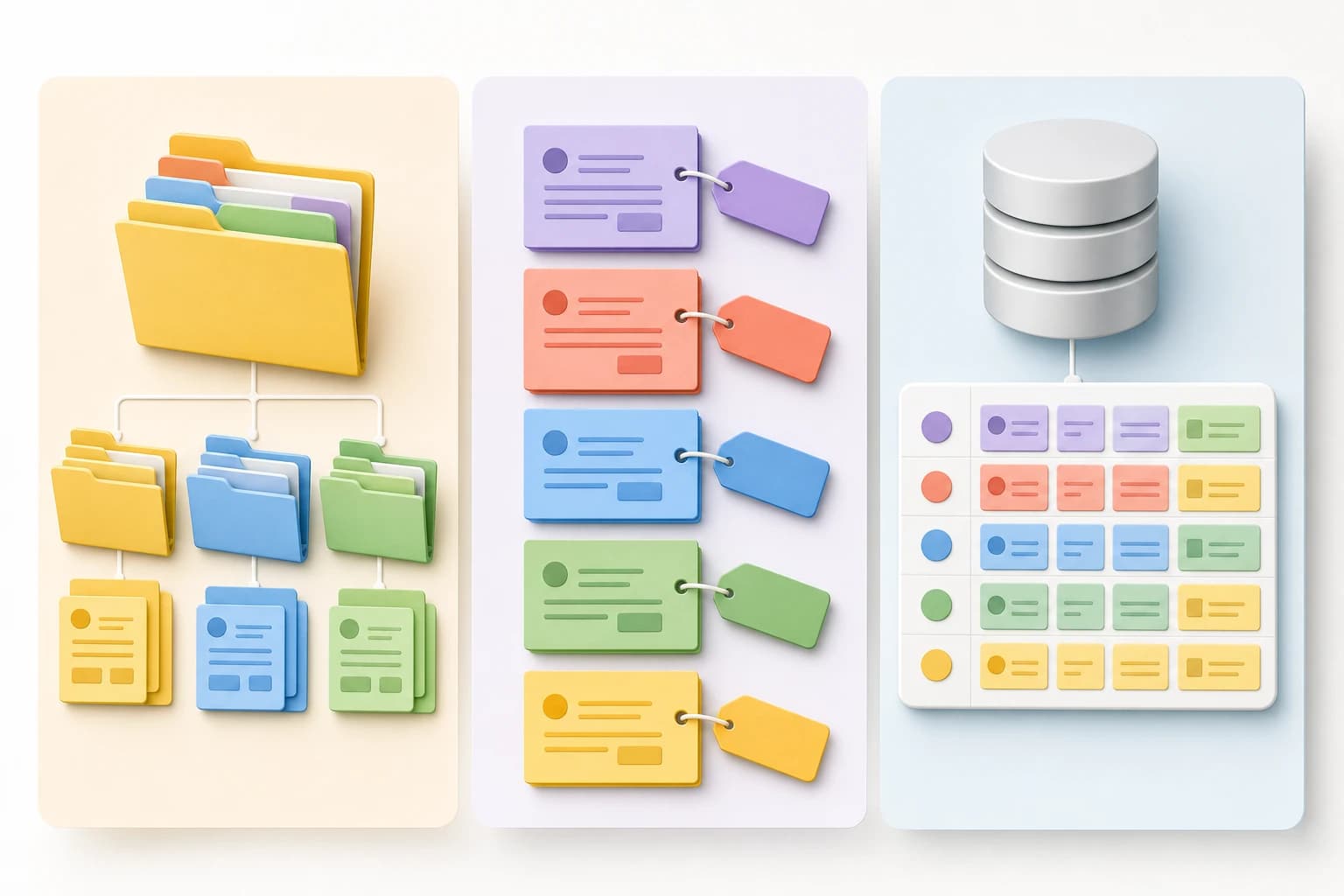
Folders, tags, and links are not interchangeable. Each answers a different retrieval question.
Folders answer: where does this belong?
Folders and notebooks are best for stable categories. A course, client, project, semester, or department usually makes a good folder. The advantage is clarity. The drawback is that one note may belong in more than one place.
Tags answer: what is this used for?
Tags are best for status, context, and reuse. A note in a Statistics folder might also be tagged exam-review, formula, and needs-practice. A client note might be tagged decision, invoice, or follow-up.
A common mistake is using tags as duplicate folders. If you already have a folder called Biology, you probably do not need a Biology tag unless your app relies mostly on tags.
Links answer: how is this connected?
Links and backlinks are helpful for long-term knowledge management. They are especially useful in Obsidian and Notion. Instead of only storing a note under one topic, you can connect it to related ideas. A note about deep work might link to time blocking, distraction management, remote work routines, and exam preparation.
If you are also building career materials, a linked note system can help you reuse project examples in resumes and interviews. For that broader workflow, see How to Rewrite Your Resume for Applicant Tracking Systems Without Making It Sound Robotic.
Features that matter more than flashy design
Beautiful note apps are pleasant, but retrieval depends on practical features. Before choosing, check these areas.
Search quality
Search should be fast and predictable. Test the app with your own words before committing. Create a note with a unique phrase, a PDF or image if you use those, a tag, and a title. Then search for each item. If the app cannot find the way you naturally remember information, it will frustrate you later.
Offline access
Offline access matters for students commuting, traveling, attending classes in buildings with weak Wi-Fi, or working from shared spaces. Some apps offer stronger offline behavior than others, and plan limitations may vary. Check the official help pages for your device type before relying on an app during exams, flights, or fieldwork.
Web clipping
Web clipping is important if you save research, recipes, design inspiration, policy pages, articles, or examples. Evernote is well known in this category, while Notion and OneNote also have clipping options. The key is not just capturing the page but naming it properly. A clipped page titled only Article is hard to find later.
Sync reliability
Good sync prevents duplicate notes and missing updates. If you work across phone, tablet, and laptop, test whether changes appear quickly and clearly. Also check what happens when two devices edit the same note. For high-stakes school or work notes, export important materials periodically.
Collaboration
For remote teams, collaboration can matter more than personal organization. Look for comment support, page permissions, version history, and clear sharing controls. A private journal and a team wiki should not live under the same loose permissions.
Export and long-term access
Long-term knowledge management requires an exit plan. Can you export your notes? Are files stored in a common format such as Markdown, PDF, HTML, or plain text? If your app account disappeared or your school email closed after graduation, how would you keep your notes?
Common mistakes that make notes hard to find
- Using vague titles. Notes called Meeting, Lecture, Ideas, or Draft force you to open too many results.
- Saving everything without summaries. A one-sentence summary can make a note dramatically easier to search later.
- Creating too many tags. If you have 80 tags and use most of them once, tags are no longer helping.
- Building dashboards before habits. A simple system you use daily beats a perfect dashboard you abandon.
- Mixing tasks and notes without boundaries. Notes explain information; tasks tell you what to do next. Some apps handle both, but the distinction still matters.
- Ignoring backups and exports. Important notes deserve a backup plan, especially when they belong to school, client, or career work.
Recommended app choices by workflow
Use the following recommendations as a practical decision guide.
If you are a student with mixed notes, choose OneNote
OneNote is forgiving. You can type, draw, paste, organize by class, and keep everything in a school-like structure. It is a strong starting point for most students who want searchable notes without designing a complex system.
If you are a remote worker managing projects, choose Notion
Notion is strongest when notes, projects, tasks, and documentation need to connect. It can be too much for simple notes, but it is excellent for project hubs, decision logs, meeting databases, and team knowledge bases.
If you save a lot from the web, choose Evernote
Evernote is a good fit for people who collect reference material and need to retrieve it later. It is less about building a project operating system and more about maintaining a searchable personal archive.
If you want a long-term personal knowledge base, choose Obsidian
Obsidian is ideal if you care about ownership, Markdown files, links, and knowledge that can grow over years. It requires more discipline, but it is powerful for research, writing, and connected thinking.
If you only need quick capture, use Apple Notes or Google Keep
Not every note deserves a database. Grocery lists, quick reminders, temporary ideas, and short checklists are often better in a simple app. The important part is moving long-term notes into your main system during a weekly cleanup.
FAQ
What is the best note taking app for organized notes overall?
For most people, OneNote is the safest all-around choice because it is flexible, familiar, and works well for class notes and meeting notes. Notion is better if you need databases and team workflows, while Obsidian is better for long-term linked knowledge.
What is the most searchable note taking app?
There is no single winner for every file type and workflow. Evernote is strong for saved reference material, OneNote is strong for notebook-style mixed notes, Notion is strong when notes are organized with properties and filters, and Obsidian is strong for plain-text linked notes. Test search with your own real notes before migrating.
Should students use folders or tags?
Students should usually start with folders or notebooks for courses and semesters, then add a small number of tags for use cases such as exam-review, assignment, formula, source, or needs-review. This keeps the system simple.
Is Notion better than OneNote for students?
Notion is better for structured study dashboards, reading databases, and assignment trackers. OneNote is better for fast lecture capture, handwritten notes, diagrams, and a traditional binder-like setup. Many students will find OneNote easier at first.
What should remote workers use for meeting notes?
Remote workers who need quick meeting notes can use OneNote or Evernote. Teams that need shared project documentation, decision logs, and workflows may prefer Notion. The best setup uses consistent meeting templates and clear action-item sections.
How do I keep digital notes organized long term?
Use predictable titles, write a one-sentence summary at the top of important notes, limit tags, create templates, and schedule a weekly 15-minute cleanup. Also export or back up important notes so your archive is not locked to one account forever.
Conclusion: choose the app you can search later
The best note-taking app is not the one with the most features. It is the one that helps you capture information quickly, organize it with the least friction, and retrieve it when it matters.
If you want a dependable default, choose OneNote. If your notes are part of project management or team documentation, choose Notion. If your work depends on collecting and searching external reference material, choose Evernote. If you want a long-term personal knowledge system built around linked plain-text notes, choose Obsidian.
Whatever you choose, the system matters as much as the software. Use clear titles, short summaries, a small set of tags, and a weekly cleanup routine. That is what turns a digital notebook into a searchable knowledge base instead of another place where information disappears.