

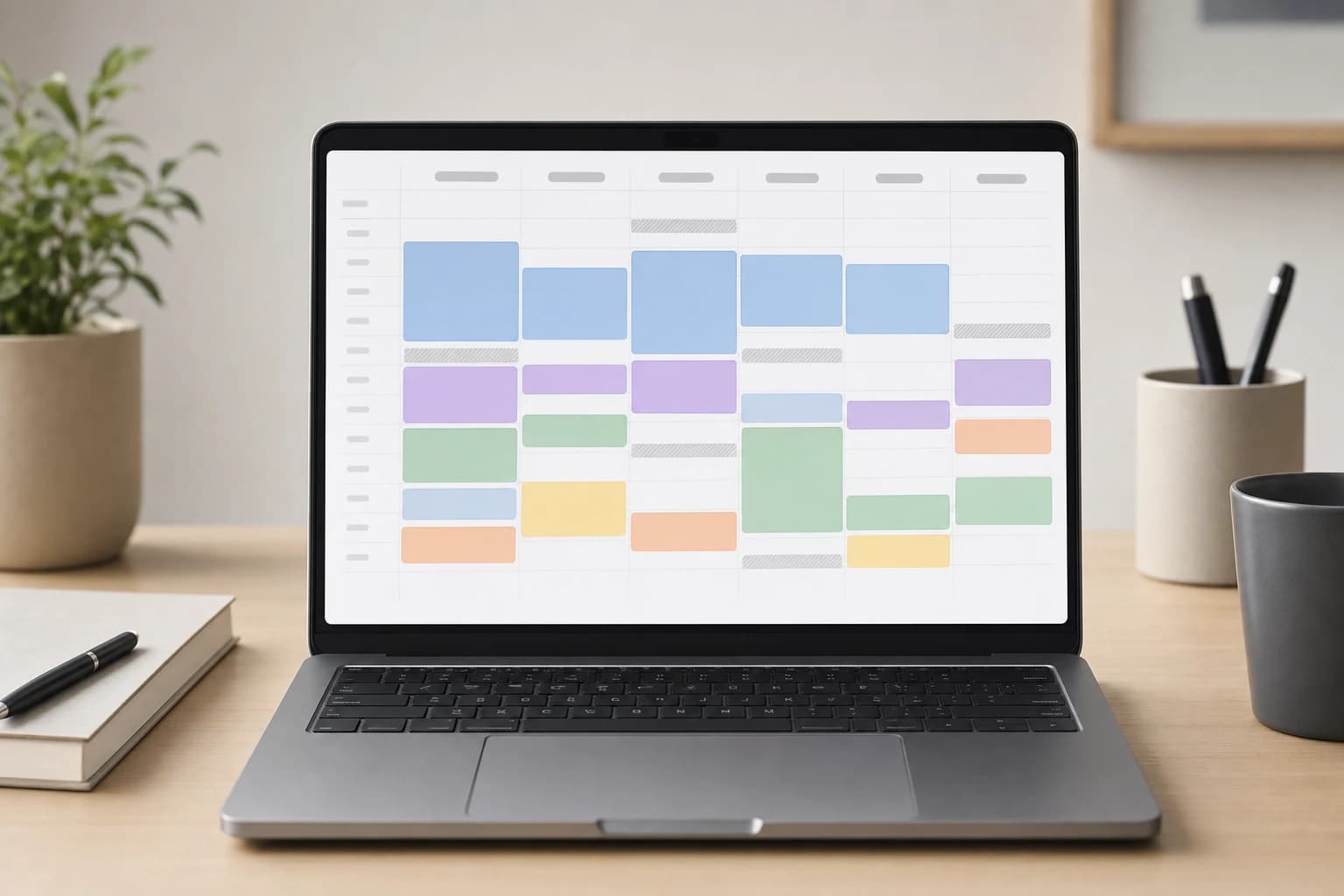
If your week looks organized on Monday but turns chaotic by Wednesday, the problem may not be motivation. It is usually that your calendar shows meetings, but not the work required between them. A weekly time blocking Google Calendar system fixes that by giving deep work, admin tasks, personal commitments, and recovery time an actual place on the calendar.
This guide walks through a realistic setup for busy professionals and freelancers: what to block first, how to color-code it, how to batch admin work, where to add buffers, and how to review the plan without turning your calendar into a rigid prison.
What a weekly time blocking system should do
Time blocking is the practice of assigning a specific type of work to a specific time window. Instead of keeping a long task list and hoping you will find time, you decide when the work will happen.
For professionals and freelancers, the goal is not to fill every minute. A good system should do four things:
- Protect deep work, such as writing, coding, strategy, analysis, design, or proposal work.
- Contain shallow work, such as email, invoicing, scheduling, file cleanup, and small approvals.
- Make meetings visible in context, including preparation and follow-up time.
- Leave enough margin for delays, energy dips, commuting, caregiving, meals, and personal obligations.
Google Calendar is well suited for this because it supports recurring events, separate calendars, event colors, notifications, and calendar sharing. Google explains the basics of creating and editing calendar events in its official Google Calendar Help, which is worth reviewing if you are new to repeats, reminders, or event details.
Tools and setup time
- Tool: Google Calendar on desktop for setup, plus the mobile app for checking during the week.
- Time required: 45 to 60 minutes for the first setup; 20 to 30 minutes for weekly planning after that.
- Difficulty: Easy to moderate. The challenge is not the software; it is making honest choices about capacity.
- Best for: Employees, managers, consultants, freelancers, students with project work, and remote workers.
The weekly structure: a realistic example
Before opening Google Calendar, decide what a normal week needs to contain. A freelancer might need client work, sales outreach, invoicing, learning, and personal errands. A team manager might need project review, one-to-ones, hiring admin, deep planning time, and Slack or email triage.
Here is a realistic pattern for someone who works mostly weekdays and wants protected focus time without ignoring admin tasks:
| Time block | Purpose | Suggested length | Best placement |
|---|---|---|---|
| Weekly planning | Choose priorities and place blocks | 30 minutes | Friday afternoon or Monday morning |
| Deep work | High-value work that needs concentration | 90 to 120 minutes | Morning, or your highest-energy period |
| Admin batch | Email, forms, invoices, scheduling, small replies | 30 to 60 minutes | Late morning and late afternoon |
| Meeting buffer | Prep, notes, bio break, transition time | 10 to 15 minutes | Before or after meetings |
| Review checkpoint | Adjust the plan based on reality | 15 minutes | Midweek and Friday |
| Personal commitments | Exercise, commute, school pickup, meals, appointments | As needed | Block before work expands into it |
The exact hours matter less than the order: fixed commitments first, deep work next, admin batches after that, and buffers everywhere they are needed.
Step-by-step: how to plan your week in Google Calendar
1. Create separate calendars for major life areas
Start by separating your calendar into a few broad categories. In Google Calendar, you can create additional calendars from the settings area on desktop. Keep the list short enough that you will actually use it.
- Work commitments: meetings, deadlines, client calls, team events.
- Focus blocks: deep work sessions and project execution time.
- Admin: email, invoicing, approvals, scheduling, file cleanup.
- Personal: meals, errands, health appointments, family commitments.
If you work for an employer, you may not be able to create every calendar inside the company account. In that case, use event colors instead of separate calendars, or keep personal commitments as private busy blocks.
2. Pick a simple color-coding rule
Color-coding only helps when the meaning is obvious at a glance. Do not assign a different color to every project unless you manage very few projects. For a weekly time blocking Google Calendar setup, color should represent the type of energy required.
| Color category | Use it for | Rule |
|---|---|---|
| Blue | Deep work | No meetings, chat, or inbox unless urgent |
| Green | Meetings and calls | Add agenda or desired outcome in notes |
| Yellow | Admin and small tasks | Batch similar tasks together |
| Purple | Planning and review | Use for weekly plan, midweek check, Friday close |
| Gray | Buffers and breaks | Protect transitions, lunch, commute, recovery |
| Red | Deadlines or immovable commitments | Use sparingly so it stays meaningful |
This makes problems visible. If a week is mostly green, you have a meeting-heavy week. If there is no blue, you have not protected deep work. If there is no gray, the plan is probably too tight.
3. Add fixed commitments first
Put in what cannot move: standing meetings, client calls, school pickup, commuting, medical appointments, class times, and immovable deadlines. If a meeting requires preparation, do not rely on memory. Add a separate 15 to 30 minute prep block directly before it or earlier the same day.
Freelancers should also block business operations that are easy to postpone, such as sending invoices, following up on proposals, and reviewing upcoming project deadlines. If you are job searching alongside work, you can block a weekly career admin session and use it for tasks like updating your profile with a LinkedIn profile checklist for remote job seekers or preparing for interviews with a remote job interview setup checklist.
4. Schedule deep work before admin work
Deep work calendar blocking works best when it receives your strongest attention, not whatever time remains after email. Choose two to five focus sessions for the week. For most people, 90 minutes is long enough to make progress and short enough to defend. If your work is highly complex, use a 120-minute block. If your schedule is meeting-heavy, use 60-minute blocks and protect them aggressively.
Name the block with an outcome, not a vague label. Instead of Focus time, write Draft client proposal section 1, Review Q3 dashboard and write summary, or Build onboarding page wireframe. The calendar block should tell your future self what done looks like.
A practical deep work rule
Limit your first version to one major outcome per deep work block. If a block says strategy, emails, deck, and hiring notes, it is not a deep work block. It is a wish list.
5. Batch admin tasks into two daily windows
Admin work expands when it is scattered. Instead of checking email after every notification, create one or two admin batches. A common pattern is 30 minutes before lunch and 30 minutes near the end of the workday.
Use the event description to list the kinds of tasks allowed during that block:
- Reply to emails that take less than five minutes.
- Send scheduling links and confirm appointments.
- Update invoices, receipts, or time entries.
- Clear small approvals and document requests.
- Move any larger task to a future block instead of doing it immediately.
This is especially useful for time blocking for professionals who need to be responsive but cannot let messages consume the entire day. If you need a faster response window for your role, use three smaller admin blocks instead of keeping the inbox open all day.
6. Add buffers around meetings and context switches
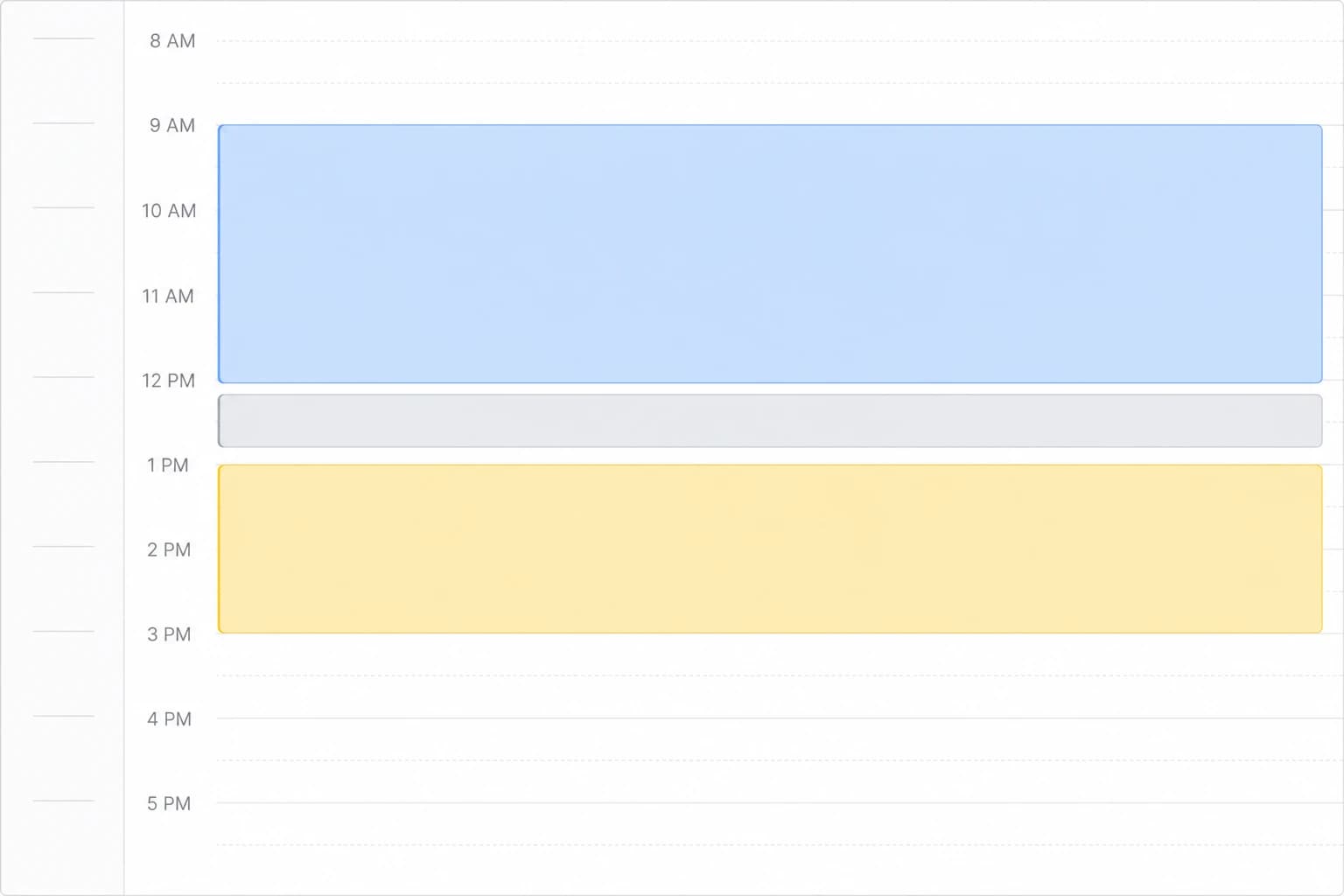
A calendar with back-to-back blocks may look efficient, but it often fails in practice. Add 10 to 15 minute buffers after important meetings, before travel, and between unrelated work modes. A sales call followed immediately by analytical writing is a context switch; give yourself a reset.
Buffers are not wasted time. They absorb overruns, let you write follow-up notes, and prevent one delay from damaging the rest of the day. If your schedule involves commuting, childcare, or unpredictable client calls, use 20 to 30 minute buffers around the most fragile parts of the day.
7. Use recurring blocks, but review them weekly
A time blocking template Google Calendar users can rely on should include recurring events, but not too many. Make your most stable blocks repeat weekly: Monday planning, Tuesday and Thursday deep work, Friday review, daily lunch, and end-of-day admin.
Then, during your weekly review, move or delete blocks that no longer fit. Recurring blocks are a starting template, not a command. If a client workshop lands on Thursday morning, move the deep work block rather than pretending you can do both.
8. Add a midweek checkpoint
Place a 15-minute review block on Wednesday afternoon. Use it to ask three questions:
- What must still be finished this week?
- Which blocks need to move because the week changed?
- What can be reduced, delegated, delayed, or removed?
This checkpoint is what keeps the system human. Without it, time blocking can become a guilt machine: a beautiful Monday plan that becomes irrelevant by Tuesday.
A weekly time blocking template you can copy
Use this as a starting point, then adjust for your working hours and energy. The example assumes a Monday to Friday schedule with the highest focus in the morning.
| Day | Morning | Midday | Afternoon | End of day |
|---|---|---|---|---|
| Monday | 30 min weekly planning, then 90 min deep work | Admin batch and lunch | Meetings or project work with buffers | 30 min inbox and tomorrow setup |
| Tuesday | 120 min deep work | Admin batch | Calls, collaboration, lighter project tasks | Capture loose tasks |
| Wednesday | 90 min deep work | Admin batch and lunch | Meetings plus 15 min midweek review | Update blocks for Thursday and Friday |
| Thursday | 120 min deep work | Admin batch | Client work, review, or team collaboration | Follow-ups and planning notes |
| Friday | Finish priority work | Admin, invoices, documentation | 45 min weekly review and next-week draft | Shutdown block |
The most important part is Friday afternoon. A short review helps you close loops while the week is still fresh. Write down unfinished work, decide what moves to next week, and create placeholder blocks so Monday does not start with a blank page.
Common mistakes that make time blocking fail
Blocking every minute
If your calendar has no white space, the first delay breaks the system. Leave at least a few open pockets each day. Even a highly structured day needs breathing room.
Using blocks as decoration
A focus block is only useful if you treat it like a real appointment. If you routinely schedule over it, shrink the block or move it to a more defendable time.
Mixing deep work and admin
Do not put email inside a writing, planning, coding, or analysis block. The mental mode is different. Keep admin in batches so it does not leak into everything.
Ignoring energy levels
Some people focus best early; others do better later. Your calendar should match your actual energy, not an idealized productivity routine. If mornings are full of family responsibilities, place deep work in the first realistic quiet window.
Forgetting personal commitments
Personal time belongs on the calendar because it affects capacity. Meals, exercise, errands, and rest are not leftover activities. When they are invisible, work expands into them.

How to adapt the system for different work styles
For freelancers
Create separate focus blocks for client delivery, sales, and business admin. Do not let client work occupy every available space. A weekly sales or pipeline block helps prevent the feast-or-famine cycle, while a Friday finance block keeps invoices and receipts from piling up.
For managers
Protect shorter deep work blocks for thinking, feedback, and decision review. Managers often cannot control every meeting, so the key is to reserve preparation and follow-up buffers. A 15-minute note block after one-to-one meetings can prevent action items from disappearing.
For remote workers
Use visible blocks to set expectations. If your team shares calendars, label focus sessions clearly and set your availability accordingly. Remote work also needs shutdown blocks, because the office is always nearby.
For job seekers or career changers
Time block job search activities by type: resume improvements, networking, portfolio work, and applications. If resumes are part of your weekly admin, a focused block can be used with a guide on how to rewrite your resume for ATS without keyword stuffing, rather than trying to improve applications in rushed fragments.
Privacy and sharing notes
If you share your calendar with coworkers or clients, avoid putting sensitive personal details in event titles. Use neutral labels such as Appointment, Busy, or Personal commitment. For confidential work, place details in a private task manager or document instead of a shared calendar description.
FAQ
How many deep work blocks should I schedule each week?
Start with three 90-minute blocks. If you consistently complete them and still have capacity, add another. It is better to protect three real focus sessions than schedule ten that constantly get moved.
Should I use Google Tasks or only Calendar events?
Use Calendar events for time commitments and Google Tasks or another task list for smaller items. A task list tells you what exists; the calendar tells you when important work will happen.
What if my job has unpredictable meetings?
Use shorter focus blocks and place them earlier in the day when possible. Also keep one flexible catch-up block later in the week so a disrupted day does not ruin the entire plan.
Is color-coding necessary?
No, but it helps you see the balance of your week quickly. If colors feel like extra maintenance, use only three: focus, meetings, and admin.
How far ahead should I time block?
Plan one week in detail and keep the following week rough. Detailed plans too far ahead often become outdated, especially if you work with clients or teams.
Conclusion
A strong weekly time blocking Google Calendar system is simple enough to maintain and honest enough to survive real work. Start with fixed commitments, protect deep work, batch admin tasks, add buffers, and review the plan midweek. The point is not to control every minute. The point is to make sure your most important work has a real place to happen.
Build the first version in under an hour, use it for one week, then adjust. After two or three weekly reviews, you will have a time blocking template in Google Calendar that reflects your actual responsibilities, not a perfect schedule that only works on paper.