
Freelance client files can get messy quickly: draft contracts in one folder, logos in another, invoices attached to old emails, and a final delivery link that may still be open months after the project ended. A good cloud setup should make client work easy to find, easy to share, and hard to expose by accident.
This guide explains how to use cloud storage for freelancers client files in a practical way across Google Drive, Dropbox, and OneDrive. It covers how to choose a service, build a reusable folder naming system, set permissions, share files safely, create backups, and adapt the structure for designers, writers, bookkeepers, and consultants.

The short answer: choose one main cloud home, then standardize everything
The best system is not necessarily the cloud service with the longest feature list. For most freelancers, the strongest setup is one main cloud storage account with a consistent folder structure, clear sharing rules, and a separate backup routine.
If you already work deeply in Google Docs, Gmail, and shared Google Sheets, Google Drive is usually the easiest default. If clients send large creative files or you collaborate with people who prefer simple shared links, Dropbox may feel cleaner. If your work depends on Word, Excel, PowerPoint, Outlook, and Windows, OneDrive fits naturally. For a deeper small-team comparison, see Google Drive vs Dropbox vs OneDrive for Small Teams.
The key is to avoid splitting active client work across all three unless a client requires it. Using Google Drive for one client, Dropbox for another, and OneDrive for a third can work, but only if you keep a master index and apply the same naming, permissions, and archiving rules everywhere.
Tools and setup time
- Difficulty: beginner to intermediate.
- Time required: 60 to 90 minutes for the first setup; 10 minutes per new client after that.
- Tools: Google Drive, Dropbox, or OneDrive; a password manager; two-factor authentication; an external drive or second cloud location for backup; a spreadsheet or note for your client file index.
- Best for: freelancers, consultants, solo agencies, bookkeepers, designers, writers, virtual assistants, and other independent professionals handling client documents.
Google Drive vs Dropbox vs OneDrive for freelancers
All three services can handle secure client file storage if you use them carefully. The differences matter most in workflow, client expectations, and how you control sharing. Always check the current official plan pages before choosing, because storage limits, feature names, and business options can change.
| Criteria | Google Drive | Dropbox | OneDrive |
|---|---|---|---|
| Best fit | Freelancers using Gmail, Google Docs, Sheets, Slides, and client collaboration in browser-based files. | Freelancers who share large folders, creative assets, or deliverables with clients who want simple links and syncing. | Freelancers using Microsoft 365 apps such as Word, Excel, PowerPoint, Teams, and Windows File Explorer. |
| Collaboration style | Strong live editing inside Google files; easy commenting and suggestion workflows. | Strong file syncing and link sharing; useful for mixed file types such as PSD, ZIP, video, and PDF. | Strong for Office documents and Windows integration; familiar to clients in corporate environments. |
| Permission approach | File and folder sharing with viewer, commenter, or editor style access. Google explains Drive sharing controls in its official help center: Share files from Google Drive. | Shared links and shared folders with role-based access depending on plan. Dropbox documents its sharing options here: How to share files and folders with Dropbox. | Link and direct sharing with viewing or editing permissions. Microsoft documents OneDrive sharing here: Share OneDrive files and folders. |
| Common freelancer advantage | Fast document creation and easy collaboration without sending multiple attachments. | Clean syncing across devices and straightforward delivery folders for finished files. | Works well when clients expect Word, Excel, or PowerPoint files in Microsoft formats. |
| Common risk | Too many open sharing links or files shared with old Gmail addresses. | Public-style links can be forgotten if you do not review them. | Confusion between personal OneDrive and business Microsoft accounts if you use both. |
| Best habit | Create one folder per client and review shared access monthly. | Use separate folders for working files and final delivery links. | Keep client files under one business account and avoid mixing with personal Windows folders. |
If a client insists on their own platform, treat their folder as the client-owned workspace and keep your own internal notes, templates, and non-client-specific working documents in your main storage system. Do not copy sensitive material into extra locations unless you have a clear reason and permission under your agreement.
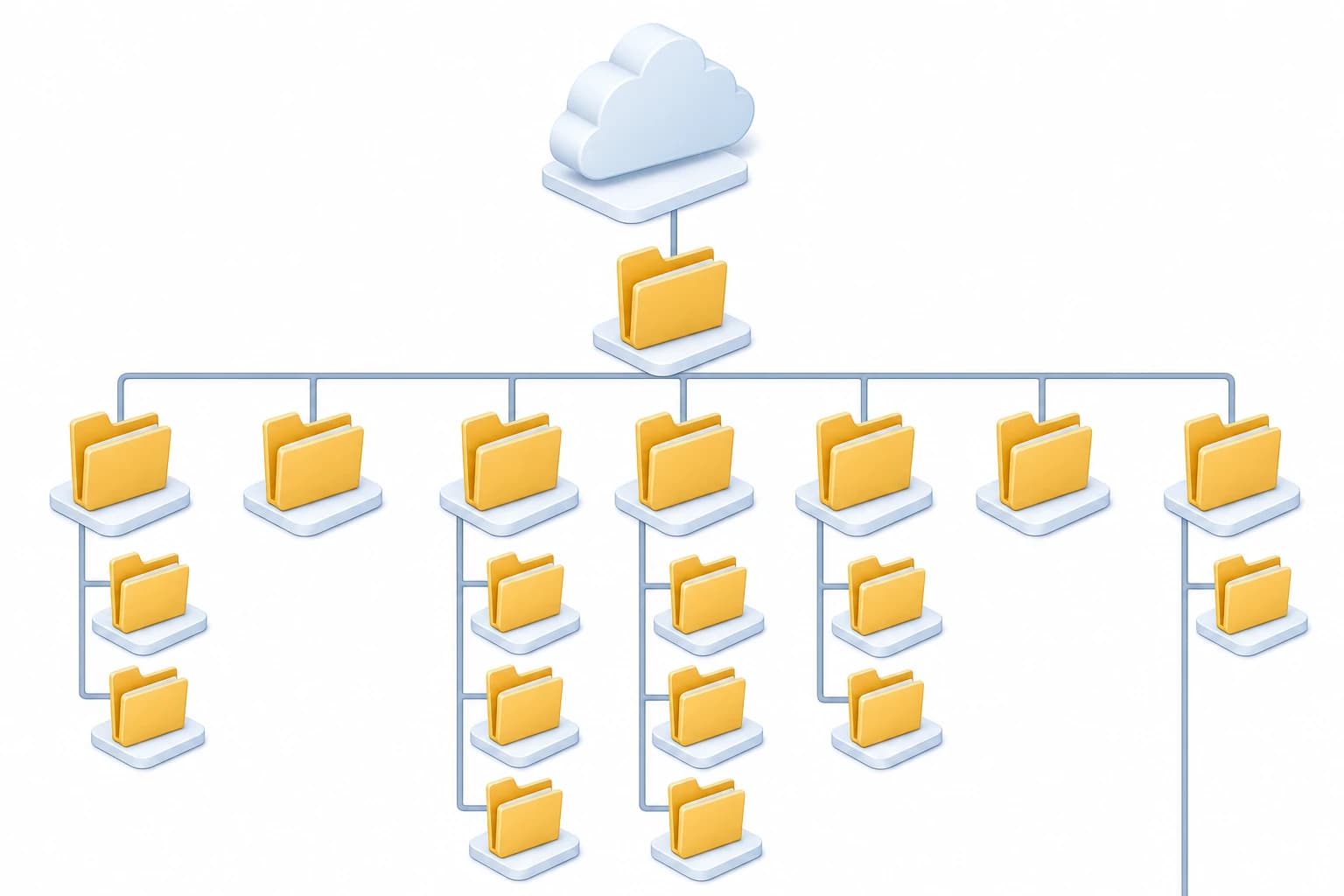
A reusable cloud storage folder structure for client work
The goal of a folder structure is not to make the archive look tidy. It is to reduce decisions. When every client uses the same pattern, you know where to place source files, where to save approvals, and what to delete or archive after delivery.
Use this structure as a starting point:
CLIENTS / ClientName / YYYY-ProjectName / 00_Admin / 01_Brief / 02_Source-Files / 03_Working / 04_Review / 05_Final / 06_Invoices / 99_Archive
Here is what each folder is for:
- 00_Admin: signed agreements, scope notes, onboarding forms, and important contact details. Avoid storing unnecessary sensitive data here.
- 01_Brief: discovery notes, project brief, brand guidelines, creative direction, requirements, and approved scope.
- 02_Source-Files: client-provided images, exports, spreadsheets, audio files, documents, or reference materials.
- 03_Working: your active drafts, editable files, calculations, outlines, and in-progress work.
- 04_Review: files sent to the client for feedback. This folder helps you separate drafts from final delivery.
- 05_Final: approved final files only. Keep this folder clean so you can resend deliverables quickly.
- 06_Invoices: invoices, receipts, payment confirmations, and project expense notes. For a broader routine, see How to Create a Simple Monthly Bookkeeping Routine for a One-Person Business.
- 99_Archive: old versions, completed project material, exported ZIP files, and items you no longer need in active folders.
The numbers are not decorative. They force folders to stay in the same order across Google Drive, Dropbox, OneDrive, and your local computer. That consistency matters when you are tired, working on a deadline, or trying to find a file from a project completed six months ago.
File naming rules that prevent confusion
Folders solve the big picture. File names solve the daily chaos. A good file name should tell you what the file is without opening it.
Use this naming format:
YYYY-MM-DD_Client_Project_DocumentType_Status_v01
Examples:
- 2026-03-12_AcornCo_WebsiteCopy_HomepageDraft_v01
- 2026-03-14_AcornCo_LogoExport_Final_v03
- 2026-03-20_AcornCo_Q1Receipts_ClientUpload_v01
Use dates in the year-month-day format because they sort correctly. Use plain words instead of clever shorthand. Avoid names such as final, final2, real-final, or new-final. If a file is approved, add Final and place it in the final folder. If it is not approved, it belongs in working or review.
Step-by-step: set up a secure client file system
- Create one top-level CLIENTS folder. Do not scatter client folders across your cloud account. Put every active client folder under the same parent folder.
- Create a template folder. Name it _TEMPLATE_Client-Project-Folders. Add the folders 00_Admin through 99_Archive. Duplicate this template for each new client project.
- Separate active clients from archived clients. Use top-level folders such as CLIENTS_Active and CLIENTS_Archived, or keep one CLIENTS folder with an archive subfolder. Choose one method and keep it consistent.
- Turn on two-factor authentication. Cloud storage is only as secure as the account that controls it. The U.S. Cybersecurity and Infrastructure Security Agency recommends multifactor authentication as a key protection against account compromise: CISA guidance on multifactor authentication.
- Use a password manager. Create a unique password for your cloud account. Do not reuse a password from email, banking, social media, or client portals.
- Set a sharing rule before you share anything. For example: client review links expire when the project ends; editor access is used only when the client must change a file; final delivery links are reviewed after 30 days.
- Create a client file index. Use a spreadsheet with columns for client name, storage service, folder link, project status, shared users, last access review date, and archive date.
- Schedule a monthly permission review. Put it on your calendar. If you need a reliable admin routine, the ideas in How to Build a Weekly Time Blocking System in Google Calendar for Deep Work and Admin Tasks can help you protect time for this.
Permission checklist before sharing client files
Most cloud storage problems are not caused by the wrong platform. They come from casual sharing. Before sending a file or folder link, run through this checklist.
- Is this the correct folder? Share the narrowest folder possible. Do not share the whole client root folder if the client only needs the review folder.
- Does the person need view, comment, or edit access? Use view-only access for finished PDFs, exports, reports, and reference material. Use edit access only when collaboration is necessary.
- Is the link limited to specific people? When possible, share with named email addresses instead of anyone-with-the-link access.
- Should the link expire? If your plan supports link expiration, use it for review folders, proposals, and temporary handoffs.
- Can the recipient download, copy, or reshare? Some services and plans let you limit these actions. Use those controls for sensitive work when available.
- Have you removed old collaborators? Former client employees, subcontractors, and temporary reviewers should not keep access forever.
- Is the file appropriate to share under your contract? If a folder contains another client’s material, licensed assets, personal information, or confidential notes, stop and separate the files first.
Important note on sensitive information
This article is practical technology guidance, not legal advice. If you store tax documents, payroll files, health-related information, government IDs, legal records, or regulated client data, ask the client what storage and retention rules apply. Some industries require specific agreements, access controls, audit trails, or approved platforms. Do not assume a standard consumer cloud account is enough for regulated data.
File-sharing do’s and don’ts for freelancers
Good sharing habits protect your reputation and reduce support messages from clients who cannot find the right file.
Do
- Send one clean delivery link. Point clients to the final folder or a single ZIP file, not five separate links across email threads.
- Include a short file guide. A simple note such as Logo_PNG for web use and Logo_SVG for designers prevents confusion.
- Keep client uploads separate. Create a folder named Client Uploads or 02_Source-Files so incoming files do not mix with your drafts.
- Use comments instead of duplicate documents. For Google Docs, Word files, and PDFs, comments keep feedback attached to the right version.
- Confirm final approval in writing. Save that approval email or message in 00_Admin or 04_Review.
Don’t
- Do not send private working folders by default. Clients usually need review files and final deliverables, not every draft, note, and experiment.
- Do not keep public links open indefinitely. Review links should be removed or restricted after the project is complete.
- Do not mix personal and client storage. A family photo folder next to a client tax folder is a sign that your system needs separation.
- Do not rely on email attachments as the archive. Email is hard to organize, easy to search poorly, and often creates version confusion.
- Do not rename shared folders mid-project without warning. Clients may bookmark links or sync folders locally.
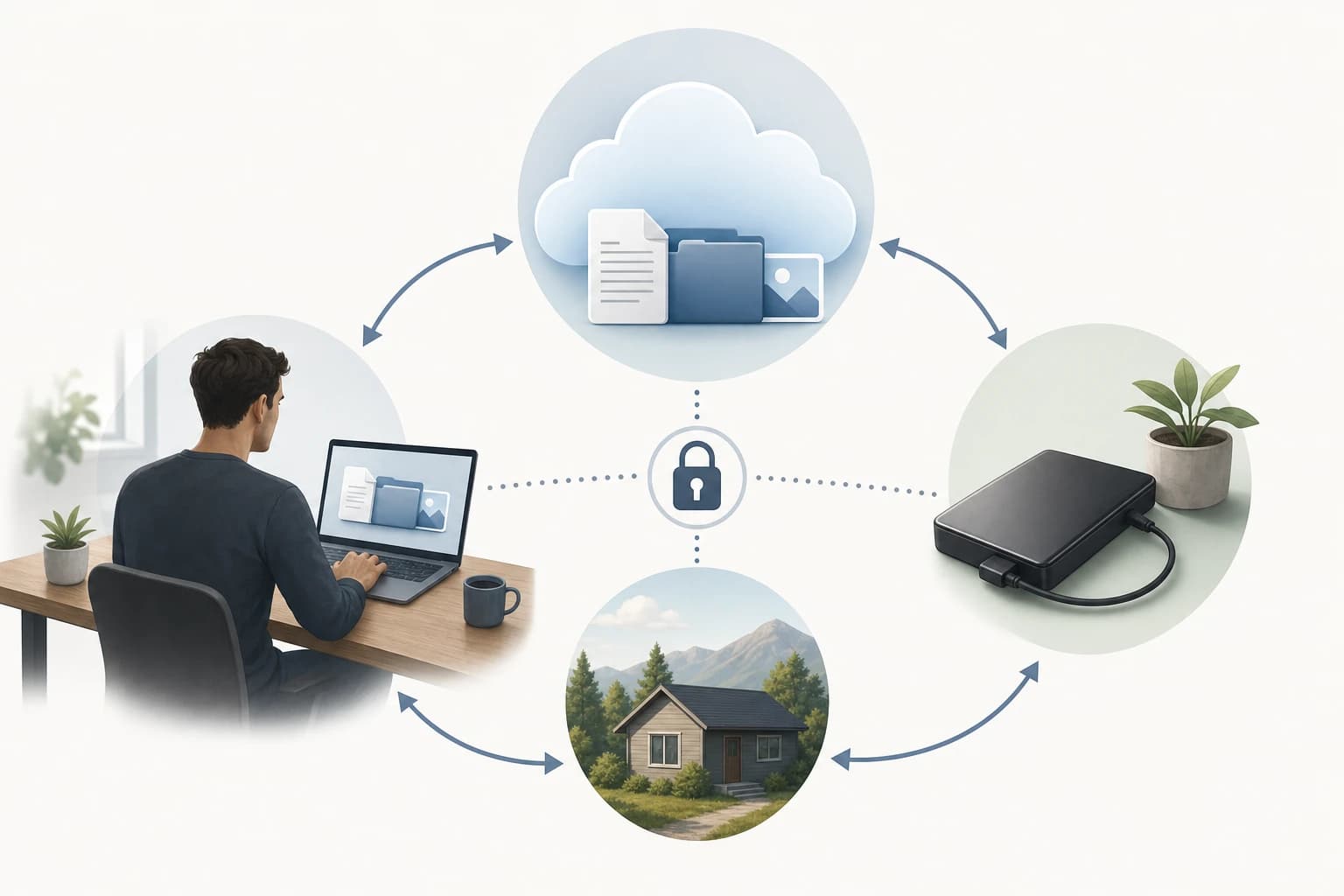
A simple backup approach: cloud sync is not the same as backup
Cloud storage syncs files across devices. That is useful, but sync can also copy mistakes. If you delete a folder, overwrite a file, or sync corrupted data, the problem may spread quickly. Many cloud platforms offer version history or deleted-file recovery, but the details depend on the service and plan.
A safer freelancer backup routine uses the well-known 3-2-1 idea: keep three copies of important data, on two different types of storage, with one copy separated from the main working environment. CISA discusses backup options and the importance of maintaining backups in its guidance: CISA data backup options.
For a solo freelancer, a realistic version looks like this:
- Copy 1: your active cloud storage folder.
- Copy 2: a local external drive backup updated weekly.
- Copy 3: a second cloud backup, encrypted backup service, or offline drive stored separately.
Do not back up every temporary draft forever. Focus on contracts, briefs, source files, final deliverables, invoices, and important approvals. For completed projects, export a clean project archive with the final folder, admin documents, source files, and invoice records. Store that archive according to your contract and business retention needs.
Examples by freelancer type
Designers
Designers often manage large source files, exports, client feedback, and final formats. Add subfolders inside 05_Final such as Print, Web, Source, and Guidelines. Keep editable design files separate from client-ready PNG, JPG, PDF, SVG, or packaged files. If the client should not edit source files, share only the final export folder.
Writers and content marketers
Writers need clean version control more than large storage. Use 03_Working for outlines and drafts, 04_Review for client comments, and 05_Final for approved copy. If you use Google Docs or Word online, avoid creating duplicate files for every round unless the client requires it. A single document with version history and comments is often easier to manage.
Bookkeepers
Bookkeepers should be especially careful with permissions because files may contain financial and personal information. Create month-based folders such as 2026-01, 2026-02, and 2026-03 inside each client’s source folder. Use named-person access rather than open links whenever possible. Do not store more sensitive material than you need, and confirm retention expectations with the client.
Consultants
Consultants often combine proposals, research, slide decks, workshop notes, and reports. Add folders such as Workshops, Research, and Reports under the project folder if needed. Keep internal analysis separate from client-facing reports. If you work with subcontractors, create a subcontractor folder with only the materials they need.
Monthly maintenance routine
A cloud system only works if it is maintained. Add a recurring 30-minute task at the end of each month:
- Review active client folders and move completed projects to archive.
- Check shared links and remove access that is no longer needed.
- Confirm that final deliverables are in 05_Final and not buried in review folders.
- Update the client file index with the last review date.
- Run or confirm your backup.
- Delete unnecessary duplicates, but only after confirming that finals and required records are preserved.
If you use automation to reduce admin work, keep it conservative for client files. Automations that create folders, rename files, or move uploads can be useful, but they should not automatically share sensitive folders without review. For broader admin ideas, see Best Automation Tools for Freelancers Who Want Less Admin Work.
FAQ
What is the best cloud storage for freelancers client files?
The best choice depends on your workflow. Google Drive is strong for Google Docs collaboration, Dropbox is strong for straightforward file syncing and delivery folders, and OneDrive is strong for Microsoft 365 and Windows users. The safest option is the one you will organize consistently and secure properly.
Should I create a separate cloud account for freelance work?
Yes, it is usually cleaner to separate business and personal storage. A dedicated business account reduces accidental sharing, keeps billing and ownership clearer, and makes it easier to find client records.
Is it safe to share client files with anyone who has the link?
Use anyone-with-the-link sharing only when the file is low-risk and temporary. For sensitive client material, share with specific email addresses and give the lowest permission level needed, such as view-only access.
How often should freelancers review cloud storage permissions?
A monthly review is a practical baseline. Also review permissions when a project ends, when a client team member leaves, or when you finish working with a subcontractor.
Do I still need backups if I use Google Drive, Dropbox, or OneDrive?
Yes. Cloud sync is not a complete backup strategy. Keep a separate backup copy of important contracts, source files, final deliverables, invoices, and approvals so you can recover from deletion, account problems, or sync mistakes.
How should I name client folders?
Use a predictable format such as ClientName / YYYY-ProjectName, then repeat the same numbered subfolders for admin, brief, source files, working files, review files, finals, invoices, and archive.
Conclusion
Secure client file storage is less about choosing a famous brand and more about building repeatable habits. Pick one main cloud storage home, create a standard folder template, use clear file names, share the smallest necessary folder, review permissions regularly, and keep a separate backup.
Google Drive, Dropbox, and OneDrive can all work well for freelancers. The winning setup is the one that helps you deliver client work without losing files, exposing private material, or wasting time searching through old links and duplicated drafts.