

Choosing between Google Drive, Dropbox, and OneDrive is rarely just a storage decision. For a small team, the real question is: where will files live, who can access them, how easily can clients receive them, and what happens when someone leaves the company?
This guide compares Google Drive vs Dropbox vs OneDrive for small teams from a practical business angle: shared folders, permissions, Microsoft and Google app compatibility, backup limitations, external sharing, admin control, and total cost. The goal is not to crown one universal winner, but to help you pick the setup that fits how your team actually works.

Quick answer: which cloud storage tool should a small team choose?
If your team already works mostly in Google Docs, Sheets, Gmail, and Google Meet, Google Drive is usually the most natural choice. If your team lives in Word, Excel, Outlook, Teams, and Windows PCs, OneDrive with SharePoint through Microsoft 365 usually makes more sense. If your team shares large design files, media folders, client deliverables, or mixed-format files across many outside collaborators, Dropbox can still be the cleanest file-sharing experience.
For many small businesses, the best cloud storage for small business use is the one that reduces confusion. A cheaper plan is not really cheaper if people keep saving files in personal folders, sending outdated attachments, or accidentally sharing private documents with the wrong person.
Best fit by team type
- Google Drive: best for Google Workspace teams that co-edit documents and need simple browser-based collaboration.
- Dropbox: best for client-facing teams, creative teams, agencies, and businesses that need straightforward file delivery across different apps.
- OneDrive: best for Microsoft 365 teams that use Word, Excel, PowerPoint, Outlook, Teams, and Windows devices daily.
Google Drive vs Dropbox vs OneDrive: comparison table for small teams
| Criteria | Google Drive | Dropbox | OneDrive |
|---|---|---|---|
| Best overall fit | Teams built around Google Workspace and live document collaboration | Teams that frequently share folders and deliver files to clients or vendors | Teams built around Microsoft 365, Windows, Outlook, and Teams |
| Document collaboration | Excellent for Google Docs, Sheets, and Slides co-editing | Good file collaboration, but document editing depends on connected apps | Excellent for Word, Excel, and PowerPoint, especially with Microsoft 365 |
| Shared team spaces | Shared drives are useful when available on your plan | Team folders are simple and familiar for many users | SharePoint document libraries and Teams files can be powerful but require setup |
| External client sharing | Strong, but permissions can become messy if users share from personal My Drive folders | Very strong for sending folders, file requests, and client deliverables | Strong in Microsoft environments, but SharePoint link settings may confuse non-technical users |
| Permission complexity | Moderate; simple for files, more careful planning needed for shared drives | Low to moderate; usually easy to understand at folder level | Moderate to high; OneDrive, SharePoint, and Teams permissions overlap |
| Desktop sync | Good with Drive for desktop | Very strong sync experience and selective sync options | Good on Windows and Microsoft 365 devices |
| Backup role | Sync and storage, not a full backup strategy by itself | Sync and sharing, not a complete backup strategy by itself | Sync and Microsoft 365 storage, not a complete backup strategy by itself |
| Cost considerations | Often cost-effective if you already need Gmail and Google Workspace | May cost more if it is added on top of Google or Microsoft subscriptions | Often cost-effective if you already need Office apps, Outlook, and Teams |
| Main weakness | Can become chaotic if every user creates their own folder structure | Less compelling if your team already pays for Google Workspace or Microsoft 365 storage | Can be confusing when users do not understand the difference between OneDrive and SharePoint |
Plan features and storage allowances change, so verify the current official pages before buying. Useful starting points are the Google Workspace pricing page, the Microsoft 365 business plan comparison, and the Dropbox plans page.
How each platform works in real team situations
Google Drive: strongest when the team thinks in Docs and shared workspaces
Google Drive works best when the team creates and edits work directly in Google Docs, Sheets, and Slides. The browser-based editing experience is simple, fast, and familiar. Multiple people can work on the same file without creating copies such as “proposal-final-v3-revised.docx”.
For a small team, the biggest advantage is that Drive can become the central workspace for day-to-day documents: proposals, spreadsheets, content calendars, SOPs, meeting notes, and client folders. The danger is that it can also become a messy collection of personal folders unless someone defines a clear structure.
A good Drive setup usually separates personal working files from team-owned files. When available on your Google Workspace plan, Shared drives are better than an employee’s personal My Drive for company folders because files belong to the team space rather than a single user. That matters when an employee leaves or changes roles.
Google’s own documentation also confirms that Google Drive has specific file and upload limits, including a maximum individual file upload size of 5 TB if enough storage is available, according to Google Drive file size documentation. Most small teams will never hit that limit, but it is useful context for video, archive, or large project files.
Dropbox: strongest for clean file sharing and client deliverables
Dropbox is often easiest to explain to people outside your company: here is a folder, here is a link, upload or download the files you need. That simplicity is why Dropbox remains popular with agencies, photographers, designers, consultants, production teams, and businesses that regularly exchange files with clients.
The advantage is not just storage. It is the low-friction sharing model. A team can create a client folder, add a contract, collect assets, share a read-only deliverables folder, or request files from an external person without forcing that person into the team’s entire software ecosystem.
Dropbox can be less compelling if your business already pays for Google Workspace or Microsoft 365 and does not have a specific file-sharing pain. In that case, Dropbox may become a second storage system, which creates a new problem: people no longer know whether the latest version is in Drive, OneDrive, or Dropbox.
OneDrive: strongest when Microsoft 365 is the center of work
OneDrive is easiest to understand as the personal file sync part of Microsoft 365. SharePoint is the team document library layer behind many shared file experiences, and Microsoft Teams often exposes those shared files inside channels. That structure is powerful, but it is also why small teams sometimes get confused.
For a Microsoft-based team, OneDrive can be excellent. Word, Excel, PowerPoint, Outlook, and Teams are deeply connected. Co-authoring Office documents works well, and Windows users often find OneDrive familiar because it integrates directly into File Explorer.
The key is to avoid using one person’s OneDrive as the company file cabinet. For shared department or project files, a SharePoint document library or Teams-connected file area is usually more appropriate. Microsoft’s documentation states that SharePoint and OneDrive support uploads up to 250 GB per file, according to Microsoft’s SharePoint and OneDrive limits.
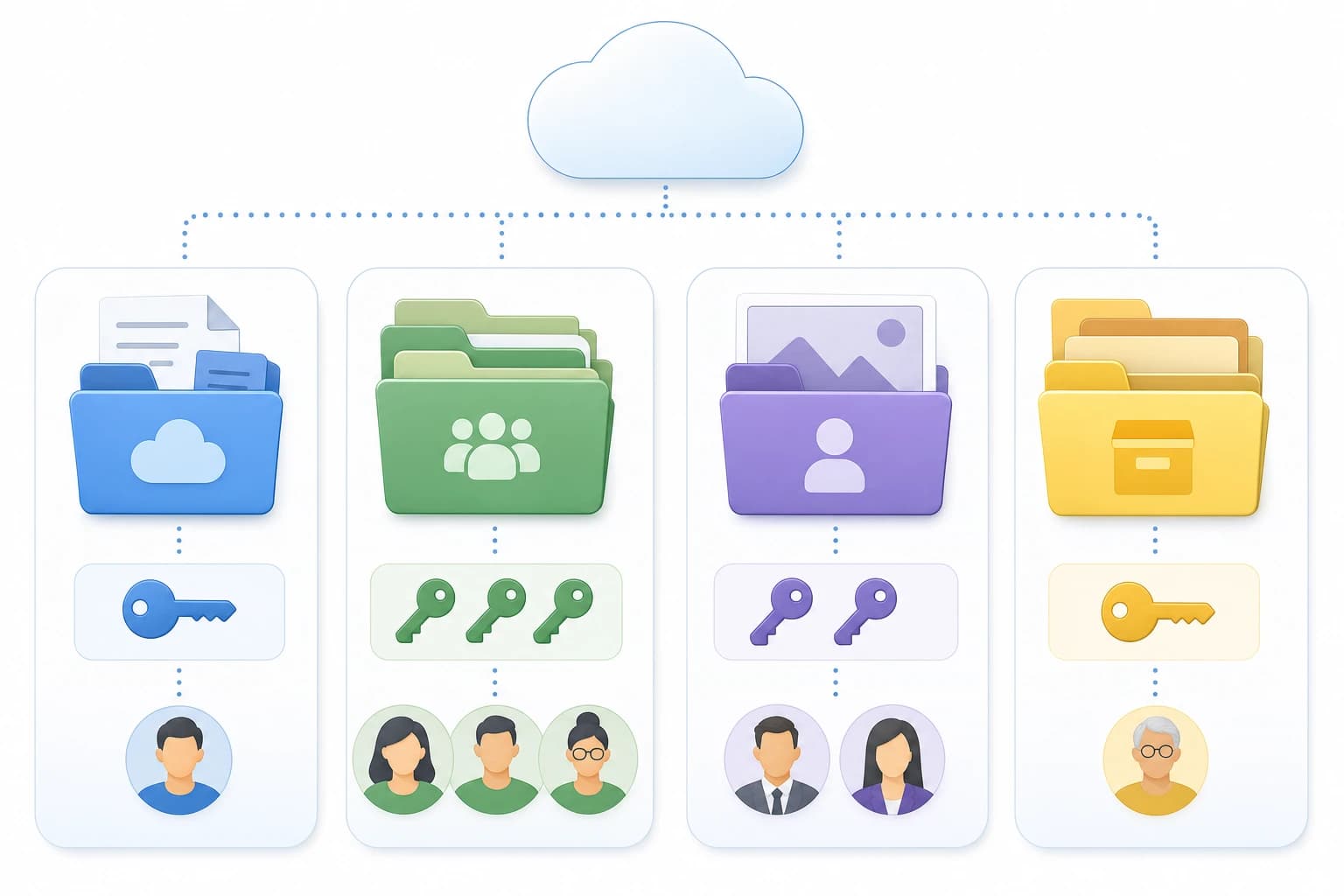
The decision factors that matter most for small teams
1. Shared folders should be owned by the business, not one employee
This is one of the most common cloud storage mistakes. A founder, manager, or admin creates a folder in their personal area, shares it with everyone, and the team treats it as the company’s main drive. It works until that person leaves, changes permissions, deletes files, or hits a storage limit.
For Google Drive, look for a team-owned shared drive structure when your plan supports it. For Microsoft, use SharePoint or Teams file areas for shared work rather than one employee’s OneDrive. For Dropbox, use team folders instead of personal folders for business-critical files.
2. Permissions need a simple rule before files are uploaded
Small teams often delay permission planning because it feels like an enterprise problem. It is not. Even a five-person company may have payroll files, contracts, client materials, proposals, passwords, tax documents, and draft work that should not all be visible to everyone.
A simple permission model is enough for most small teams:
- Owners/admins: manage billing, users, security, and top-level folders.
- Managers: edit team folders and approve external sharing.
- Team members: edit only the folders needed for their work.
- Clients/vendors: access specific folders or files, preferably with view-only or upload-only permissions when possible.
The goal is not to lock everything down. The goal is to prevent accidental oversharing and reduce cleanup later.
3. App compatibility can outweigh storage size
A storage plan with more gigabytes is not automatically better. If the team writes in Google Docs every day, forcing everyone into a Microsoft-first file workflow can slow people down. If the team works heavily in Excel with advanced formatting, macros, or client-supplied Office files, OneDrive and Microsoft 365 may save time.
Dropbox sits in the middle. It does not force one document suite as strongly, which can be helpful for mixed-client work. But that flexibility also means your team still needs a decision about where documents are edited, approved, and finalized.
4. External sharing should match your client process
If clients constantly send raw files, review drafts, or download deliverables, test the external sharing experience before committing. The best file sharing tools for small business teams are the ones clients can use without a long explanation.
For example, a marketing agency might need a client folder with these subfolders: “01 Client Uploads,” “02 Working Files,” “03 Review,” and “04 Final Deliverables.” A bookkeeping firm may need a separate upload area for each client but strict limits on who can view submitted documents. A software consultancy may only need a secure read-only folder for contracts and reports.
Dropbox is often strongest for this kind of simple external exchange. Google Drive is excellent when clients are comfortable with Google accounts and Docs comments. OneDrive works well when clients are also Microsoft 365 users, but link settings should be checked carefully.
5. Sync is not the same as backup
Cloud storage gives teams version history, recycle bins, file recovery options, and access from multiple devices. Those features are valuable, but they do not automatically replace a backup plan. If a user deletes a synced folder, that deletion may sync. If ransomware encrypts synced files on a computer, the damaged files may sync. If an admin misconfigures retention, recovery may be limited.
For business-critical data, consider a separate backup approach in addition to cloud storage. At minimum, decide what must be recoverable, who is responsible for checking recovery settings, and how often the team reviews deleted files, former employee accounts, and shared links.
Important warning: avoid using three cloud drives at once
Some small teams pay for Google Workspace, Microsoft 365, and Dropbox at the same time. That can be valid if each tool has a defined job. It becomes expensive and risky when files are scattered randomly.
If you use more than one platform, write down the rule. For example: “Google Drive is for internal documents, Dropbox is for client file delivery, and OneDrive is only for Office files received from Microsoft-based clients.” Without a rule, the team will create duplicate folder trees and lose track of final versions.
Example setups for different small teams
Setup A: Google-first consulting team
A five-person consulting team uses Gmail, Google Calendar, Google Meet, Docs, and Sheets. In this case, Google Drive should probably be the main storage platform. The team can create shared spaces for “Admin,” “Sales,” “Client Projects,” “Templates,” and “Archive.” Client-facing folders can be shared from the correct project area rather than from someone’s personal Drive.
This team should still define naming rules. For example: “ClientName - ProjectName - YYYY” for project folders and “YYYY-MM-DD - Meeting Notes” for notes. Naming rules sound boring, but they make search and handoffs much easier.
Setup B: Microsoft-first operations team
A small operations company uses Outlook, Excel, Teams, Word templates, and PowerPoint proposals. OneDrive and SharePoint through Microsoft 365 are likely the best fit. The team can use Teams channels for active projects and SharePoint document libraries for department files.
The main training point is explaining the difference between personal OneDrive files and team-owned files. If the company does not make that clear, employees may store important spreadsheets in personal OneDrive folders and share them one by one, which becomes difficult to manage later.
Setup C: Creative agency with many external clients
A creative agency handles brand assets, photo folders, design exports, video drafts, and final deliverables. Dropbox may make sense as the client-facing file system, especially if clients vary widely in technical comfort and software preferences.
The agency might still use Google Workspace or Microsoft 365 for email and documents, but Dropbox can be the official place for large asset exchange. The key is to avoid duplicating every file across systems. Internal planning documents can stay in one workspace, while exported deliverables and client uploads live in Dropbox.
If your team is remote and file handoffs happen across time zones, you may also find this related guide useful: Google Drive vs Dropbox vs OneDrive for Remote Team File Management. And if your files are tied to client tasks, compare storage decisions with your project workflow using Asana vs Trello vs ClickUp for Client Projects.
A practical 30-minute selection process
You do not need a long software procurement process for a small team. Use this short process to choose a sensible direction.
- List your main file types. Count whether the team mostly uses Google Docs, Microsoft Office files, PDFs, images, videos, CAD files, spreadsheets, or client uploads.
- Identify your main collaborators. Separate internal staff, freelancers, clients, vendors, and accountants. Each group may need different permissions.
- Map the file lifecycle. Write where a file starts, who edits it, who approves it, where the final version goes, and when it is archived.
- Check the software you already pay for. If storage is already included in Google Workspace or Microsoft 365, do not add Dropbox unless it solves a clear sharing problem.
- Create one test project. Build a real folder with permissions, upload sample files, share it with one internal user and one external user, and see where confusion appears.
- Write a one-page storage policy. Include folder naming, where client files go, who can create shared links, and what happens when a project closes.

Cost: how to think about total price, not just monthly storage
For small teams, the total cost is usually more than the subscription price. You should also include migration time, training, duplicate subscriptions, backup tools, admin time, and cleanup work.
Ask these questions before choosing:
- Are we already paying for Google Workspace or Microsoft 365?
- Will Dropbox replace something, or will it become an additional cost?
- Do we need desktop Office apps, or are browser-based apps enough?
- Will clients need accounts, or can they use shared links and upload requests?
- How much time will we spend moving files and fixing permissions?
- Do we need a separate backup or archiving tool?
A team of three may accept manual cleanup. A team of fifteen cannot rely on memory and good intentions. The larger the team becomes, the more important admin controls, consistent folder ownership, and offboarding procedures become.
Common mistakes to avoid
- Choosing based only on free storage. Free or personal plans are usually not the right foundation for business files, especially when employees and clients change.
- Letting everyone create their own structure. Without a shared folder map, the team will create duplicate “Clients,” “Final,” and “Archive” folders in different places.
- Using personal accounts for company data. Business files should be controlled by the company, not by a personal Gmail, Outlook, or Dropbox account.
- Ignoring offboarding. Decide what happens to files, shared links, and permissions when someone leaves.
- Assuming cloud storage equals compliance. If your industry has legal, contractual, or regulatory requirements, review the platform’s security, retention, and audit features carefully and get qualified advice where needed.
- Skipping external sharing tests. A sharing workflow that feels easy internally may confuse clients or expose more than intended.
Simple recommendation
Pick the platform that matches your team’s primary work suite unless you have a strong reason not to. Use Google Drive with Google Workspace, OneDrive with Microsoft 365, and Dropbox when client file exchange or cross-platform sharing is the main pain point. If you use two platforms, assign each one a clear job and write that rule down.
FAQ
Is Google Drive or Dropbox better for a small business?
Google Drive is usually better if your team works in Google Docs, Sheets, Gmail, and Google Meet. Dropbox is often better if your business regularly sends and receives folders from external clients, especially large files or mixed file types.
Is OneDrive good for small teams?
Yes, OneDrive is a strong choice for small teams that already use Microsoft 365. For shared company files, however, teams should understand when to use OneDrive versus SharePoint or Teams-connected file areas.
Can a small team use Google Drive and Dropbox together?
Yes, but only with a clear rule. For example, Google Drive can hold internal documents while Dropbox handles client uploads and final deliverables. Without that rule, files may become duplicated and hard to manage.
Which is best for external client sharing?
Dropbox is often the simplest for external file exchange. Google Drive is excellent when clients are comfortable with Google accounts and document comments. OneDrive works especially well when clients also use Microsoft 365.
Does cloud storage replace backup?
No. Cloud storage helps with syncing, sharing, version history, and recovery features, but it is not always a complete backup strategy. Important business data may still need separate backup, retention, and recovery planning.
What is the biggest setup mistake small teams make?
The biggest mistake is storing shared company files inside one person’s personal drive and then sharing them manually. Use team-owned spaces whenever possible so files remain controlled by the business.
Conclusion: choose the workflow, not just the drive
The best choice in the Google Drive vs Dropbox vs OneDrive for small teams debate depends on how your team works every day. Google Drive fits Google-centered collaboration. OneDrive fits Microsoft-centered businesses. Dropbox fits teams that need simple, reliable client-facing file exchange.
Before buying or migrating, test one real project with real permissions and one external collaborator. If people can find files, edit the right version, share safely, and understand where final work belongs, you have probably found the right cloud storage setup.