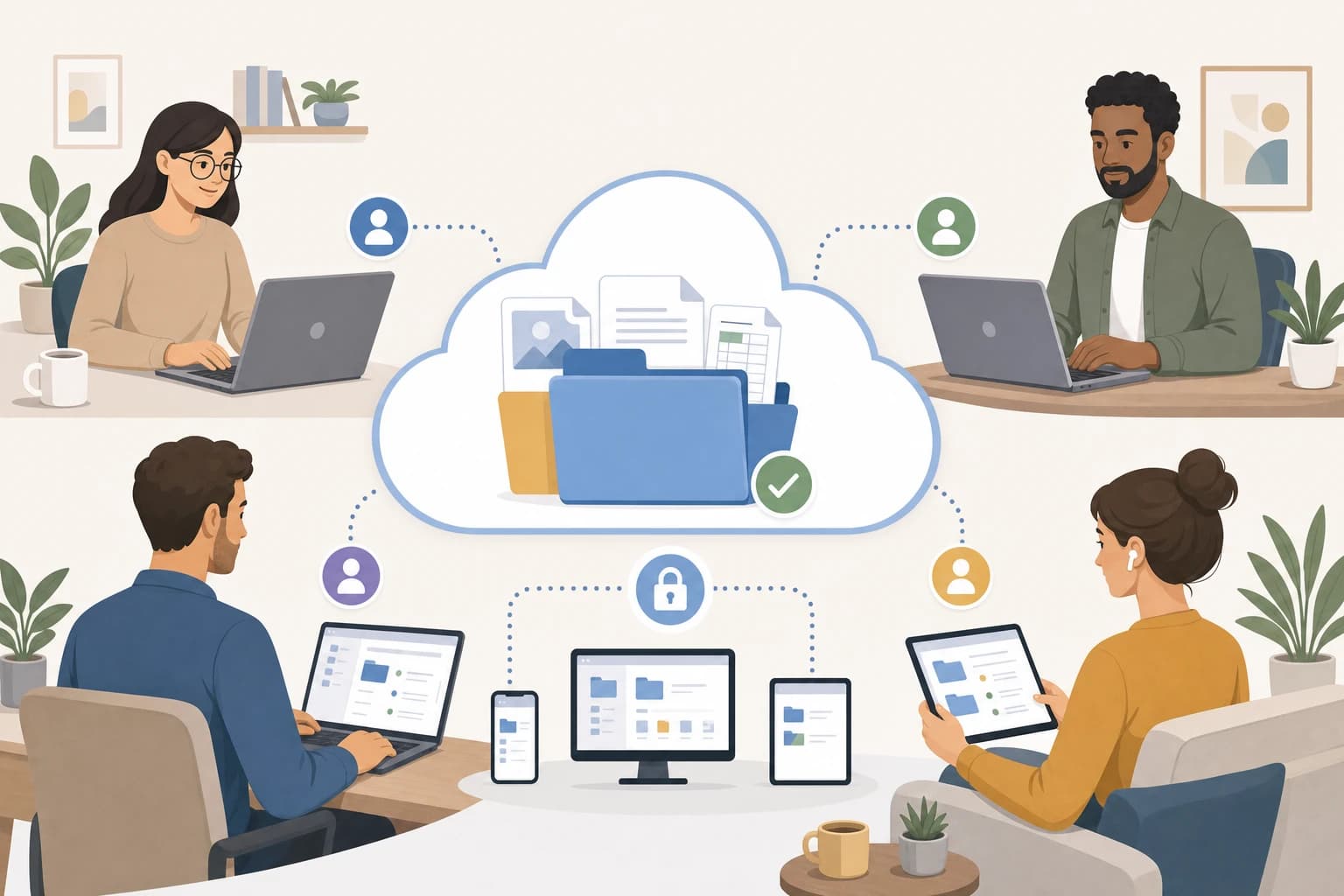
Remote teams do not usually struggle because they lack cloud storage. They struggle because files are scattered across personal folders, permissions are unclear, clients receive the wrong link, or nobody knows which version is final. Choosing between Google Drive, Dropbox, and OneDrive is really a choice about how your team creates, reviews, shares, protects, and archives work every day.
This guide compares Google Drive vs Dropbox vs OneDrive for remote teams from a small business point of view. It focuses on practical needs: permission control, shared folders, file recovery, document collaboration, external client access, storage limits, admin controls, and the folder rules that keep a remote team organized after the tool is purchased.
Quick answer: which is best for which remote team?
For most small businesses, the best choice depends less on the app name and more on your existing work system.
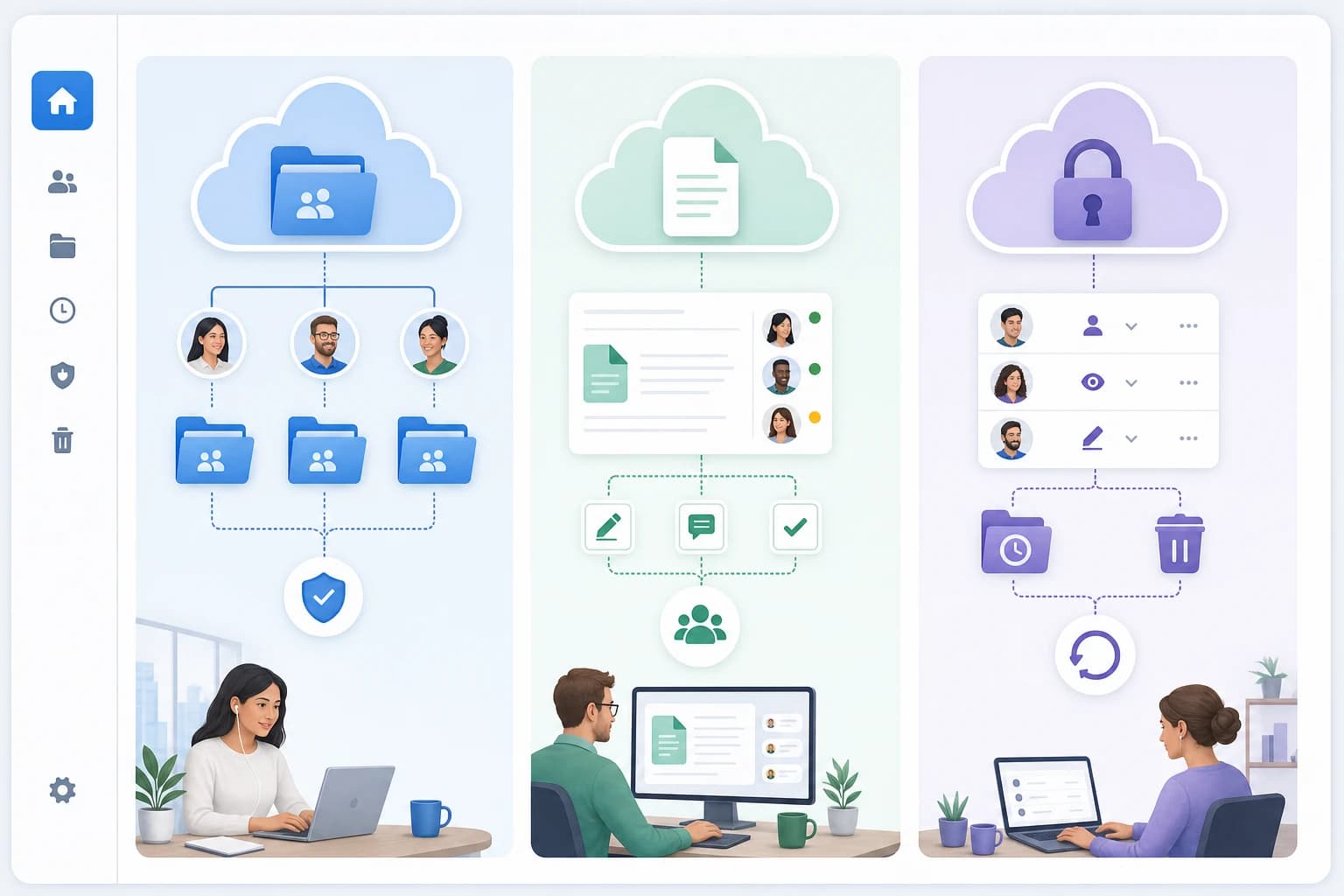
- Choose Google Drive if your team already lives in Gmail, Google Docs, Google Sheets, Google Meet, and shared drives. It is especially strong for real-time document collaboration and simple browser-based work.
- Choose Dropbox if your team handles many creative files, client deliverables, mixed file types, or projects where clean external sharing and sync reliability matter more than a full office suite.
- Choose OneDrive if your business uses Microsoft 365, Outlook, Teams, Word, Excel, PowerPoint, or Windows devices. It is usually the most natural fit for companies that need Office file compatibility and stronger Microsoft admin controls.
A very small business can succeed with any of the three. The wrong choice is usually not the platform itself; it is buying storage without creating rules for folder ownership, sharing, naming, retention, and offboarding.
Google Drive Dropbox OneDrive comparison for small business use
The table below compares the areas that matter most for remote team file management tools. Plan names, storage amounts, and admin features can change, so verify the latest details on the official pages before purchasing: Google Workspace pricing, Dropbox business plan comparison, and Microsoft OneDrive plan comparison.
| Criteria | Google Drive | Dropbox | OneDrive |
|---|---|---|---|
| Best fit | Teams that collaborate in Google Docs, Sheets, Slides, Gmail, and Google Meet | Creative, client-service, agency, and operations teams sharing many file formats | Teams using Microsoft 365, Windows, Outlook, Teams, Word, Excel, and SharePoint |
| Real-time document collaboration | Very strong in Google Docs, Sheets, and Slides | Good for file sharing; document collaboration often depends on connected tools such as Microsoft or Google integrations | Very strong in Word, Excel, and PowerPoint, especially with Microsoft 365 |
| Shared team spaces | Shared drives for business plans, with files owned by the organization rather than one person | Team folders and shared folders with centralized admin options on business plans | OneDrive for personal work files; SharePoint document libraries and Teams channels for shared team files |
| External client access | Good link controls; works well when clients have Google accounts, but outside sharing policies should be configured carefully | Strong for simple client delivery links and shared folders | Strong when configured through Microsoft 365, SharePoint, and guest access policies |
| Permission model | Viewer, commenter, editor; shared drive roles add more structure | View or edit access, folder-level sharing, team admin settings | View/edit links, direct access, SharePoint permissions, Teams membership controls |
| File recovery and version history | Version history and trash recovery features vary by file type and admin settings | Version history and deleted file recovery depend on plan | OneDrive includes file restore and version history features; Microsoft documents restore options for OneDrive |
| Admin controls | Strong in Google Workspace Admin Console, especially for shared drives, security rules, and user management | Strong for team folders, device management, sharing controls, and activity monitoring on business plans | Strongest for Microsoft-centered businesses using Entra ID, SharePoint, Teams, compliance, and security policies |
| Learning curve | Low for teams familiar with Gmail and Google Docs | Low for basic sharing; moderate for larger team governance | Low for Office users; moderate because OneDrive, SharePoint, and Teams overlap |
| Main risk if unmanaged | Important files left in personal My Drive instead of shared drives | Duplicate folders and unclear client/team ownership | Confusion between OneDrive personal work files, Teams files, and SharePoint libraries |
How to evaluate the tools for day-to-day remote work
A useful comparison should start with the tasks your team performs every week. A five-person consulting team writing proposals has different needs from a design studio sending 2 GB media files to clients. Before choosing the best cloud storage for small business team use, list your daily file actions:
- Creating internal documents, spreadsheets, proposals, SOPs, and reports
- Reviewing files asynchronously across time zones
- Sending final deliverables to clients or contractors
- Restricting payroll, finance, HR, legal, and founder-only documents
- Recovering deleted files or previous versions after mistakes
- Offboarding employees and contractors without losing business records
If your team also needs better task ownership, pair file storage with a task system rather than using folder names as a project management method. For a related app comparison, see Todoist vs TickTick for freelancers and small teams. If the problem is notes rather than files, best note-taking apps for organized notes may be the better starting point.
Permission control: where mistakes usually happen
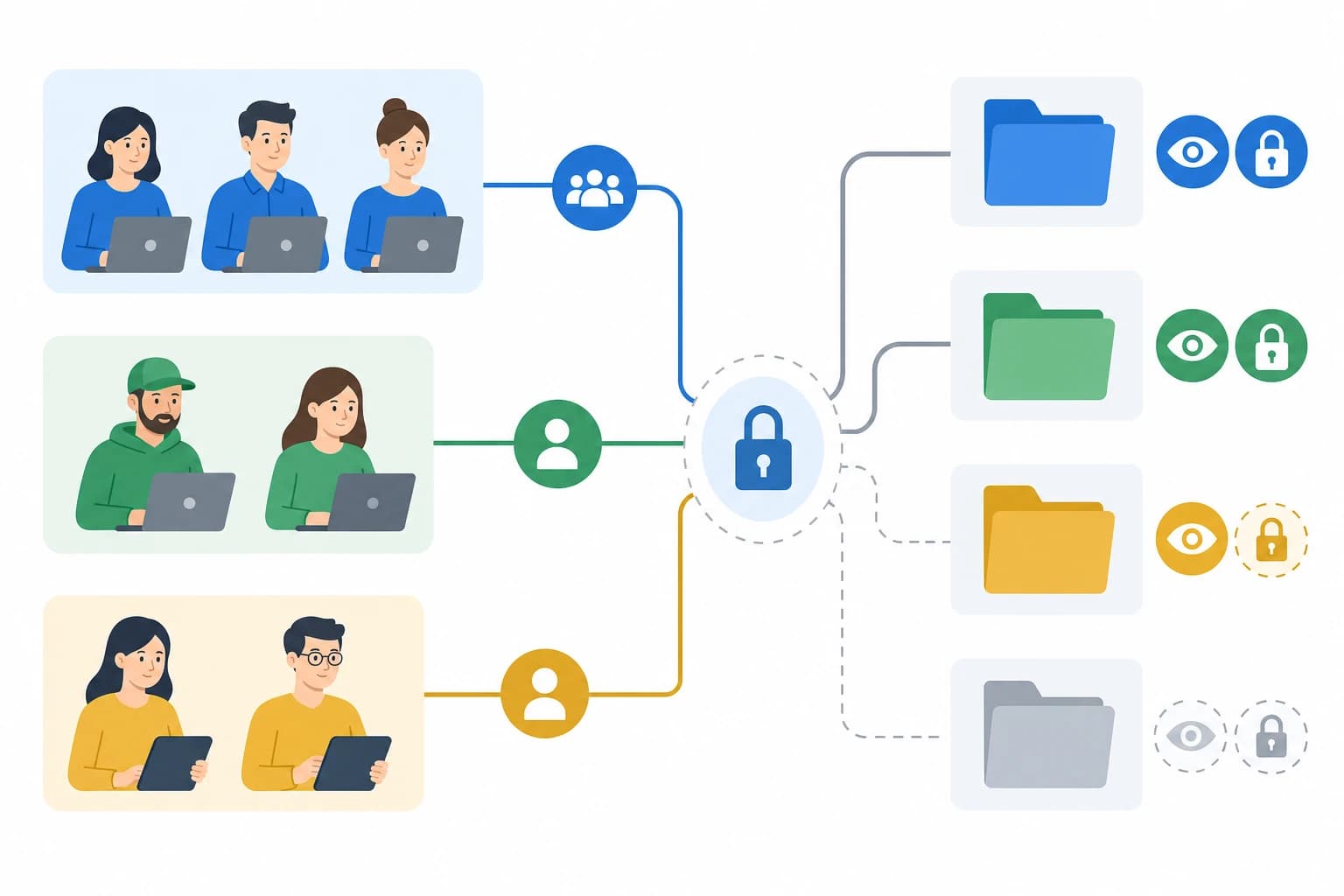
Permissions are the main reason cloud storage becomes risky for small teams. The basic rule is simple: people should have the least access needed to do their work. In practice, remote teams often break this rule by using one shared login, forwarding editable links in chat, or storing company documents in personal folders.
Google Drive permissions
Google Drive is easy to understand at the file level: viewer, commenter, and editor. Google Workspace business users can also use shared drives. According to Google’s documentation, files in a shared drive belong to the team rather than to an individual user, which is important when an employee leaves the company. Google explains shared drives in its official help center at Google Workspace Learning Center.
For a small business, the key decision is whether company files must live in shared drives instead of individual My Drive folders. A sensible rule is: drafts can temporarily sit in a person’s My Drive, but any business record, client deliverable, reusable template, or approved document must be moved to a shared drive.
Dropbox permissions
Dropbox is straightforward for shared folders and client links. It is often comfortable for teams that exchange PDFs, images, video, design files, exports, and compressed folders. Admins on business plans can usually manage sharing settings, members, and team content from a central console, but the exact controls depend on plan level.
The biggest Dropbox risk is folder sprawl. If every project manager creates a separate client folder with slightly different naming rules, new employees waste time asking where files live. Dropbox works best when a team decides which folders are internal, which are client-facing, and who owns each top-level folder.
OneDrive permissions
OneDrive is part of a broader Microsoft 365 file system. OneDrive is best for a person’s work files; SharePoint and Teams are typically better for department, project, and company files. That distinction matters. If a company uses Microsoft Teams heavily, many channel files are actually stored in SharePoint document libraries behind the scenes.
OneDrive is powerful, but small businesses sometimes find it confusing because the words “OneDrive,” “SharePoint,” and “Teams files” appear in the same workflow. The fix is not to avoid Microsoft; it is to write down exactly where each type of file belongs.
Document collaboration: Google Docs, Microsoft Office, and mixed files
If your team creates documents together all day, collaboration quality may matter more than storage limits. Google Drive is usually the simplest for browser-first collaboration in Docs, Sheets, and Slides. Comments, suggestions, version history, and simultaneous editing feel natural for teams that do not want to manage desktop app versions.
OneDrive is the natural choice when Word, Excel, and PowerPoint are the source of truth. It is especially useful for businesses where clients expect .docx, .xlsx, or .pptx files. If your team works with complex Excel models, tracked changes in Word, or PowerPoint decks, OneDrive and Microsoft 365 reduce conversion friction.
Dropbox is more file-neutral. It is often attractive when the files are not mainly office documents: InDesign packages, Photoshop files, exported PDFs, CAD files, short videos, audio assets, signed agreements, or client-ready folders. Dropbox can still integrate with office documents, but its strength is simple storage, sync, and sharing across many file types.
Practical rule: choose the platform that matches the file format your team edits most often, not just the platform with the most familiar brand name.
File recovery and version history: plan for mistakes before they happen
Remote teams delete, overwrite, rename, and move files. That is normal. What matters is how quickly you can reverse the mistake and whether your plan includes enough recovery history for your work cycle.
Dropbox explains its version history and deleted file recovery options in its official help center at Dropbox version history overview. Microsoft also documents OneDrive restore options, including the ability to restore a OneDrive to a previous time, at Microsoft Support. Google Drive includes version management and trash features, but exact recovery behavior may depend on file type, ownership, admin settings, and Workspace configuration.
For small businesses, set a recovery policy before an incident happens:
- Daily work files: keep them in managed team spaces, not personal folders.
- Client deliverables: save final versions in a “Final” folder and restrict editing.
- Templates: allow only managers or operations owners to edit master copies.
- Critical records: use admin-controlled storage and consider a separate backup strategy for business continuity.
Cloud storage is not the same as a complete backup plan. Sync tools can also sync mistakes. If someone deletes or corrupts a synced file, that change may propagate across devices unless recovery tools catch it in time.
External client access: make sharing easy without losing control
Client sharing is where convenience and risk collide. A remote team needs to send proposals, drafts, reports, designs, invoices, and final deliverables quickly. But “anyone with the link can edit” is rarely the right default.
Use these client access rules with any platform:
- Give clients view or comment access by default, not edit access.
- Create a separate client-facing folder instead of exposing the entire internal project folder.
- Use expiration dates for temporary links when your plan supports them.
- Do not store internal notes, margins, cost breakdowns, subcontractor discussions, or draft strategy in client-facing folders.
- Remove client access when the project ends, unless your contract requires ongoing access.
Dropbox is often the easiest for simple external delivery. Google Drive is excellent when clients collaborate in Docs or Sheets. OneDrive and SharePoint are strong when clients are comfortable with Microsoft accounts or when your business already uses Microsoft guest access policies.
Storage limits and pricing: avoid buying on storage alone
Storage limits are visible on pricing pages, so they are easy to compare. They are also easy to overvalue. A small consulting business may use less storage than expected, while a video production team may outgrow a standard plan quickly.
Instead of asking “Which plan gives the most space?”, ask:
- How many users need paid accounts now?
- How much storage do we use today across laptops, personal drives, and old cloud accounts?
- What file types are growing fastest?
- Do we need shared team storage, or mostly individual storage?
- Will we keep archived client work for 1 year, 3 years, 7 years, or indefinitely?
Verify current limits directly on official pricing pages because storage amounts, pooled storage rules, and plan names can change. Also consider the hidden cost of migration. Moving 500 GB of disorganized files is not just a technical upload; it requires deduplication, naming decisions, permission cleanup, and user training.
Admin controls and offboarding: the small business test
The best small business cloud setup survives employee turnover. If a contractor leaves and their account is disabled, can you still access project files? If a sales manager resigns, can you transfer ownership of proposals, templates, and client documents? If a laptop is lost, can you revoke device access?
Google Workspace, Dropbox Business, and Microsoft 365 all offer business admin features, but the way they work differs. Microsoft is often the deepest environment for businesses already using identity, device, Teams, and SharePoint policies. Google is usually simpler for browser-based teams that want shared drives and a clean admin console. Dropbox is strong for managing team content and sharing behavior, especially in file-heavy workflows.
At minimum, your admin setup should include:
- One owner account and at least one backup admin
- Individual user accounts, not shared passwords
- Two-step verification or multi-factor authentication where available
- A written offboarding checklist
- A quarterly sharing review for external links and inactive users
- A rule that company files belong in managed company spaces
If remote team operations are spread across calendars, tasks, and files, building predictable routines helps. The guide on weekly time blocking in Google Calendar is useful for creating regular admin review blocks.
Recommended folder structure for small remote teams
A good folder structure should be boring, predictable, and hard to misunderstand. Avoid clever names. Use numbers to keep folders in a stable order.
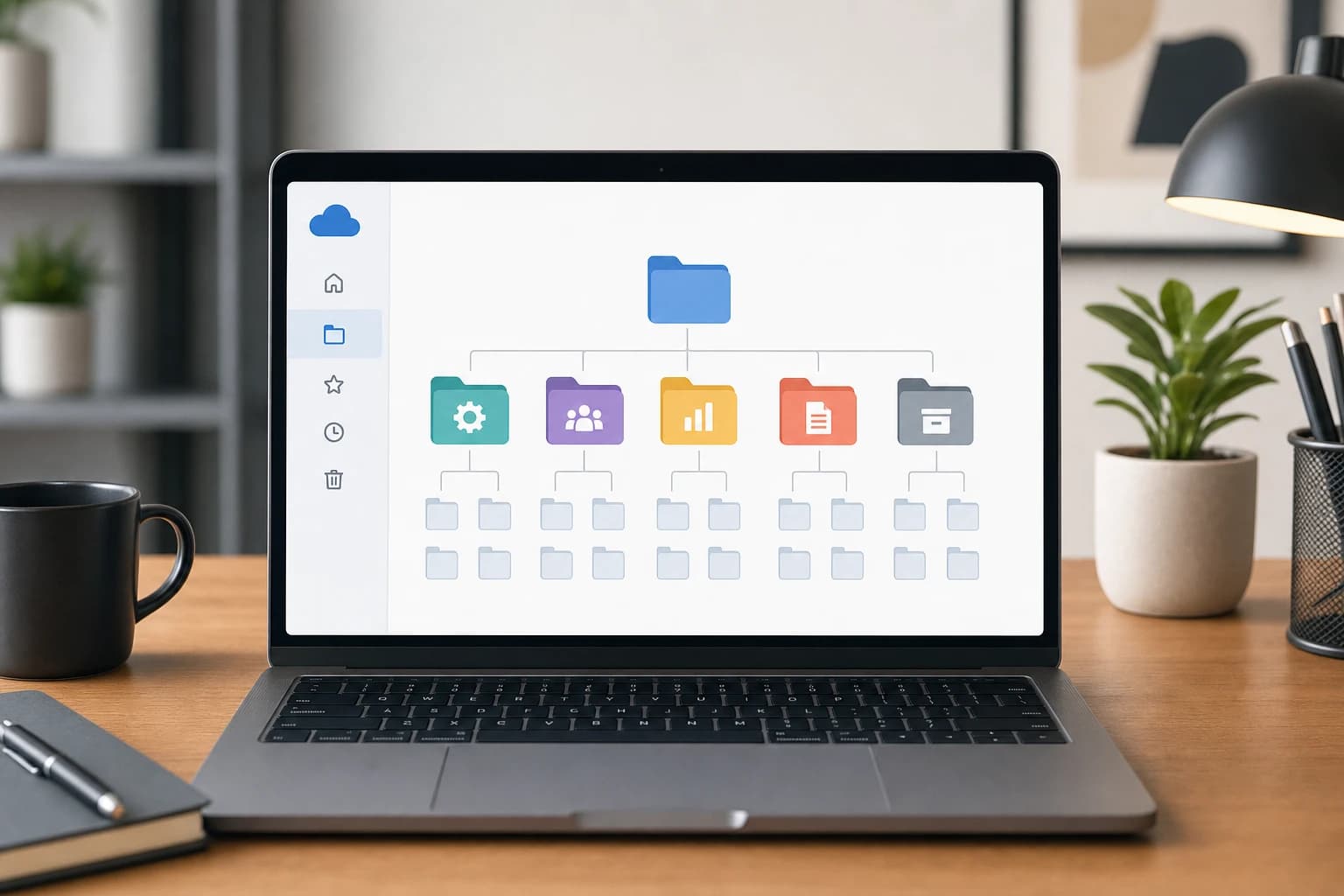
Here is a practical structure for a service-based small business. It works in Google shared drives, Dropbox team folders, or SharePoint document libraries with minor wording changes.
- 00_Admin-Read-Me — folder rules, naming conventions, access policy, and onboarding instructions
- 01_Company-Operations — SOPs, policies, internal documentation, tools, meeting notes
- 02_Sales-Marketing — proposals, pitch decks, case study drafts, website assets, campaign files
- 03_Clients-Active — one folder per active client or project
- 04_Clients-Archive — completed client work, locked or restricted to managers
- 05_Finance-Legal — invoices, tax files, contracts, vendor agreements; restricted access
- 06_HR-People — employee records, contractor agreements, onboarding; restricted access
- 07_Templates — reusable proposal templates, report templates, design templates, checklists
- 08_Final-Deliverables — client-ready files that should not be casually edited
For each active client folder, use the same subfolders every time:
- 01_Brief-Contracts
- 02_Research-Inputs
- 03_Working-Files
- 04_Client-Review
- 05_Final-Delivery
- 06_Post-Project-Archive
Use file names that sort naturally and explain the document. A simple pattern is YYYY-MM-DD_Client_Project_Document-Version. Example: 2026-02-14_Acme_WebsiteCopy_V03. Keep “FINAL” for final deliverables only, not every draft.
Access policy template you can adapt
Copy this into your admin folder and edit it for your team. It is intentionally short so people will actually read it.
Small business cloud file access policy
- Company ownership: All business records, client deliverables, templates, contracts, and financial files must be stored in company-managed folders, not personal cloud accounts.
- Default access: Employees receive access only to the folders required for their role. Contractors receive project-specific access only.
- Client access: Clients may access only the designated Client-Review or Final-Delivery folder. Client links default to view or comment access unless editing is required.
- Restricted folders: Finance, Legal, HR, and founder-only files are limited to approved users. Access is reviewed quarterly.
- Final files: Final deliverables must be stored in a final folder with editing restricted to the project owner or manager.
- Naming: Files should use the format YYYY-MM-DD_Client_Project_Document-Version when practical.
- Offboarding: Before a user is removed, an admin confirms file ownership, transfers needed files, revokes shared links, and removes device access where available.
- Review schedule: External sharing, inactive accounts, and archived client folders are reviewed every quarter.
Step-by-step: how to choose and roll out the right tool
A practical rollout can be completed in one focused week for a small team, although large migrations need more planning.
- Difficulty: Moderate
- Estimated time: 4 to 8 hours for decision and setup; more for file cleanup
- People needed: business owner or operations lead, one admin, one representative user
- Tools needed: current file inventory, user list, client list, preferred cloud platform trial or admin account
- Audit current files. List where files live today: laptops, personal Google accounts, old Dropbox folders, Teams channels, email attachments, external drives, and client portals.
- Classify files. Separate active client work, internal operations, templates, financial/legal records, HR records, and archive material.
- Choose the default workspace. Use Google shared drives, Dropbox team folders, or SharePoint document libraries for company-owned files. Avoid making personal folders the main company archive.
- Create the folder structure. Build the top-level folders first, then one pilot client folder. Do not migrate everything until the pilot structure feels clear.
- Set permissions before uploading sensitive files. Create groups such as Leadership, Operations, Finance, Contractors, and Client-Access where the platform supports it.
- Migrate in batches. Move current active projects first, templates second, and old archives last. Delete duplicates only after confirming the correct version.
- Train the team with examples. Show exactly where to save a new proposal, where to put client review files, and how to share a view-only link.
- Schedule a 30-day cleanup. After real use, review confusing folders, broken permissions, duplicate files, and client sharing links.
Common mistakes to avoid
- Using personal storage for company records. This creates ownership and offboarding problems.
- Letting everyone create top-level folders. Top-level structure should be controlled by an admin or operations owner.
- Sharing editable links by default. Most external users need view or comment access, not edit access.
- Skipping archive rules. Old client work should move out of active folders so current teams are not searching through stale material.
- Confusing notes, tasks, and files. A cloud drive is not a task manager or knowledge base by itself.
- Buying storage before fixing workflow. More storage can make a messy system larger instead of better.
Final recommendations by business type
- Solo founder hiring contractors: Google Drive or Dropbox are usually easiest. Use one client-facing folder per project and restrict contractor access.
- Small agency or studio: Dropbox is appealing for deliverables and large mixed files; Google Drive is better if the work is mostly collaborative documents.
- Consulting or professional services team: Google Drive is strong for proposals and reports; OneDrive is strong if clients expect Microsoft Office formats.
- Microsoft-first company: Choose OneDrive with SharePoint and Teams rather than adding a separate storage platform without a clear reason.
- Google-first company: Choose Google Drive with shared drives and clear admin rules.
FAQ
Is Google Drive, Dropbox, or OneDrive better for remote teams?
Google Drive is usually best for Google Workspace collaboration, Dropbox is strong for file-heavy client delivery, and OneDrive is best for Microsoft 365 teams. The best choice depends on your daily file types, permission needs, and existing email or office suite.
Should a small business use shared folders or personal folders?
Company records should live in shared, admin-managed spaces. Personal folders are fine for temporary drafts, but final work, templates, client files, and business records should not depend on one employee’s personal storage area.
Can clients upload files without seeing internal documents?
Yes, if you create a separate client-facing folder and limit permissions to that folder only. Do not invite clients to the full internal project folder unless every file inside is safe for client viewing.
Do cloud storage tools replace backups?
Not completely. Version history and file restore features help with mistakes, but synced cloud storage can also sync deletions or unwanted changes. Critical business records may need a separate backup process.
What is the simplest folder rule for a remote team?
Use the same top-level folders and the same client subfolders every time. If every project has a different structure, remote workers will depend on chat messages instead of the file system.
Conclusion
Google Drive, Dropbox, and OneDrive can all work well for remote small business file management. Google Drive is the easiest fit for Google Workspace collaboration, Dropbox is excellent for simple file sharing and mixed deliverables, and OneDrive is the most natural choice for Microsoft 365 teams.
The platform decision matters, but the operating rules matter more. A small business that uses shared team spaces, limited permissions, consistent folder names, client-only review folders, and quarterly access reviews will have a safer and cleaner file system on any of the three tools. Start with your team’s real workflow, choose the platform that matches it, then document the rules before the folder structure grows out of control.