
Why small teams still get password managers wrong
A password manager can make a small team much safer, but only if it is set up like a team tool, not a private notebook with a few shared logins inside it. Many password manager mistakes for small teams happen after the purchase: everyone gets invited, a few passwords are imported, and then no one defines ownership, recovery, permissions, or offboarding.
This guide explains the most common mistakes small teams make with password managers and how to fix each one safely. It is written for non-technical founders, operations managers, freelancers working with clients, and small business teams that need better account access without building a full IT department.

The direct answer: a password manager is not enough by itself
The safest small-team setup is not just choosing a well-known password manager. It is combining five habits: every person has their own account, every vault has clear permissions, multi-factor authentication is required, recovery is documented, and access is removed immediately when someone leaves.
That approach aligns with widely accepted security guidance. For example, the U.S. National Institute of Standards and Technology discusses modern password guidance in its Digital Identity Guidelines, including the importance of protecting authenticators and avoiding weak password practices. CISA also recommends using multi-factor authentication to reduce account compromise risk.
If your team is also reviewing broader security basics, pair this guide with Small Business Cybersecurity Checklist: 15 Practical Steps You Can Do Without an IT Department. Passwords are only one part of the system, but they are a good place to start because almost every business tool depends on them.
Common password manager mistakes for small teams and safer fixes
1. Sharing one master password with the whole team
This is the biggest mistake. A shared master password turns a password manager into a single point of failure. It also removes accountability because you cannot easily tell which person viewed, copied, changed, or exported credentials.
Safer fix: each team member should have a separate password manager account with their own master password and MFA. Shared logins should be placed in shared vaults or collections, not in one person’s private account. If your plan supports admin roles, reserve admin access for one primary owner and one backup owner.
2. Using the browser as the only password storage system
Browser password storage is convenient for individuals, but it is usually not enough for team access management. It can be hard to separate personal and business logins, assign permissions by role, or remove access cleanly when a contractor leaves.
Safer fix: use the business password manager as the source of truth for shared work accounts. Browser autofill can still be used carefully if your chosen password manager provides a browser extension, but avoid letting Chrome, Edge, Safari, or Firefox become the only place where business passwords live.
3. No MFA on the password manager itself
If someone gets into the password manager, they may get access to many other accounts. That makes MFA on the password manager especially important. Email, cloud storage, banking, payroll, domain registration, and ad accounts should also have MFA enabled wherever available.
Safer fix: require MFA for all password manager users. App-based authenticators or hardware security keys are usually stronger choices than SMS, although any MFA is generally better than no MFA. Store backup codes in a controlled emergency vault or sealed internal process, not in a public team chat.
4. Giving everyone access to everything
Small teams often start with one shared vault called Team Passwords. It feels simple until it contains finance tools, social media accounts, client portals, HR platforms, web hosting, and admin email accounts. At that point, an intern, freelancer, or short-term contractor may have more access than they need.
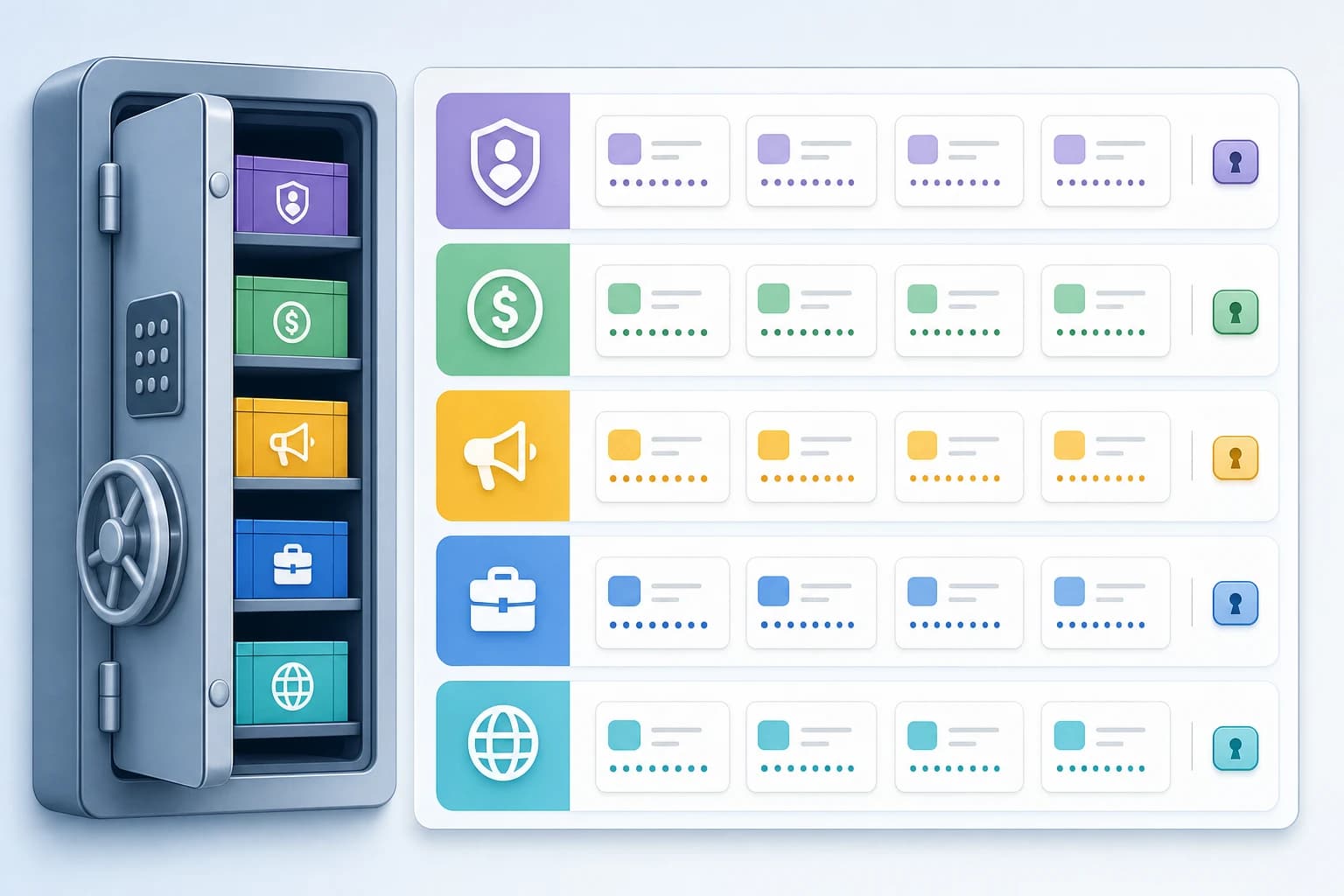
Safer fix: organize vaults by function. For example: Finance, Marketing, Client Delivery, Website and Domain, HR, and Admin Emergency. Give people access based on their role, not based on convenience. Review permissions monthly for active teams and immediately after role changes.
5. Weak offboarding when someone leaves
Offboarding is where many teams discover their password system was never really under control. If a former employee still has access to shared credentials, email recovery inboxes, or a private copy of exported passwords, changing one or two obvious passwords is not enough.
Safer fix: create an offboarding checklist. Remove the person from the password manager, transfer ownership of records they created, rotate passwords for sensitive accounts they accessed, remove MFA devices where possible, and disable their email or workspace account. Do this the same day access is no longer needed.
6. No recovery plan for the admin account
A small team may rely on one founder or office manager to control everything. If that person loses access to the master password, leaves suddenly, or is unavailable during an emergency, the team can be locked out of important accounts.
Safer fix: appoint two trusted administrators. Document the recovery process in a secure location, such as a sealed company record or a protected emergency vault. Do not store recovery instructions in the same account they are meant to recover.
7. Keeping old, duplicate, or unknown logins forever
A messy vault becomes hard to trust. People may use an old password because it looks current, create duplicate entries for the same service, or keep credentials for tools the team no longer uses.
Safer fix: schedule a quarterly vault cleanup. Archive or delete unused records according to your company policy, rename entries clearly, add the owner and purpose in notes, and mark which accounts are business-critical. If your team is also trying to reduce software sprawl, the same thinking applies to SaaS buying mistakes startups make when choosing their first tech stack.
Bad setup versus safer setup
| Area | Risky small-team habit | Safer setup | Owner |
|---|---|---|---|
| Master access | One shared master password | Individual accounts with MFA | Admin |
| Vault structure | One large shared folder | Vaults by department or function | Operations lead |
| Permissions | Everyone can view everything | Least-privilege access by role | Team manager |
| Offboarding | Remove user later when convenient | Remove access on the final workday and rotate sensitive passwords | Manager and admin |
| Recovery | Only one person knows the plan | Two admins and documented emergency recovery | Business owner |
| Cleanup | Old logins remain forever | Quarterly audit and ownership notes | Vault owner |
A simple business password manager setup checklist
This setup is designed for a team of 2 to 25 people. It does not require a dedicated IT department, but it does require one person to own the process.
Tools and time needed
- Difficulty: beginner to intermediate.
- Time: 60 to 90 minutes for initial setup, plus 20 minutes per month for review.
- People: one account owner, one backup admin, and all active team members.
- Tools: a reputable business password manager, an authenticator app or security keys, access to your main business email/admin console, and a simple offboarding checklist.
- Choose a business plan, not a personal workaround. Look for team features such as shared vaults, user removal, admin controls, MFA enforcement, audit logs, and export controls. Avoid using one personal account for the company.
- Create two admin accounts. Use named accounts for real people, not a generic admin login shared by everyone. The second admin exists for continuity, not daily use.
- Turn on MFA before importing passwords. Require MFA for every user. If your tool allows policy enforcement, enable it at the organization level rather than asking people to opt in manually.
- Build vaults before inviting everyone. Start with 4 to 6 vaults: Admin, Finance, Marketing, Client Tools, Website and Domain, and General Team. You can simplify later, but beginning with structure prevents a messy first import.
- Import and clean passwords in batches. Start with the highest-risk accounts: email admin, domain registrar, hosting, accounting, payroll, cloud storage, payment tools, and customer systems. Update weak or reused passwords as you go.
- Assign owners to important records. Add a short note to critical entries: owner, purpose, renewal date if relevant, and whether MFA is enabled. For example: Owner: Ana, Purpose: domain registrar, MFA: hardware key held by admin.
- Invite users by role. Give each person access only to the vaults they need. A bookkeeper may need Finance but not Website and Domain. A marketing contractor may need social media tools but not payroll.
- Create an offboarding checklist. Include password manager removal, workspace email removal, cloud storage access, software accounts, device return, and password rotation for sensitive shared accounts. For cloud access planning, see Google Drive vs Dropbox vs OneDrive for Small Teams.
- Run a monthly access review. Spend 20 minutes checking new users, old users, shared vaults, missing MFA, duplicate records, and high-risk accounts. Put the review on the operations calendar so it does not depend on memory.
How to handle shared accounts that cannot be avoided
Some business tools still rely on shared accounts, especially older client portals, vendor dashboards, or social media tools. The goal is not to pretend shared accounts never exist. The goal is to control them.
For any shared account, record who is allowed to use it, what it is used for, and when the password was last changed. Turn on MFA if the service supports it. If MFA is tied to one phone number, consider whether a more business-friendly method is available, such as multiple authenticators, admin-managed backup codes, or a security key. Do not leave the only MFA method on a former employee’s personal phone.
When possible, replace shared logins with named user seats. This is especially important for email, accounting, cloud storage, customer databases, and admin dashboards. Named accounts make it easier to remove access without disrupting the rest of the team.
What not to store in a shared vault
A password manager is useful, but it should not become a dumping ground for every secret without thought. Be careful with documents or notes that contain tax IDs, bank details, recovery keys, customer personal data, or private employee information. If you must store sensitive notes, place them in the most restricted vault and assign a clear owner.
Also avoid storing personal passwords in the company workspace. Team members should keep personal accounts in their own private password manager accounts, separate from business records. This separation protects both the business and the individual.
Practical password manager best practices for small business teams
- Use unique passwords for every service. Let the password manager generate long random passwords instead of creating memorable variations.
- Protect email first. Business email often controls password resets for other tools, so secure it with strong MFA and admin review.
- Limit exports. If your password manager allows export controls, restrict who can export vault data. An exported CSV file can become a serious risk if it is stored casually.
- Do not share passwords in chat. If someone asks for a login in Slack, Teams, or email, send access through the password manager instead.
- Name entries clearly. Use names like Google Workspace Admin - Company Domain instead of vague labels like Gmail or Main login.
- Review contractor access separately. Contractors often need short-term access. Set calendar reminders for end dates and remove access when the project ends. This is similar to the discipline needed when avoiding common mistakes small businesses make when hiring freelancers for the first time.
A 20-minute monthly review routine
Once the password manager is set up, the maintenance should be light. A simple monthly routine is enough for many small teams.
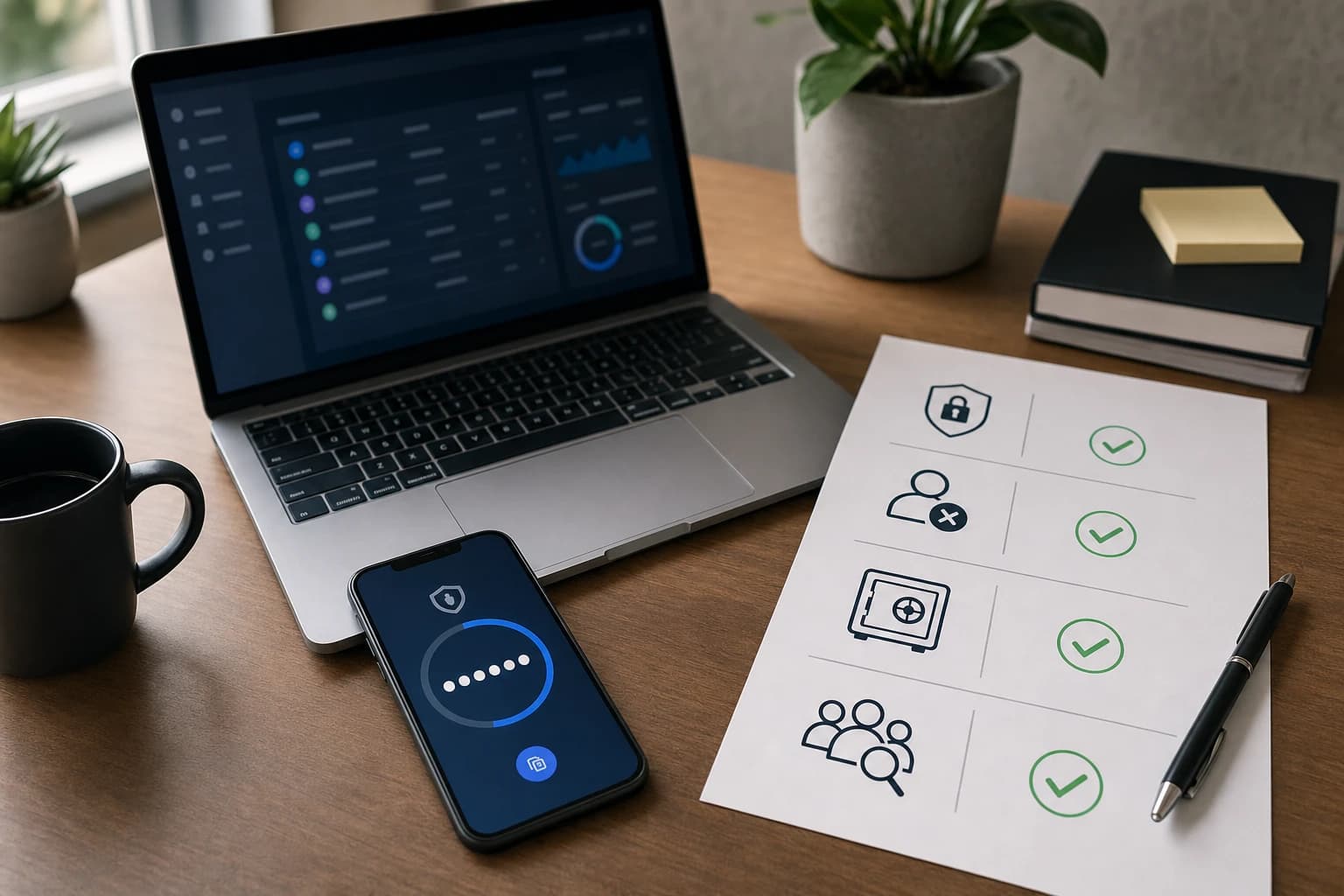
- Minutes 0 to 5: check active users. Remove anyone who no longer works with the business.
- Minutes 5 to 10: review vault permissions. Confirm each person still needs every vault they can access.
- Minutes 10 to 15: check high-risk accounts. Confirm MFA is enabled for email, finance, domain, hosting, cloud storage, and customer systems.
- Minutes 15 to 20: clean obvious clutter. Merge duplicate entries, rename unclear records, and assign owners to critical logins.
If task follow-through is a recurring issue, you may also find Common Task Management Mistakes That Make To-Do Lists Overwhelming and How to Fix Them useful for turning security chores into repeatable operations work.
FAQ
Should a small team use a free password manager?
A free password manager may be fine for an individual, but small teams usually need business features such as shared vaults, user removal, admin recovery, MFA policies, and permission controls. If the free plan lacks those features, it can create hidden risk.
Is it safe to share passwords through a password manager?
It is safer than sending passwords by email, chat, or spreadsheet, but it still needs controls. Share through named users, restrict vault access, enable MFA, and remove access when someone no longer needs it.
How often should a small business change passwords?
Change passwords when there is a reason: suspected compromise, employee departure from a sensitive role, vendor breach notification, accidental sharing, or weak/reused password discovery. Routine forced changes can lead to weaker habits if handled poorly, so focus on unique strong passwords and MFA.
Who should be the password manager admin?
Choose a trusted business owner, operations lead, or technical lead who understands the importance of access control. Also assign one backup admin. Avoid making every manager an admin just for convenience.
What is the first account we should secure?
Start with the account that controls other accounts, usually business email or the identity provider used to sign in to work tools. Then secure domain registration, hosting, finance, payroll, cloud storage, and customer systems.
Conclusion: make secure access boring and repeatable
The most damaging password manager mistakes for small teams are usually not technical. They are process mistakes: shared master passwords, unclear ownership, no MFA, poor offboarding, and vaults that grow without structure.
The fix is to make access boring and repeatable. Give every person their own account, require MFA, split vaults by role, document recovery, remove users promptly, and review permissions every month. That is enough to move many small teams from improvised password sharing to a safer business password manager setup without overwhelming everyone.