Running a small business without an IT department often means cybersecurity lands on the owner, office manager, or whoever is most comfortable with software. That can feel unfair, but you do not need a full security team to reduce many common risks.
This small business cybersecurity checklist no IT department guide focuses on practical actions you can complete with ordinary business tools: password managers, two-factor authentication, software updates, backups, safer file sharing, staff awareness, and sensible access rules. The goal is not perfection. The goal is to make your business harder to compromise and easier to recover if something goes wrong.

Quick answer: what should a small business do first?
If you can only do five things this week, start here: use a password manager, turn on two-factor authentication, keep devices updated, create reliable backups, and remove access for people who no longer need it. These cybersecurity basics for small business teams prevent many avoidable problems and do not require advanced technical skills.
The U.S. Cybersecurity and Infrastructure Security Agency recommends core habits such as using strong passwords, enabling multifactor authentication, updating software, and recognizing phishing attempts through its Secure Our World guidance. For password rules, the National Institute of Standards and Technology also provides detailed guidance in NIST Special Publication 800-63B.
Before you begin: tools and setup time
You can complete the first version of this checklist in one focused afternoon, then improve it over time.
- Estimated setup time: 3 to 5 hours for a business with 1 to 10 people.
- Monthly maintenance: 30 to 60 minutes.
- Difficulty: beginner to intermediate; no coding required.
- Useful tools: a password manager, built-in device update settings, cloud storage with version history, an external drive or backup service, and a shared document for policies.
- Best person to own it: one named person, with a backup person who knows where the checklist and recovery information live.
The 15-step small business cybersecurity checklist
Work through these steps in order. Each step includes a practical outcome, not just a general recommendation.
-
1. Make a simple inventory of your accounts, devices, and software
Start by listing what you actually use. Include laptops, phones, tablets, routers, payment tools, accounting software, email accounts, website logins, cloud storage, CRM systems, social media accounts, and domain registrar accounts.
Use a spreadsheet with these columns: tool or device name, owner, business purpose, admin account holder, renewal date, billing email, and whether two-factor authentication is enabled. This inventory becomes your map. Without it, it is easy to forget an old login that still has access to customer information.
-
2. Put every important login into a password manager
Business password security starts with not reusing passwords. A password manager lets each account have a unique, strong password without expecting people to memorize them. Common options include 1Password, Bitwarden, Dashlane, and password managers built into major business platforms. Choose one that allows business sharing rather than passing passwords through chat or email.
For shared accounts, store the login in a shared vault. For individual accounts, each person should have their own login whenever the software supports it. That makes it easier to remove access later without changing passwords for everyone.
-
3. Replace weak and reused passwords with unique ones
Once the password manager is in place, update your most sensitive accounts first: email, banking, payroll, accounting, domain registrar, website admin, cloud storage, and social media. Use long, unique passwords generated by the password manager.
A practical rule: do not reuse any password across business accounts. If one service is compromised, reused passwords can expose other accounts. This is one of the most common cybersecurity mistakes small business owners can fix quickly.
-
4. Turn on two-factor authentication for business-critical accounts
Two factor authentication for business adds a second step after the password, such as an authenticator app code, security key, or device approval prompt. Turn it on first for email, accounting, banking, payroll, website administration, cloud file storage, CRM, and social media.
Where possible, use an authenticator app or security key rather than SMS text messages. SMS is still better than no second factor, but app-based or hardware-based options are generally stronger. Save backup codes in your password manager or another secure location so you are not locked out if a phone is lost.
-
5. Create separate user accounts for each employee or contractor
Avoid one shared login for the whole team. Individual accounts make it possible to see who changed a file, sent a message, or accessed a system. They also let you remove one person’s access without disrupting everyone else.
This matters even for very small teams. A bookkeeper, designer, virtual assistant, and salesperson usually need different access levels. Give each person what they need for their work, not blanket access to everything.
-
6. Limit admin access to the smallest practical group
Admin accounts can add users, change billing, delete data, install software, or alter security settings. Keep admin access limited to the owner and one backup person where possible. Everyone else should use standard user permissions.
For tools like cloud drives, project management apps, and CRMs, review permission levels carefully. If you are comparing file storage options or managing remote staff, a guide like Google Drive vs Dropbox vs OneDrive for Remote Team File Management can help you think through sharing and access controls.

-
7. Keep computers, phones, browsers, and apps updated
Software updates often include security fixes. Turn on automatic updates for operating systems, browsers, office apps, and mobile devices. Check that updates are actually installing at least once a month.
Do not forget routers, website plugins, point-of-sale apps, and browser extensions. If your website uses a content management system, remove plugins or themes you no longer use. Fewer add-ons means fewer things to patch.
-
8. Use antivirus or built-in endpoint protection
Most modern operating systems include built-in security features, and many business devices can use reputable endpoint protection software. The key is to make sure protection is enabled, updated, and not ignored when it warns you.
For a small team, write down which protection tool is used on each device. If employees use personal laptops for work, decide whether that is acceptable and what minimum requirements apply: updated operating system, screen lock, disk encryption if available, and no shared family account for work files.
-
9. Set up backups using the 3-2-1 idea
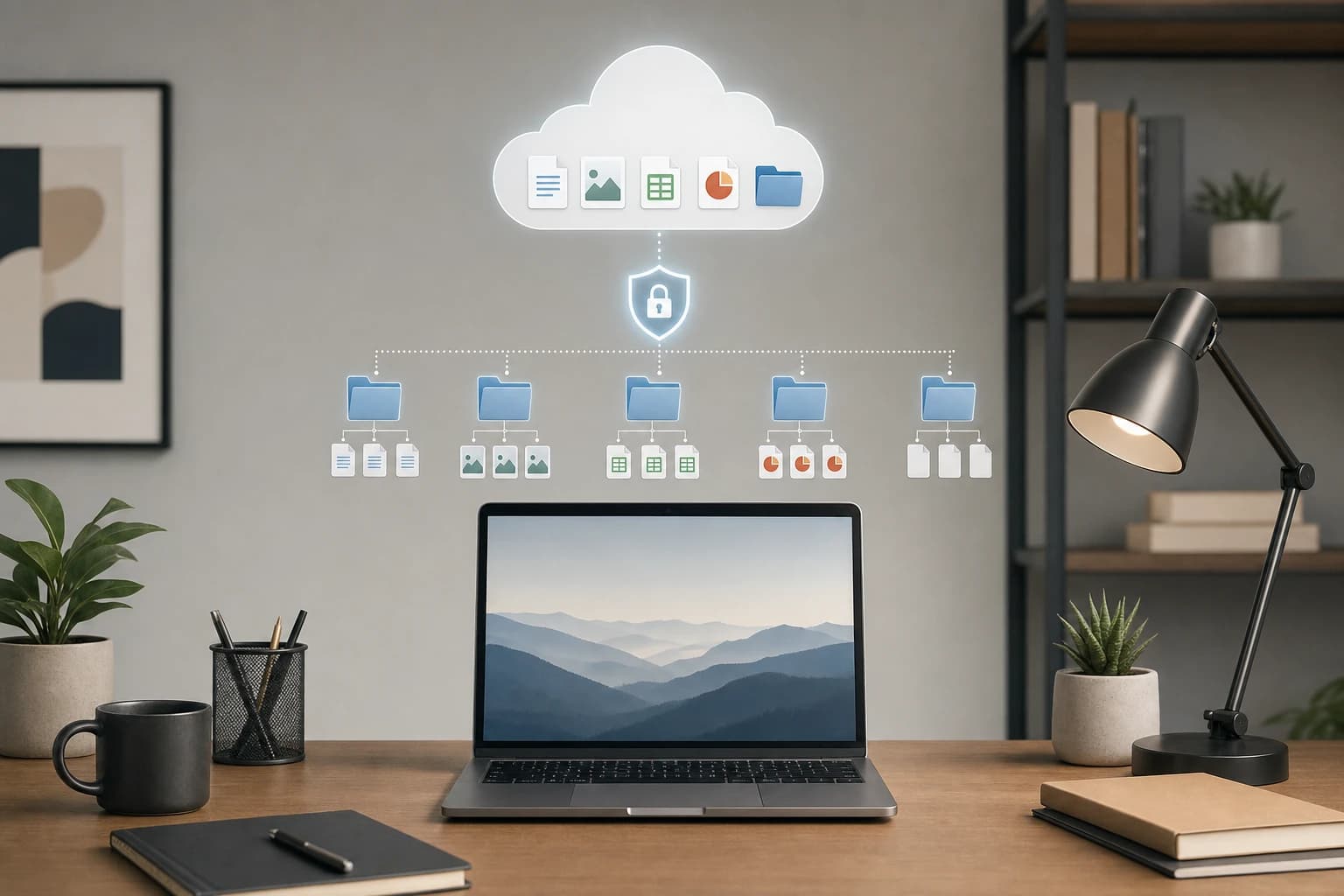
Small business data protection depends on backups you can actually restore. A practical approach is the 3-2-1 idea: keep three copies of important data, on two different types of storage, with one copy separate from the main device or account.
For example, your working files may live on a laptop, sync to cloud storage, and also back up to an external drive or backup service. Cloud storage alone is not always enough, especially if files are deleted, overwritten, or encrypted by ransomware. Make sure version history is enabled where your cloud tool supports it.
-
10. Test one file restore every month
A backup is only useful if you can restore it. Once a month, choose one ordinary file and restore it to a test folder. Confirm that it opens correctly. This takes about 10 minutes and reveals problems before an emergency.
Also identify your most important data: accounting records, customer lists, contracts, project files, website backups, product photos, and operational documents. If you recently moved customer records out of spreadsheets, a resource like CRM Spreadsheet Migration Checklist for Solo Consultants and Small Teams can help you keep data organized during that transition.
-
11. Teach staff how to spot phishing without blaming them
Phishing messages try to pressure people into clicking a link, opening an attachment, sending money, sharing a password, or changing payment details. Train staff to slow down when a message feels urgent, secretive, unusual, or emotionally loaded.
Use specific examples: a fake invoice from a known supplier, a delivery notification with a strange link, a message pretending to be the owner asking for gift cards, or a password reset email the person did not request. Make reporting easy. A simple rule works well: if unsure, forward the message to the owner or manager with the subject line “Check this?”
-
12. Confirm payment and bank-detail changes using a second channel
Fraud often starts with a message that looks like it came from a supplier, client, or executive. Create a rule that any request to change bank details, wire instructions, payroll information, or payment destination must be verified through a second channel.
For example, call a known phone number already saved in your records, not a number supplied in the email. This is a business process control as much as a technology control, and it can prevent expensive mistakes.
-
13. Create a safe software and app approval rule
Unapproved apps can expose data or create billing and access confusion. You do not need a complicated approval board. Create a short rule: before anyone connects a new app to business email, cloud storage, payment tools, or customer data, they must ask the checklist owner.
When reviewing a new app, ask four questions: What business problem does it solve? What data will it access? Who will administer it? How will we remove access if we stop using it? This is especially important for browser extensions and AI tools that may request broad access to documents or messages.
-
14. Write a one-page offboarding checklist
When an employee, contractor, or vendor leaves, remove access the same day whenever possible. Your offboarding checklist should include email, cloud storage, password manager vaults, project tools, CRM, accounting software, website access, social media, payment tools, shared devices, and physical keys if relevant.
Change shared passwords that the person knew. Transfer ownership of important documents and recurring meetings. If the person used a business device, collect it before the final day or schedule a confirmed return.
-
15. Keep a basic incident plan in writing
An incident plan does not need to be dramatic. It should answer: Who makes decisions? Who can reset passwords? Where are backup codes stored? Who contacts banks, vendors, customers, or platform support if needed? Which devices should be disconnected from the internet if ransomware or malware is suspected?
Save the plan somewhere accessible even if email is unavailable. Print one copy or store a copy in a secure offline location. During a stressful event, a plain checklist is better than trying to remember every step.
Monthly cybersecurity maintenance table
Use this table as a recurring calendar. Assign one person to check each item and record the date completed.
| Task | How often | What to check | Owner |
|---|---|---|---|
| Password manager review | Monthly | Shared passwords, weak passwords, unused accounts | Business owner or operations lead |
| MFA check | Monthly | Email, accounting, cloud storage, website admin, social media | Checklist owner |
| Software updates | Monthly | Computers, phones, browsers, plugins, router firmware if available | Device owner |
| Backup restore test | Monthly | Restore one file and confirm it opens | Checklist owner |
| User access review | Quarterly | Former staff, contractors, admin roles, shared folders | Owner or manager |
| Phishing reminder | Quarterly | Share two examples and remind staff how to report suspicious messages | Manager |

Common cybersecurity mistakes small business teams should avoid
The biggest risk is often not a sophisticated attacker. It is a normal business shortcut that becomes a security weakness. Watch for these patterns:
- Sharing one email address for everything: It hides accountability and makes offboarding difficult.
- Keeping old contractors in tools: Access should end when the work ends.
- Using cloud storage as the only backup: Syncing is convenient, but it is not the same as a tested recovery plan.
- Letting everyone be an admin: Admin rights should be limited and intentional.
- Sending passwords in email or chat: Use a password manager’s sharing feature instead.
- Ignoring domain and website accounts: Your domain registrar, hosting account, and website admin login are business-critical assets.
When to get outside help
This checklist is designed for businesses without an IT department, but some situations deserve professional support. Consider hiring a reputable IT provider or security consultant if you handle regulated data, manage payment systems at scale, have many remote devices, experienced a suspected breach, or cannot confidently restore backups.
If money, customer data, payroll, or legal obligations may be involved, treat the situation carefully and document what happened. This article is practical guidance, not legal, insurance, or incident-response advice.
FAQ
What is the first cybersecurity step for a small business with no IT department?
Start with your most important accounts: email, banking, payroll, accounting, cloud storage, and website admin. Put them in a password manager, use unique passwords, and enable two-factor authentication.
Is two-factor authentication worth it for a very small business?
Yes. Even a one-person business can lose access to email, files, or payment tools. Two-factor authentication adds a second barrier if a password is guessed, stolen, or reused somewhere else.
Do I need paid cybersecurity software?
Not always. Many small businesses can start with built-in device protection, automatic updates, strong passwords, MFA, and reliable backups. Paid tools may be useful as the team grows or if you handle more sensitive data.
How often should a small business review user access?
Review access at least quarterly and immediately when someone leaves. Check email, cloud storage, password manager vaults, CRM, accounting tools, project management apps, website accounts, and social media.
What should employees do if they click a suspicious link?
They should report it immediately without fear of blame. The business should change affected passwords, check account activity, enable or verify MFA, and consider disconnecting the device from the internet if malware is suspected.
Conclusion
Cybersecurity does not have to start with complex tools or technical language. A small business without an IT department can make meaningful progress by building a short routine: inventory accounts, strengthen passwords, enable two-factor authentication, update devices, back up important data, train staff to pause on suspicious messages, and remove access promptly when people leave.
Use this checklist as a living document. Complete the high-risk items first, assign one owner, and review it every month. Consistency is what turns basic security habits into real small business data protection.