Automation should remove admin work, not create a second job
Freelancers usually do not need a massive enterprise automation setup. They need fewer missed follow-ups, fewer unpaid invoice reminders, cleaner client onboarding, and less time copying information between forms, calendars, folders, and task lists.
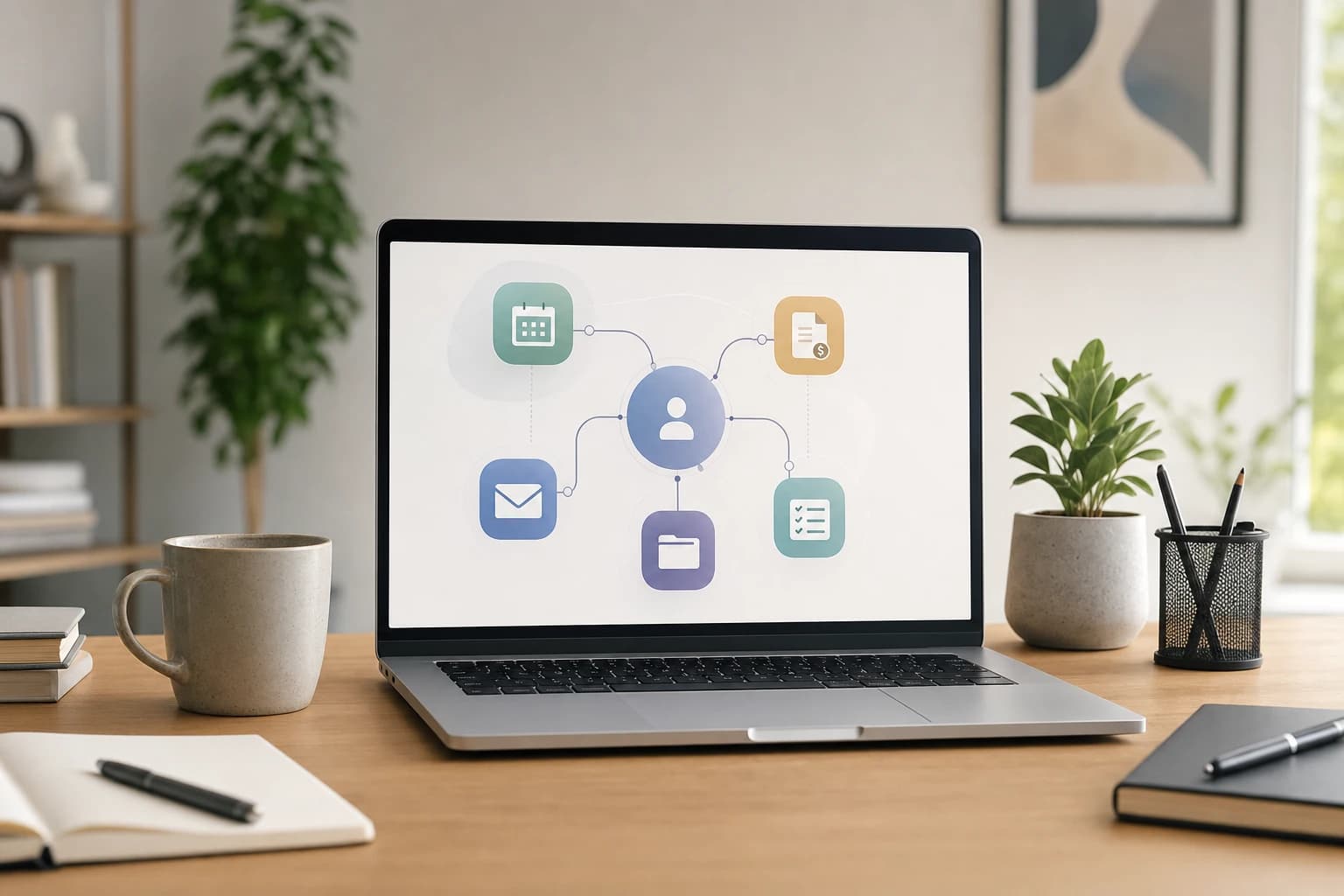
This guide compares the best automation tools for freelancers by workflow, not by hype. You will find practical options for lead capture, proposal follow-ups, invoice reminders, scheduling, file delivery, client onboarding, and day-to-day productivity automation apps. The goal is to help you build a simple system that saves time without making your business fragile or confusing.
Quick answer: the best automation tools for freelancers by workflow
If you want a short starting point, choose tools based on the repetitive task you want to remove first. For many freelancers, the highest-return workflows are lead follow-up, calendar scheduling, invoice reminders, and client onboarding.
| Workflow | Best tool types | Strong options to compare | What to automate first |
|---|---|---|---|
| Lead capture and follow-up | Forms, CRM, email automation, no-code connectors | Tally, Typeform, Google Forms, HubSpot CRM, Airtable, Zapier, Make | Send a reply within minutes, create a CRM record, assign a follow-up date |
| Proposal follow-ups | Proposal software, CRM reminders, email sequences | Bonsai, HoneyBook, Dubsado, Better Proposals, HubSpot, Pipedrive | Reminder after 2 business days, second reminder after 5 business days |
| Scheduling | Booking pages and calendar routing | Calendly, Cal.com, SavvyCal, Google Calendar appointment schedules | Let qualified leads book from approved time slots only |
| Invoices and payment reminders | Invoicing apps with recurring invoices and reminders | FreshBooks, QuickBooks, Xero, Wave, Zoho Invoice, Bonsai | Automatic invoice creation, due-date reminders, late reminders |
| Client onboarding | Forms, task templates, file request tools, client portals | Dubsado, HoneyBook, Notion, ClickUp, Trello, Google Drive, Dropbox | Collect brief, assets, access details, and key dates in one place |
| File delivery | Cloud storage, shared folders, approval links | Google Drive, Dropbox, OneDrive, Frame.io for video work | Create a final delivery folder and send a standard handoff email |
| Personal productivity | Task managers, notes, calendar blocks, email filters | Todoist, TickTick, Notion, Evernote, Gmail filters, Outlook rules | Turn starred emails or form responses into tasks with due dates |
What makes an automation tool good for freelance work?
The best automation tools for freelancers are not always the most powerful. A solo consultant, designer, writer, developer, photographer, or virtual assistant needs tools that are reliable, easy to adjust, and affordable at a small scale.
Before choosing an app, check five practical criteria:
- Trigger quality: Can the tool start an automation from the event you actually use, such as a new form response, signed contract, paid invoice, or booked call?
- Human review points: Can you pause before sending important messages, proposals, or files? Full automation is not always better.
- Client experience: Does the client get fewer emails and clearer instructions, or does the workflow feel robotic?
- Data control: Can you export contacts, invoices, files, and project records if you change tools later?
- Maintenance effort: Will you understand the workflow three months from now when something breaks?
A useful rule: automate the repeated step, not the judgment. Let software create tasks, reminders, folders, and draft messages. Keep pricing, scope decisions, and sensitive client communication under your control.
If your biggest issue is messy project tracking rather than automation itself, you may also want to compare client project tools such as Asana, Trello, and ClickUp in this practical guide: Asana vs Trello vs ClickUp for Client Projects.
1. Zapier: best general automation hub for freelancers who want broad app support
Zapier is one of the most widely recognized no-code automation platforms. It is useful when your freelance workflow uses several separate apps, such as a form tool, Gmail, Google Sheets, Slack, Trello, and an invoicing platform.
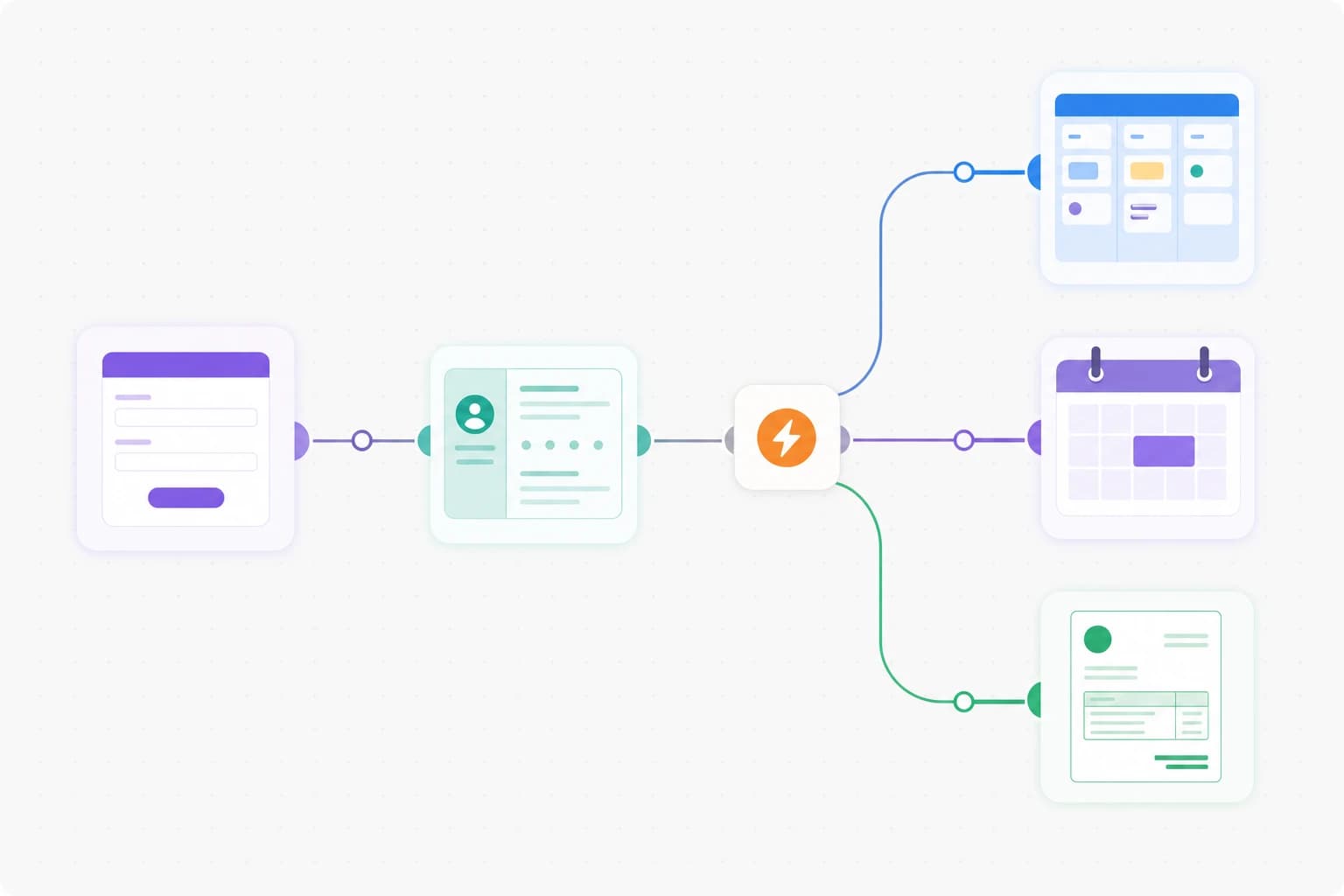
A typical freelancer workflow might look like this: a prospect submits a website inquiry form, Zapier creates a CRM contact, sends a personalized acknowledgment email, adds a task to follow up tomorrow, and saves the form response to a spreadsheet. That small chain can prevent leads from disappearing during a busy week.
Best uses
- Connecting tools that do not have native integrations.
- Creating multi-step lead follow-up workflows.
- Sending notifications when a client completes a form, books a call, or pays an invoice.
- Moving information from forms into spreadsheets, task managers, and CRMs.
Limitations to know
Zapier can become expensive or messy if you automate every tiny action. It also rewards clear naming. Use workflow names like New lead form to CRM and follow-up task instead of vague labels like Client automation 1.
If lead response is your first priority, this related walkthrough may help: How to Automate Lead Follow-Ups with a Form, CRM, and Email Tool Without Hiring a Developer.
2. Make: best Zapier alternative for visual, multi-step workflows
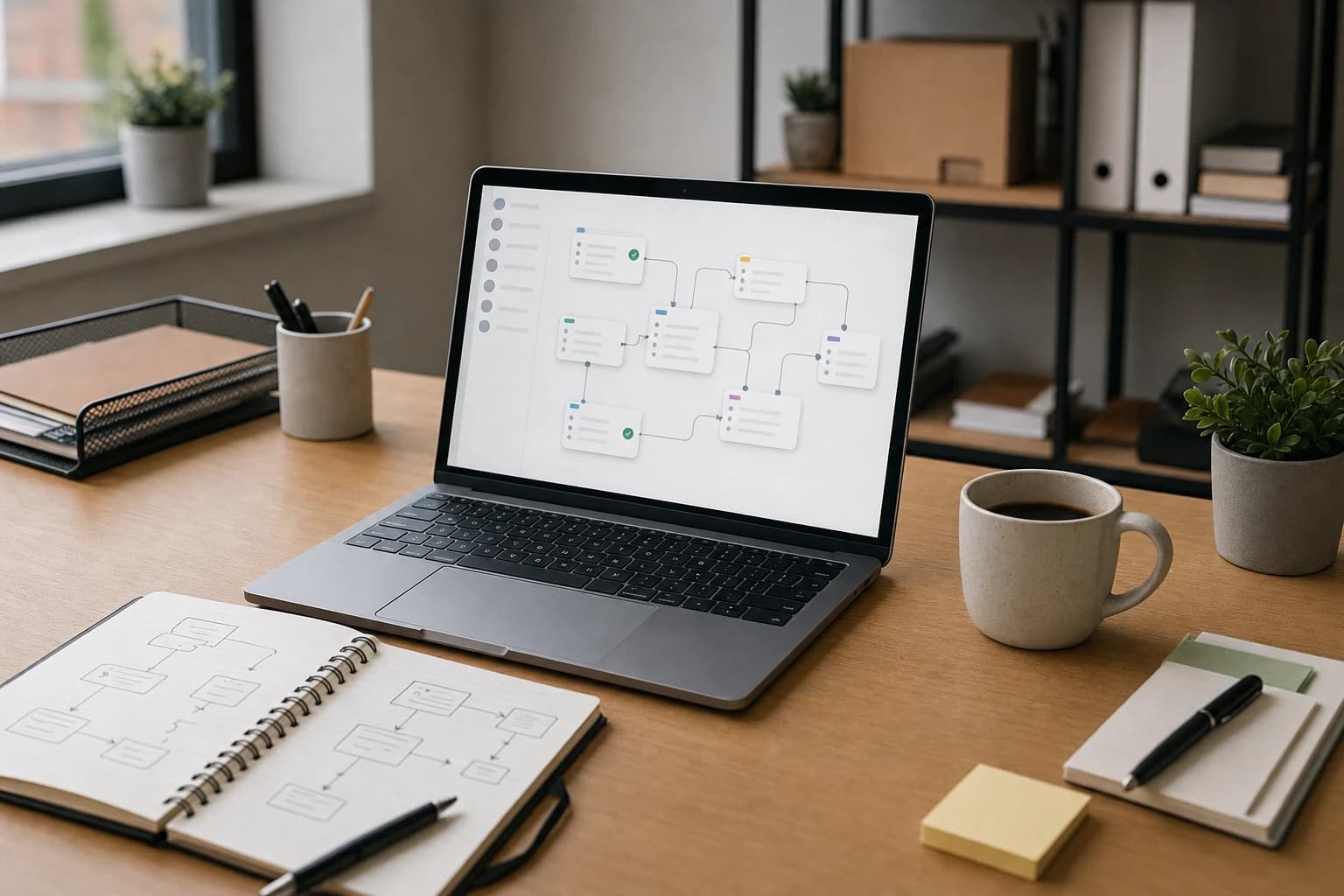
Make is one of the most useful Zapier alternatives for freelancers who like seeing a workflow as a visual map. It is especially helpful when an automation needs branching logic, formatting, or multiple actions from one trigger.
For example, a web developer could use Make to process a new client onboarding form. If the client selects website redesign, the workflow creates a website project board. If the client selects monthly maintenance, it creates a recurring task list, adds a contract reminder, and tags the contact differently in the CRM.
Best uses
- Conditional workflows where different answers require different actions.
- Organizing client onboarding data before it reaches your project system.
- Freelancers who want a more visual automation builder.
- Reducing manual copy-paste between spreadsheets, folders, and project tools.
Limitations to know
Make can feel more technical than simple one-step automations. It is excellent when you are willing to map your workflow carefully, but it may be overkill if you only need a contact form to send an email.
3. Calendly, Cal.com, and SavvyCal: best for scheduling without email back-and-forth
Calendar scheduling is one of the safest and easiest freelance workflow automation projects. Instead of exchanging six emails to find a call time, you send a booking link that shows only your available slots.
The best setup is not simply every open hour on your calendar. Create booking rules that protect your workday. For example, offer discovery calls only Tuesday through Thursday, from 10:00 to 12:00, with a 15-minute buffer before and after each call. If you do deep work in the mornings, reserve calls for afternoons.
Practical scheduling automations
- Send an automatic confirmation email with the call agenda.
- Add a required intake question so you know what the prospect needs before the call.
- Send a reminder 24 hours before the meeting and another reminder 1 hour before.
- Route different call types to different calendars, such as discovery, onboarding, and project review.
- Redirect the client to a thank-you page with next steps after booking.
Good scheduling automation works best when paired with a time-blocked calendar. If your calendar is already chaotic, start with a weekly time blocking system in Google Calendar before opening more booking slots.
4. FreshBooks, QuickBooks, Xero, Wave, and Zoho Invoice: best automation tools for invoices
Invoice automation is valuable because it reduces a repetitive task that directly affects cash flow. Many invoicing tools can create recurring invoices, send payment reminders, mark invoices as paid, and organize client records.
The right choice depends on your location, tax needs, accountant preferences, and payment methods. This article is not accounting advice, and invoicing rules vary by country. If you need tax treatment, sales tax, VAT, or bookkeeping guidance, use local professional advice.
Invoice workflows worth automating
- Recurring invoices: For retainers, maintenance plans, or monthly content packages, create the invoice once and set the schedule.
- Due-date reminders: Send a polite reminder before the due date instead of waiting until payment is late.
- Late payment reminders: Use a neutral message that references the invoice number, due date, and payment link.
- Paid invoice notifications: Create a task to start the next phase only when payment is received, if that matches your contract terms.
- Receipt and record storage: Keep client invoices, receipts, and related files in organized folders.
If you want a deeper checklist for choosing an invoice app, read How to Choose Invoicing Software for Freelancers With Recurring Invoices.
5. Dubsado, HoneyBook, and Bonsai: best all-in-one client workflow tools
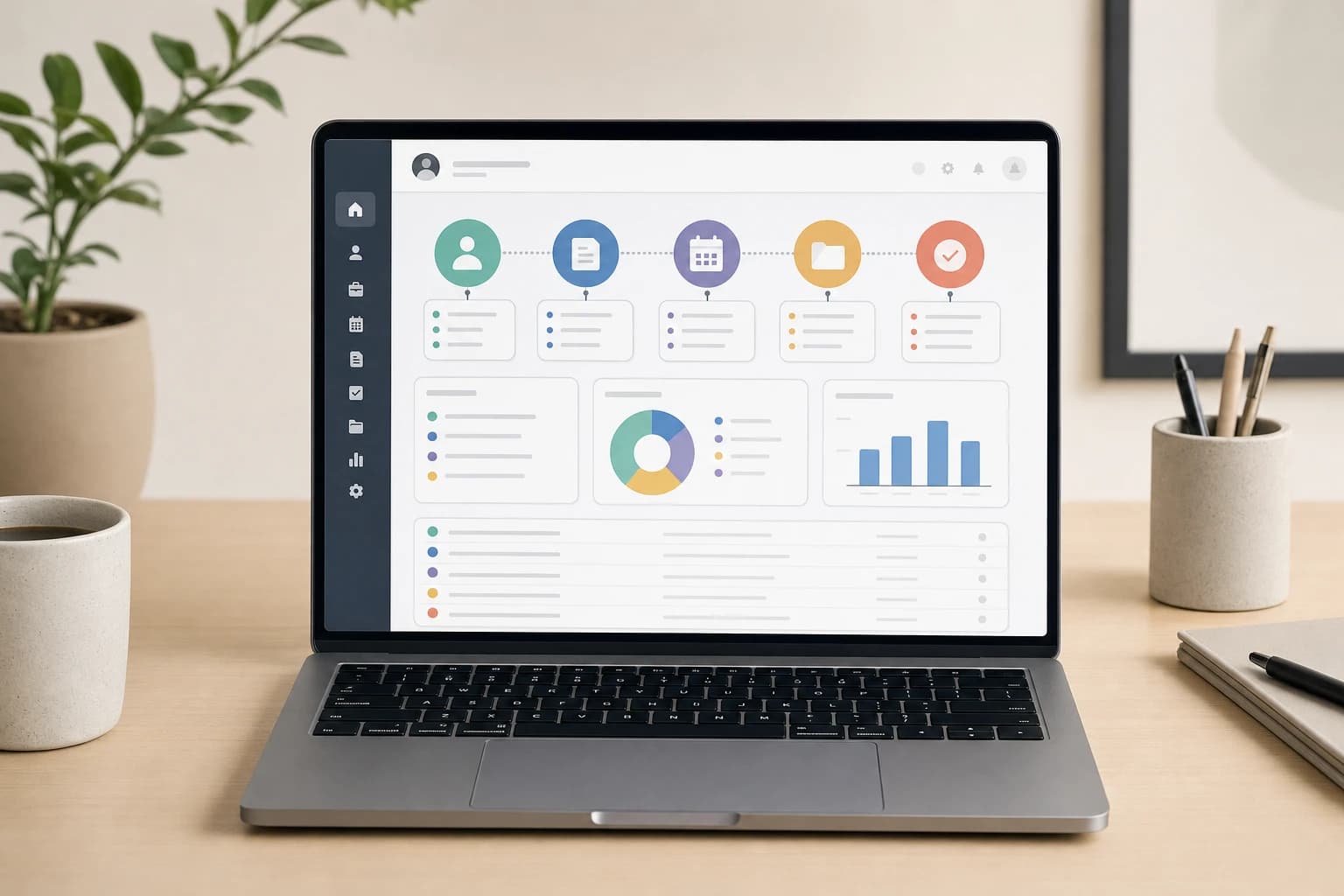
All-in-one platforms can be attractive because they combine lead forms, proposals, contracts, invoices, questionnaires, scheduling, and client portals. For freelancers who sell structured services, this can reduce tool sprawl.
These platforms are often strongest for service providers with repeatable client journeys: brand designers, consultants, photographers, coaches, copywriters, and agencies of one. Instead of building every connection yourself, you can create templates and workflows inside one system.
Useful all-in-one automations
- Send a proposal after a qualified discovery call.
- Trigger a contract and invoice after proposal approval.
- Send an onboarding questionnaire after the deposit is paid.
- Create a project start email with timelines, communication rules, and next steps.
- Send a project wrap-up email with feedback request and file delivery links.
When not to use an all-in-one platform
A full client workflow platform may be too much if you only need basic invoices and a calendar link. It can also be restrictive if you already have a strong CRM, accounting tool, and project management system. Choose it when the built-in workflow matches how you actually sell and deliver work.
6. Google Forms, Tally, Typeform, and Jotform: best for client onboarding automation
Client onboarding automation starts with a good form. A clear form collects the details you otherwise ask for by email: contact information, goals, files, deadlines, brand assets, login-sharing instructions, decision makers, and preferred communication channels.
A form becomes powerful when it sends answers to the right places. For example, a copywriter could use an onboarding questionnaire to create a project folder, add key dates to a project board, save brand voice notes, and generate a first-draft task list.
Client onboarding form checklist
- Project name and primary contact.
- Business goals and success criteria.
- Required files, links, and brand assets.
- Important deadlines and launch dates.
- Approval process and decision makers.
- Communication preferences and expected response time.
- Access instructions, using secure sharing instead of plain-text passwords where possible.
Keep the form short enough to finish. If a question will not change how you deliver the project, remove it. A bloated onboarding form creates friction before the work begins.
7. Google Drive, Dropbox, OneDrive, and Frame.io: best for file delivery automation
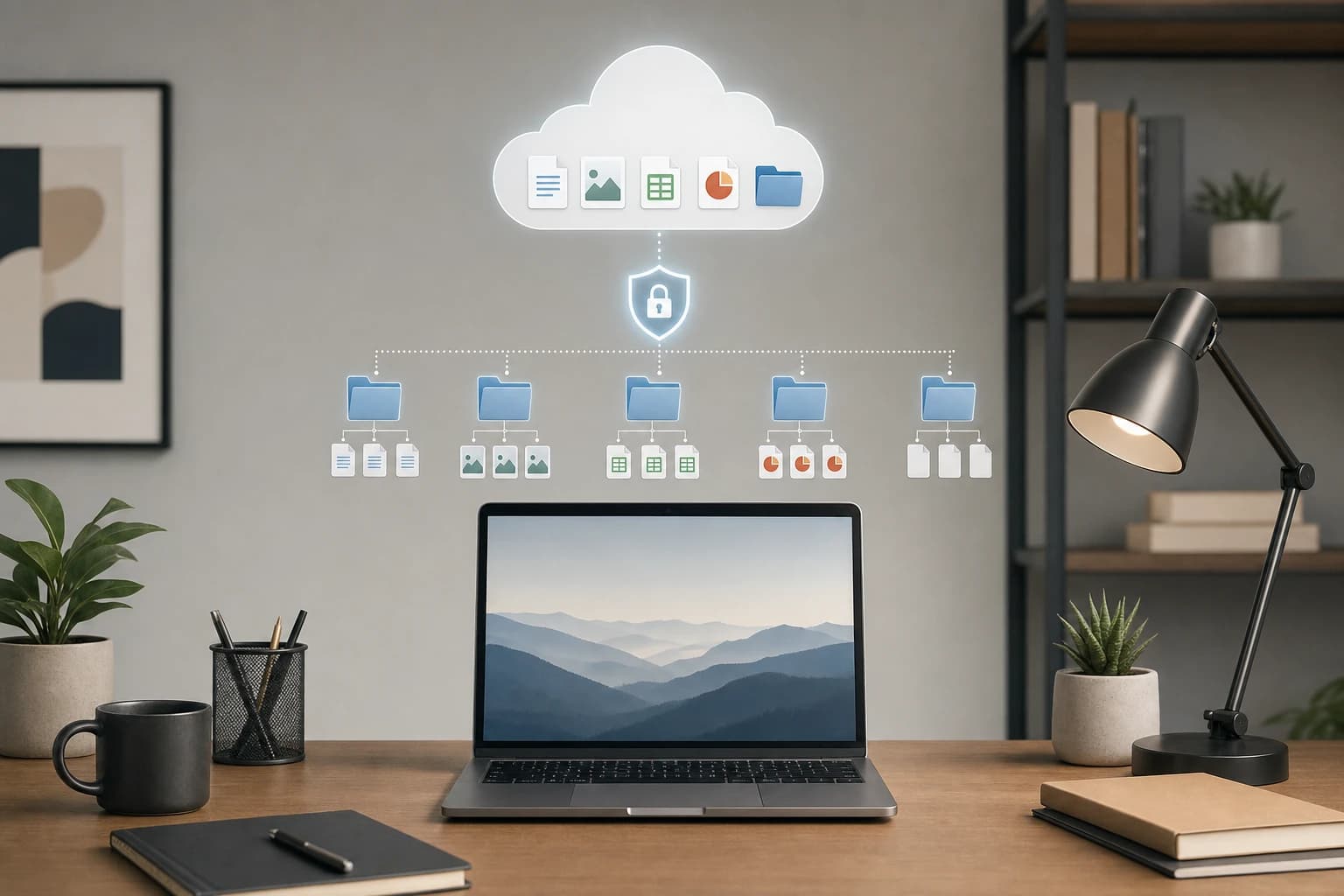
File delivery is easy to overlook until you are hunting through email threads for final assets. Cloud storage tools help you standardize folder structure, permissions, and handoff messages.
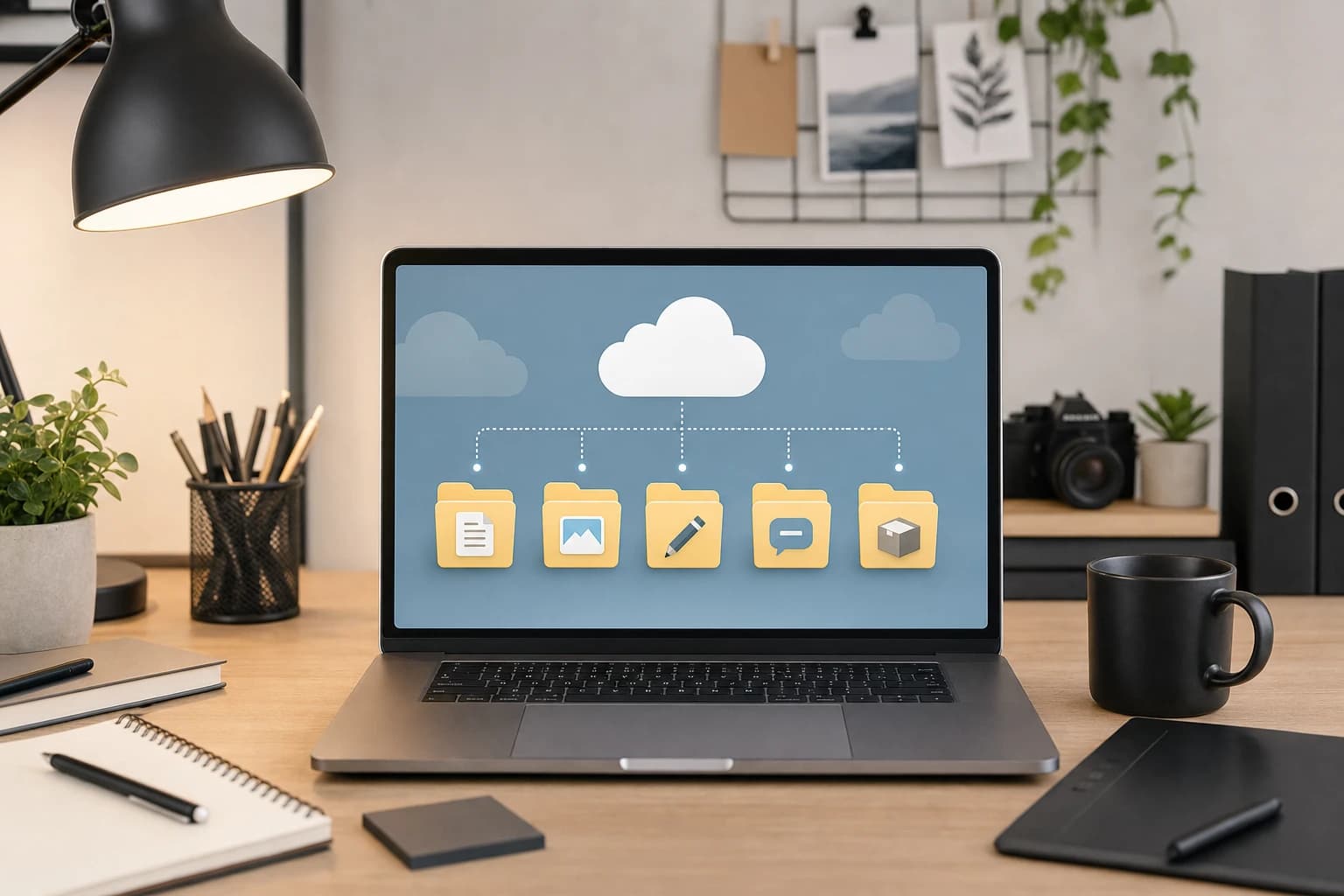
A practical folder template for a freelance design or content project might include 01 Brief, 02 Client Assets, 03 Drafts, 04 Feedback, and 05 Final Delivery. When a new project starts, duplicate the folder template, rename it with the client and project name, then share only the folders the client needs.
For broader file management decisions, this comparison may help: Google Drive vs Dropbox vs OneDrive for Remote Team File Management.
File delivery automations to consider
- Create a client folder when a deal is marked won.
- Send the client a file request link after onboarding.
- Notify yourself when the client uploads required assets.
- Send a final delivery email when files are moved to the final folder.
- Create an archive task 30 days after project completion.
8. Todoist, TickTick, Notion, Trello, and ClickUp: best productivity automation apps
Productivity automation apps help turn scattered inputs into tasks you can actually complete. For freelancers, the key is to capture work from email, forms, meetings, and client messages without manually rewriting the same information.
Simple task automation examples include creating a task when a proposal is sent, adding a due date when an invoice is overdue, or building a checklist when a new client project begins. If you manage many small tasks, a focused task app may be better than a complicated project management suite.
For a freelancer-focused comparison of two popular task apps, see Todoist vs TickTick for Task Management.
A simple freelance automation stack to start with
If you are building from scratch, do not install ten tools at once. Start with a small stack and add only when a repeated problem is clear.
Starter stack for most solo freelancers
- Form: Tally, Google Forms, Typeform, or Jotform for inquiries and onboarding.
- Calendar: Calendly, Cal.com, SavvyCal, or Google Calendar appointment schedules.
- CRM or tracker: HubSpot CRM, Airtable, Notion, Trello, or a well-structured spreadsheet.
- Invoicing: FreshBooks, QuickBooks, Xero, Wave, Zoho Invoice, or another tool that fits your location.
- Connector: Zapier or Make only when native integrations are not enough.
- Files: Google Drive, Dropbox, or OneDrive with folder templates.
Step-by-step: build one automation without overcomplicating it
Use this example for a lead capture and follow-up workflow. It is simple enough for a beginner and useful for most freelance service businesses.
Tools needed
- One inquiry form with 6 to 10 useful questions.
- One calendar booking tool.
- One CRM, spreadsheet, or project board.
- One email account.
- Optional: Zapier or Make if your tools do not connect natively.
Difficulty and time
Difficulty: beginner to intermediate. Setup time: about 60 to 90 minutes for a simple version, plus 15 minutes after the first real lead to fix wording or field mapping.
- Write the intake form. Ask for name, email, website, service needed, budget range if appropriate, deadline, and a short description of the problem. Avoid collecting sensitive information you do not need.
- Create the confirmation message. Tell the prospect what happens next. Example: Thanks for your inquiry. I review new project requests within 1 business day. If your project looks like a fit, you will receive a link to book a discovery call.
- Send the lead to a tracker. Add each form response to a CRM, Airtable base, Google Sheet, Notion database, Trello board, or ClickUp list.
- Create a follow-up task. Set the due date for the next business day. This keeps leads visible even if you do not answer immediately.
- Send a conditional email. If you are comfortable with automation, send a booking link only when the lead matches your criteria. Otherwise, send yourself a review task first.
- Review after five submissions. Check whether the form questions are useful, whether the email sounds human, and whether the workflow sends data to the right fields.
Email automation compliance reminder
If you automate marketing or promotional email, make sure your messages follow applicable laws. In the United States, the Federal Trade Commission explains CAN-SPAM requirements, including accurate header information, honest subject lines, identification of ads where applicable, a valid physical postal address, and a clear opt-out method. See the FTC guide here: CAN-SPAM Act: A Compliance Guide for Business. Transactional client messages are different from promotional campaigns, but it is still wise to be clear, honest, and easy to unsubscribe from marketing email.
Common mistakes freelancers make with automation
Automating before documenting the process
If your process is unclear, automation will only make the confusion happen faster. Write the manual workflow first: trigger, action, owner, tool, and desired outcome. Then automate the repeated step.
Sending too many client emails
A client should not receive five separate messages because they booked a call, filled out a form, and paid an invoice. Combine messages when possible, and read the full sequence from the client’s point of view.
Using automation for sensitive decisions
Do not automatically accept every lead, approve every scope change, or send final files before the correct milestone is complete. Use automation to prepare the next step, then review when judgment matters.
Ignoring failure notifications
Automations can fail because of password changes, expired permissions, renamed fields, deleted folders, or plan limits. Turn on error notifications and schedule a monthly 20-minute workflow check.
Not naming fields consistently
If one tool says Client Email and another says Contact Email, mapping can become confusing. Use consistent field names across forms, CRMs, spreadsheets, and project boards.
Which automation tool should you choose first?
| If your main problem is... | Start with... | Why |
|---|---|---|
| Leads fall through the cracks | Form plus CRM plus Zapier or Make | Captures every inquiry and creates follow-up tasks automatically. |
| Too many scheduling emails | Calendly, Cal.com, SavvyCal, or Google Calendar scheduling | Removes back-and-forth and protects your available call times. |
| Late or forgotten invoices | Dedicated invoicing software | Automates recurring invoices, due-date reminders, and payment records. |
| Messy onboarding | Onboarding form plus project template | Collects key details once and turns them into tasks, folders, and briefs. |
| Too many separate tools | Dubsado, HoneyBook, or Bonsai | Combines proposals, contracts, invoices, forms, and client communication. |
| Lost files and unclear delivery | Cloud storage with folder templates | Standardizes client assets, drafts, feedback, and final files. |
FAQ
What are the best automation tools for freelancers on a small budget?
Start with tools you may already have: Google Forms, Google Calendar, Gmail filters, Google Sheets, and a free or low-cost task manager. Add Zapier, Make, or a paid client workflow platform only when you know exactly which repeated task you want to remove.
Are Zapier alternatives for freelancers worth using?
Yes, especially if you want visual workflows, branching logic, or different pricing structures. Make is a strong Zapier alternative for multi-step automations. Native integrations inside tools like Calendly, Typeform, HubSpot, and invoicing apps may also be enough for simple workflows.
Should freelancers automate proposal follow-ups?
Usually, yes, but keep the tone personal. A useful pattern is one reminder after 2 business days and a final check-in after 5 business days. Avoid aggressive sequences, and stop the automation if the client replies.
What should not be automated in a freelance business?
Avoid fully automating pricing decisions, contract changes, sensitive client messages, scope approvals, and final delivery when payment or approval status is uncertain. Automate reminders and preparation, but keep judgment-based decisions manual.
How many automation tools does a freelancer really need?
Most freelancers can start with four pieces: a form, a calendar scheduler, an invoicing app, and a task or project tracker. Add a connector like Zapier or Make when those tools do not connect directly.
How often should I review my automations?
Review important workflows once a month or whenever you change forms, pricing, services, calendar rules, or software plans. A short review helps catch broken field mappings, outdated email copy, and expired permissions.
Conclusion: automate the admin steps that repeat every week
The best automation tools for freelancers are the ones that remove real friction from your workday. For most independent professionals, that means starting with lead capture, scheduling, invoice reminders, onboarding forms, file delivery, and task creation.
Zapier and Make are useful when you need to connect separate apps. Calendly, Cal.com, and SavvyCal reduce scheduling friction. Invoicing tools handle recurring bills and reminders. Dubsado, HoneyBook, and Bonsai can simplify the full client journey when your services are repeatable. Cloud storage and task apps keep delivery and follow-up organized.
Start with one workflow, measure whether it saves time and reduces mistakes, then improve it. A small, reliable automation system is far better than a complicated setup you do not trust.